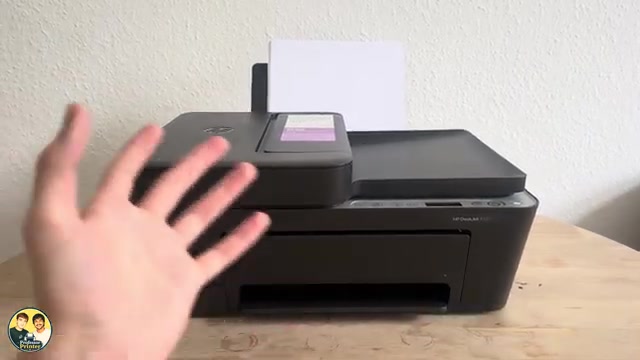
HP ENVY 6120e
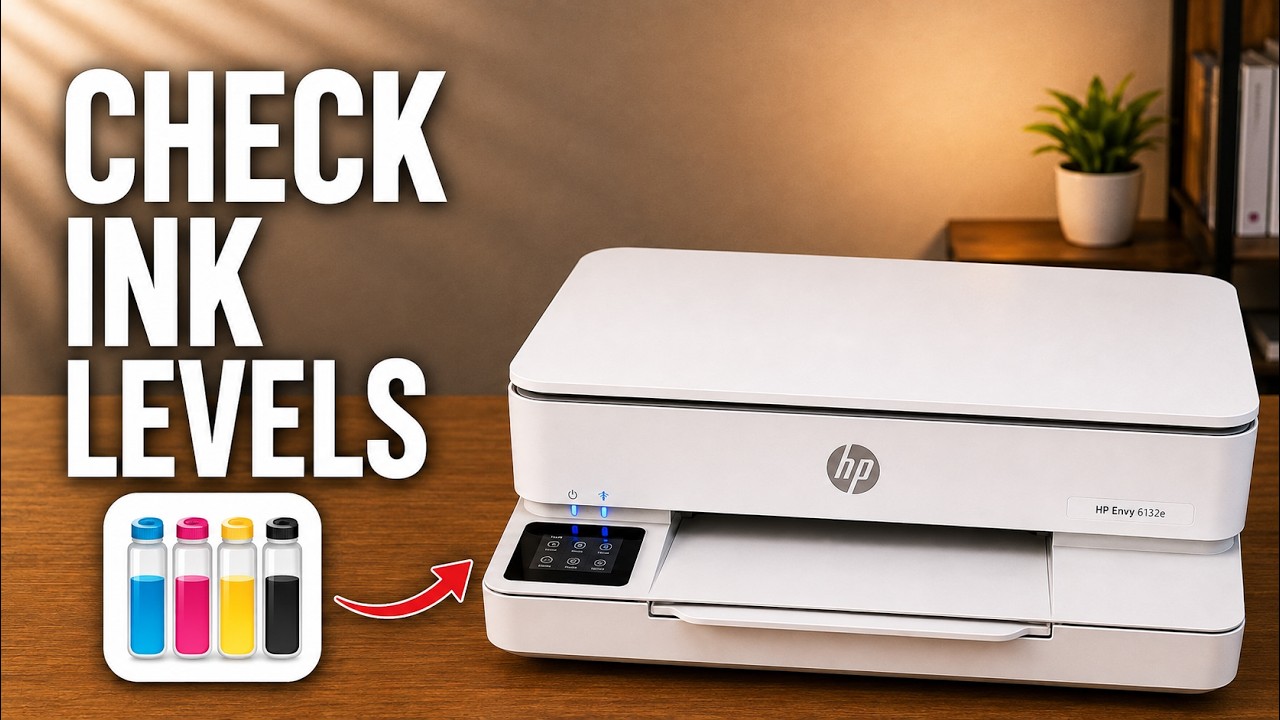
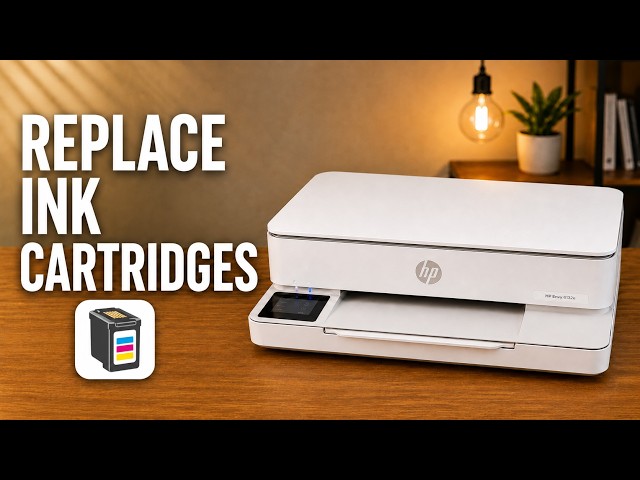
HP ENVY 6120e: replace ink and check estimated levels
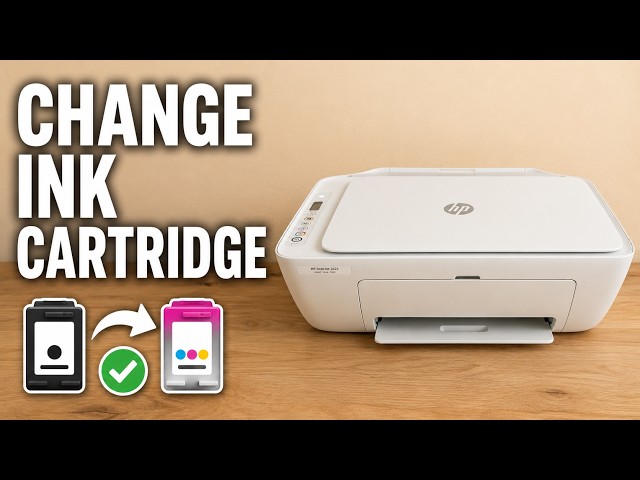
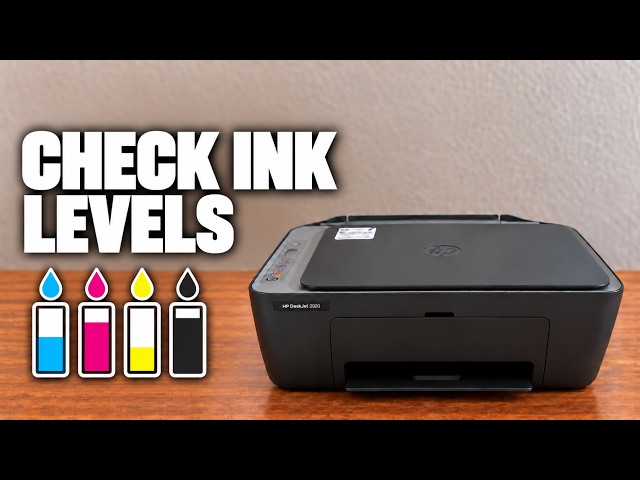
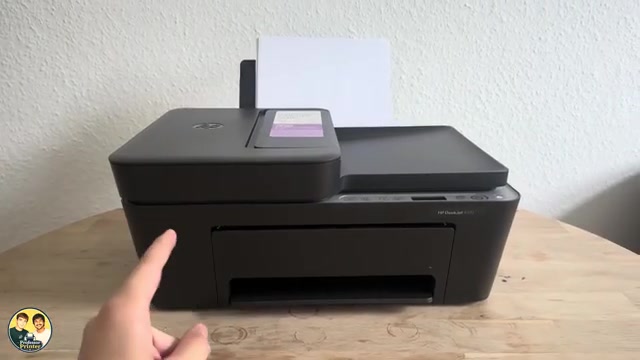
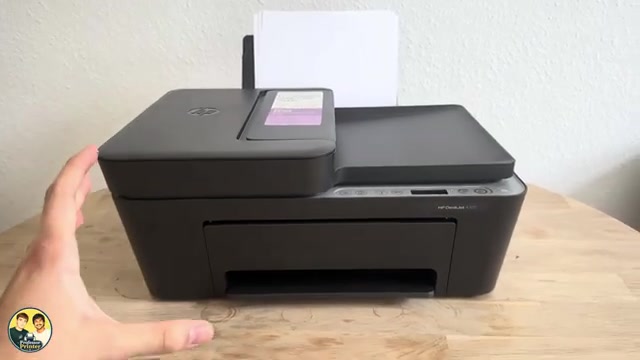
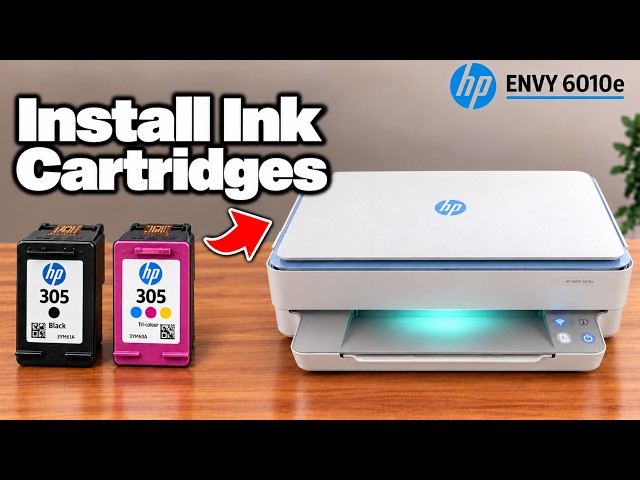
Remove and seat the cartridges in an HP ENVY 6120e, check estimated ink levels, and know when alignment is expected after fitting a new cartridge.
Ink & tonerRead & watch
Find model-specific help with printer ink and toner.
Remove and seat the cartridges in an HP ENVY 6120e, check estimated ink levels, and know when alignment is expected after fitting a new cartridge.
Find the black toner supply indicator in Brother Mobile Connect, or check estimated toner and drum life on the printer’s LCD.
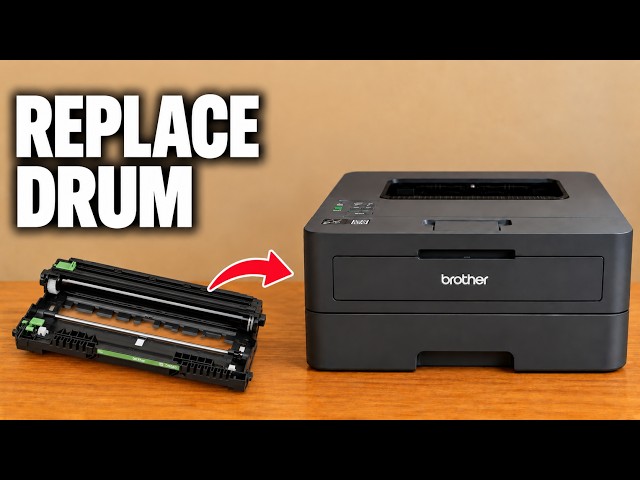
Move the toner cartridge into a new drum, reinstall the assembly and reset the drum counter. Reset the counter only when a new drum has been fitted.
Fit the toner into its separate drum unit, clean the corona wire and refit the assembly. Initial installation and replacement have different starting points.
Use Deep Cleaning only after normal cleaning has not resolved a poor nozzle check. Check ink and maintenance-cartridge space, then assess the printed pattern.
Refill the Canon PIXMA G3590 with the correct ink colours up to the upper limit line, close the tanks and reset the level count only when the required tanks are full.
Use the G3590 Head Replacement menu, check ink and maintenance capacity, fit the colour and black heads in their correct holders, then check the output.
Fit the colour and black cartridges in the TS3750i, secure the locking levers, then complete Canon’s alignment check.
Use Setup code 1 to print a Canon PIXMA TS3750i nozzle check, then look for missing lines, horizontal white streaks or a missing colour.
Use a nozzle pattern to distinguish missing ink from an alignment issue, clean only when needed and observe the ink-level and waiting limits before Power Cleaning.
Choose ordinary or power cleaning from the nozzle pattern, let the cycle finish and check again. Use Epson’s waiting limits instead of repeating maintenance indefinitely.
Print and inspect the nozzle pattern before choosing maintenance. Complete lines need no cleaning; missing segments call for the appropriate next check.
Match the printer’s ink estimate to the visible tank levels with Set Ink Level. Use the separate full reset only after the corresponding tank has been refilled.
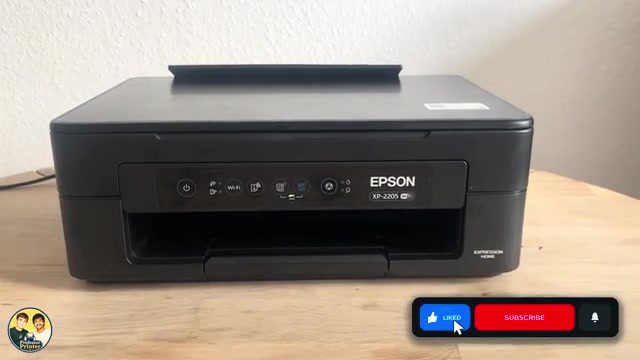
Open the selected XP-2205 in Epson Smart Panel and read its cartridge estimates. Use low-ink information for planning, without treating it as an exact quantity.
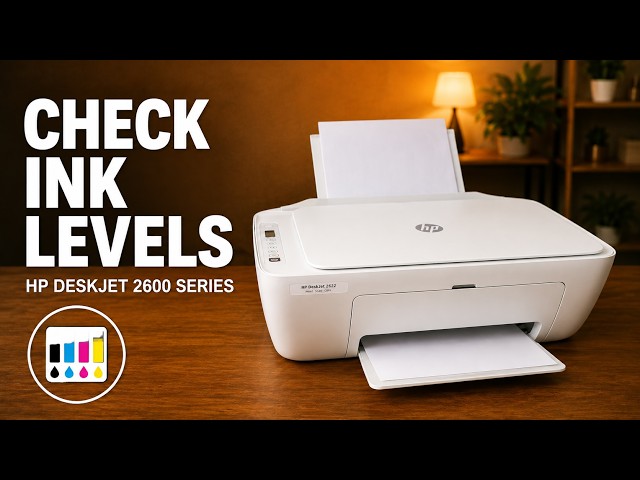
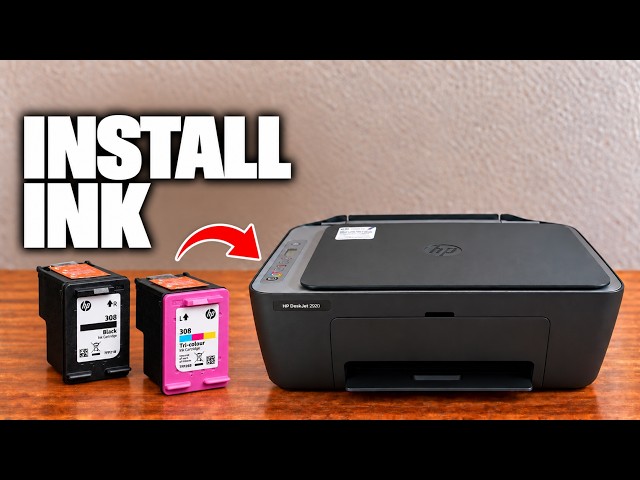
Read the DeskJet 2600’s ink indicators, print its status report or view estimated levels in the connected HP app.
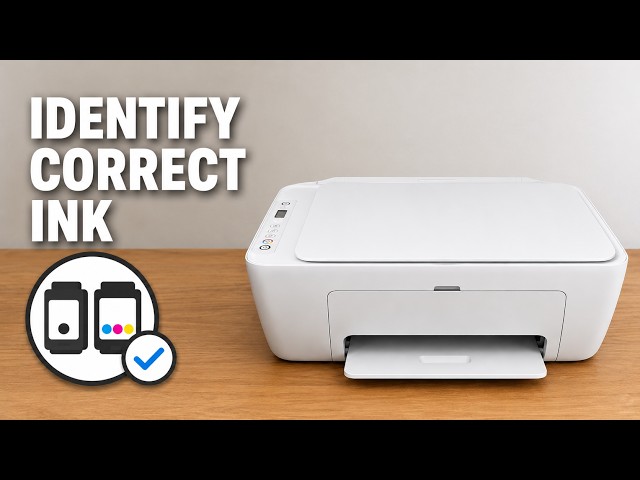
Use the printer’s own supply label and HP’s regional information before buying a cartridge; a matching shape is not enough.
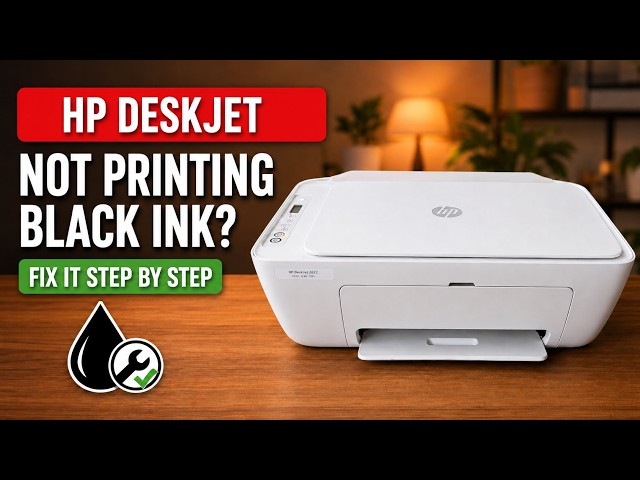
Check missing black or colour on a DeskJet 2600, run the HP app’s cleaning tool, inspect the test page and decide when to stop.
Release the old DeskJet 2600 cartridge, install the correct regional replacement and complete the alignment requested after new ink.
Print an alignment page, position it on the scanner and complete the app’s scan prompt to check blurred or misaligned output.
Read the cartridge icons, HP app estimates and local supply-status page, while distinguishing low ink from a cartridge error.
Check paper and ink status, run the HP app’s cleaning routine and inspect its test page before deciding whether a further cleaning is needed.
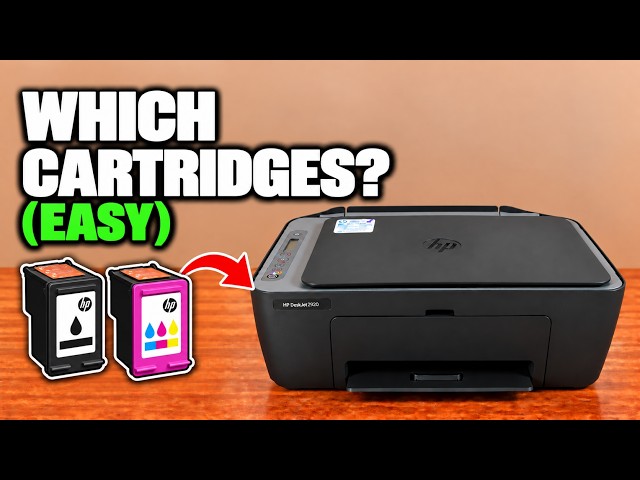
Read the cartridge label inside a DeskJet 2920 or 2955 and check HP’s regional supply information before choosing a replacement.
Install the correct regional cartridges in a DeskJet 2920 or 2955, check left and right positions, and complete the new-cartridge alignment.
Read the colour and black level icons or view estimated supplies in the HP app. Use the estimates to plan, alongside the actual print quality and cartridge messages.
Identify the affected cartridge, check compatibility, tape and seating, then use HP’s E0 restart or replacement steps only if the error remains.
Check the supply number for your printer’s region, replace the required cartridge with the carriage stopped, and complete the alignment if a new-cartridge page prints.
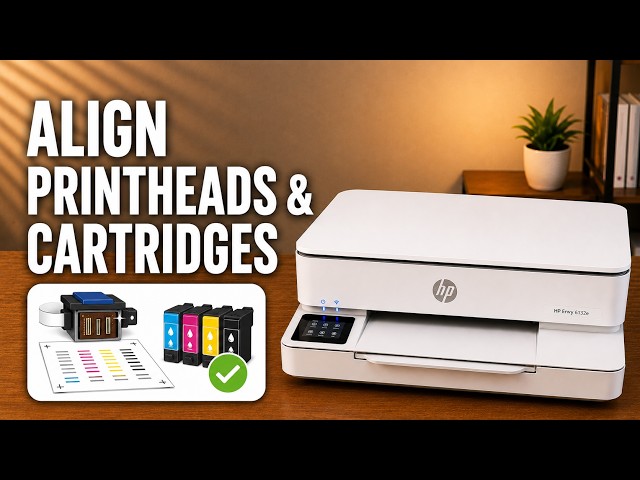
Open the cartridge access door, use the hinged cartridge latches and complete the new-cartridge alignment scan.
Print the alignment sheet from the touchscreen, place it face down on the scanner glass and choose Scan to complete calibration.
Check the exact cartridge message, confirm the correct regional supply and reseat the cartridge without touching its nozzles or contacts.
View the ENVY 6100e’s estimated ink on its touchscreen, in the HP app or on its local settings page without mistaking an estimate for a print-quality test.
Check paper and ink, inspect a diagnostic report, then choose cartridge cleaning, alignment or smear cleaning for the actual print defect.
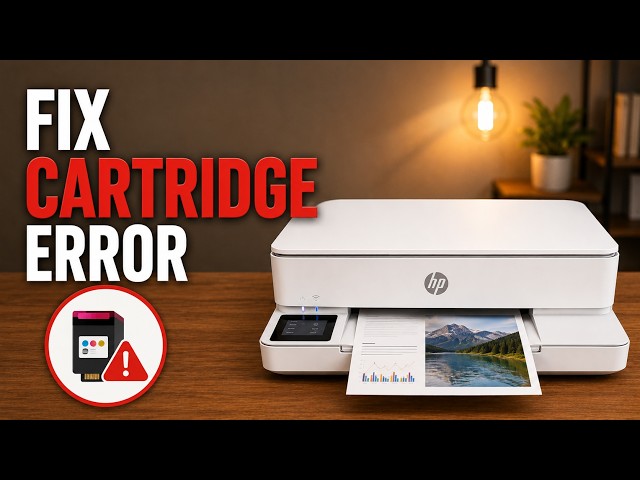
Identify the exact cartridge message, check the correct regional supply and reseat the indicated cartridge without touching its contacts.
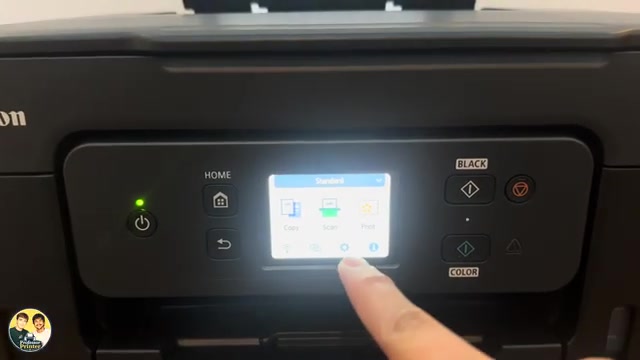
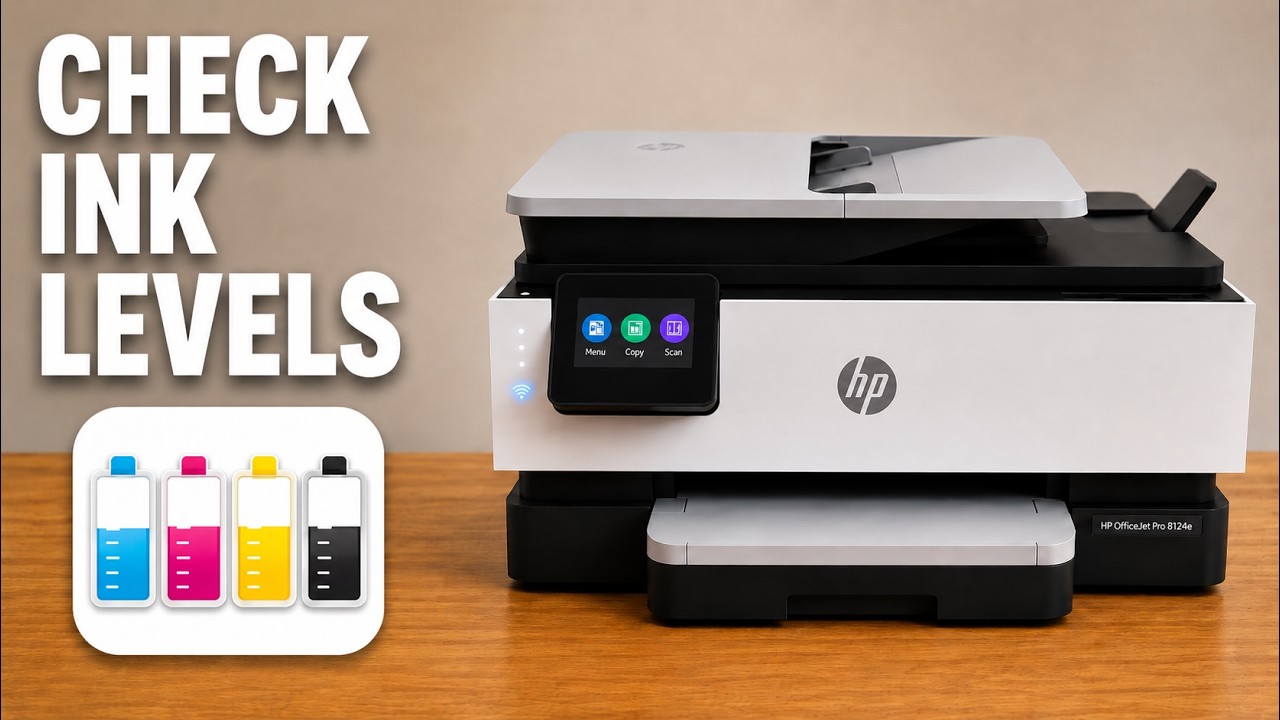
Use Supplies on the touchscreen to inspect estimated cartridge levels and the separate printhead status. The HP app also shows supply estimates.
Open the cartridge access door, release the old cartridge and seat its replacement in the matching color slot. Check the cartridge number for your region first.
Check the bottle numbers on your own printer, match each ink colour and refill without squeezing the bottle or tilting the printer.