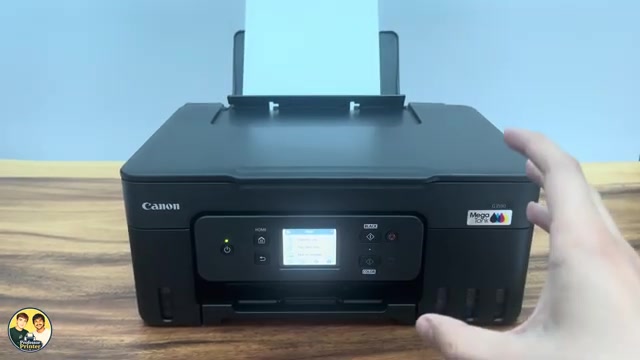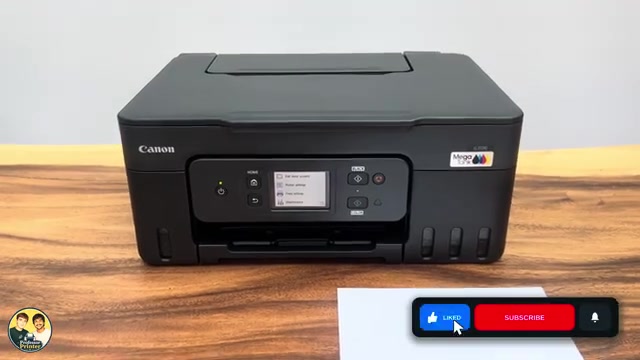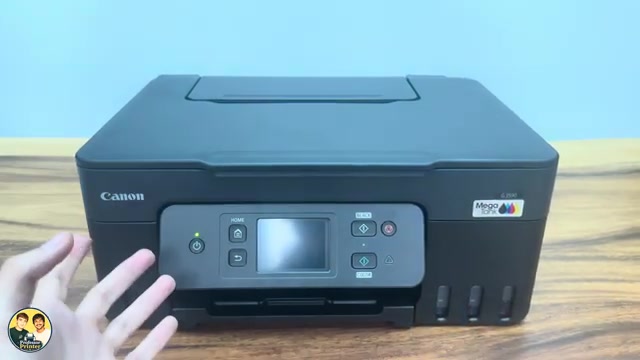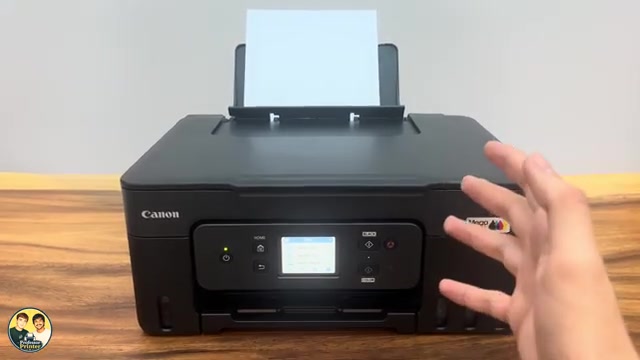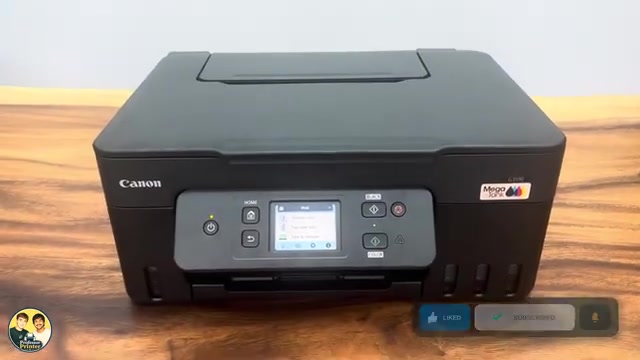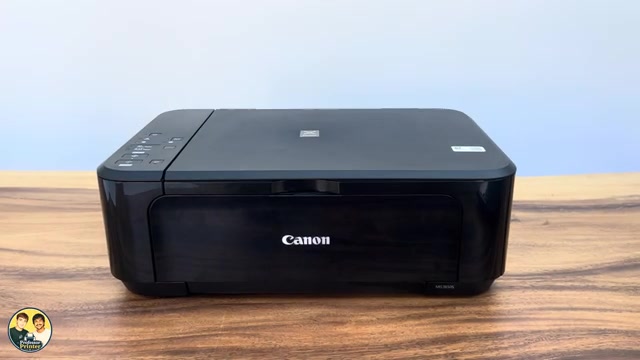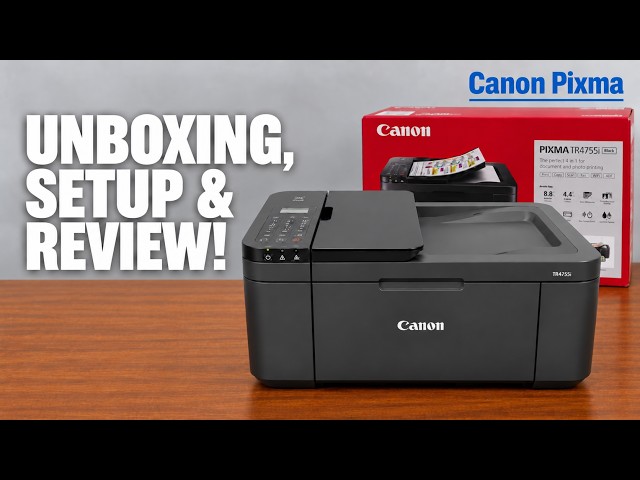
Canon PIXMA TR4755i
Canon PIXMA TR4755i setup: ink, Wi-Fi and Windows
Install the TR4755i cartridges and paper, connect with Canon PRINT on an iPhone, then add Windows using the official installer if app setup fails.
Getting startedRead & watch
Explore everyday printing, paper handling and copying tasks.
Install the TR4755i cartridges and paper, connect with Canon PRINT on an iPhone, then add Windows using the official installer if app setup fails.
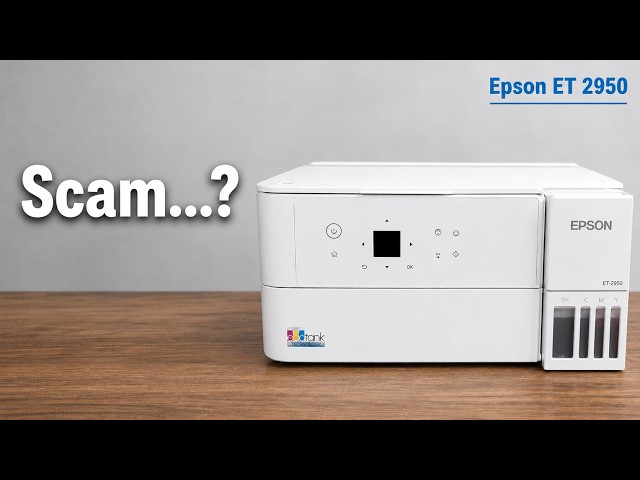
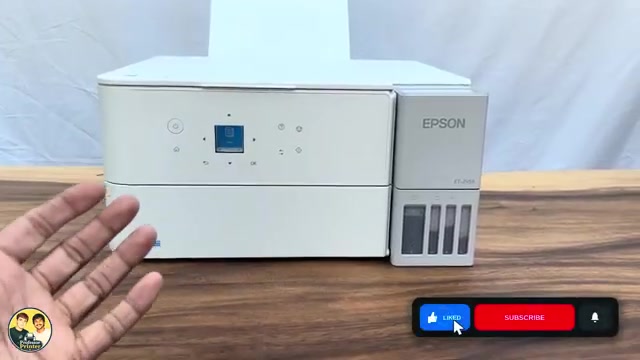
Professor Printer’s ET-2950 review weighs its everyday colour print against the small screen, interior access and purchase cost. See what the demonstration establishes.
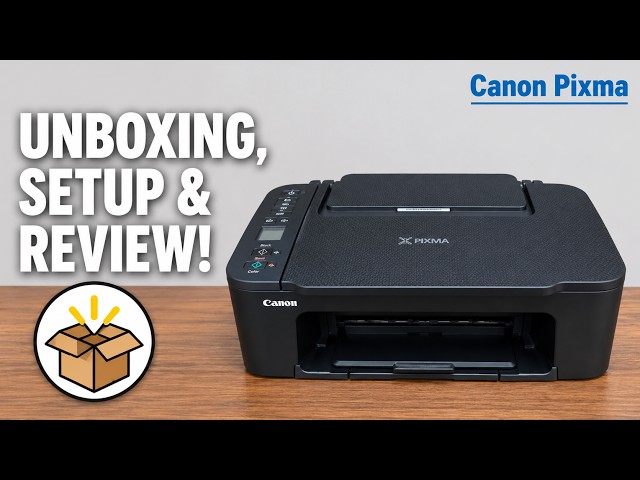
Install the TS3750i cartridges and rear-tray paper, connect with Canon PRINT, correct the first-print paper settings, and add the printer on Windows.
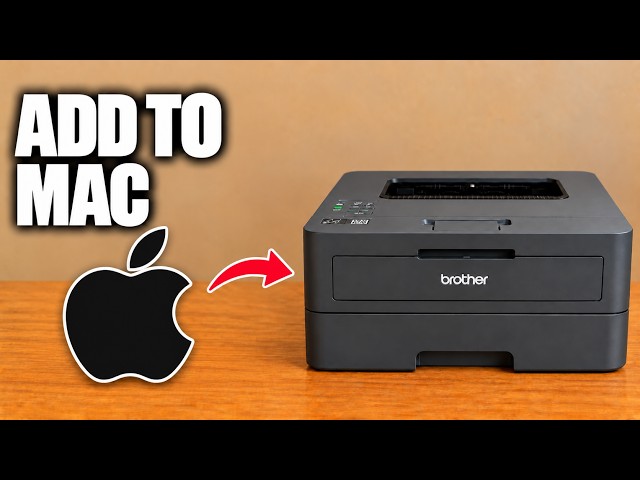
Add the networked HL-L2445DW in macOS Printers & Scanners, then select it for a small print check.
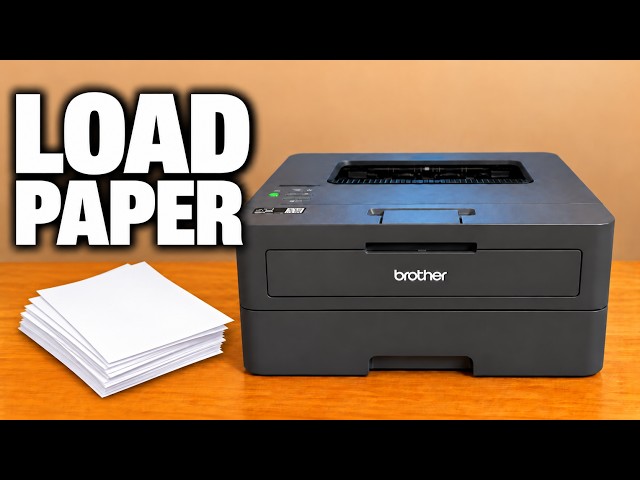
Adjust the front tray’s width and length guides, load paper below the maximum mark, and match the printer’s paper settings to the stack.
Find the printer on the same network, add it in Windows Printers & scanners and select it when printing a document.
Use the Stop button to cancel the current print, copy or scan operation on a Canon PIXMA G3590, and understand what happens to a partly printed page.
Load the Canon PIXMA G3590 rear tray print-side up, adjust the guides and register the actual paper size and type before printing.
Place the original face down, choose Standard copy and the number of copies, then use the Canon PIXMA G3590 Black or Color button.
Update the Canon PIXMA G3590 rear-tray paper settings when changing between plain paper, photo paper or different sheet sizes.
Match photo paper and app settings on a Canon PIXMA G3590, check borderless cropping and assess the finished photo instead of relying on a universal “best” preset.
Use Quiet setting to reduce Canon PIXMA G3590 operating noise. Printing can be slower, and some sounds remain.
Prepare the front tray, print from Canon PRINT or Windows, copy with the panel buttons and save scans from a phone or Canon IJ Scan Utility.
Use 1→2-Sided copying to put two scanned sides on one sheet. Turn the original on the scanner glass when prompted; the printer handles the two-sided output.
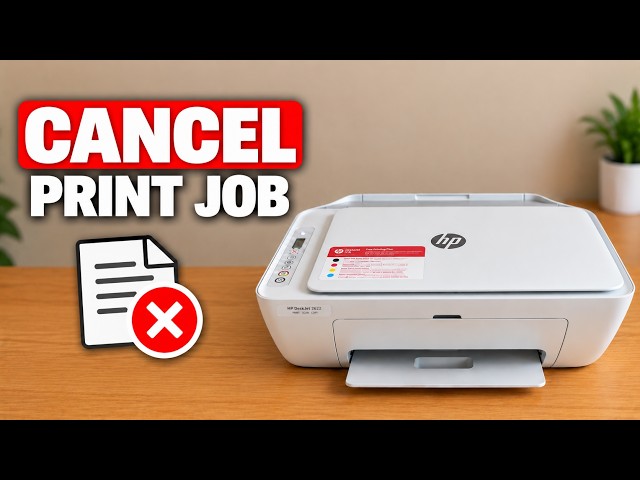
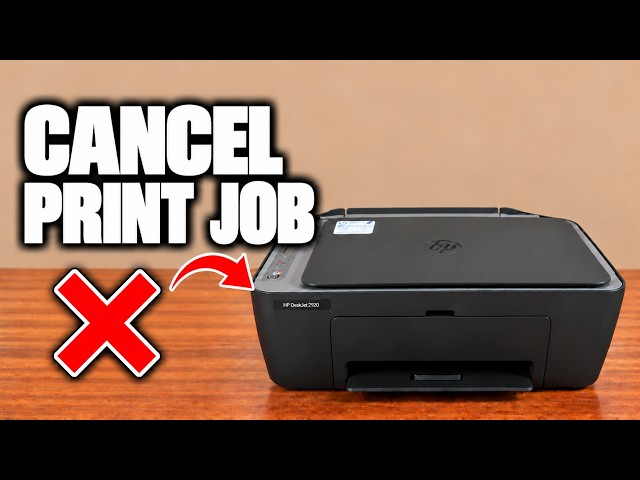
Use the DeskJet 2600’s Cancel button to stop the current operation and understand why a computer queue may still contain other jobs.
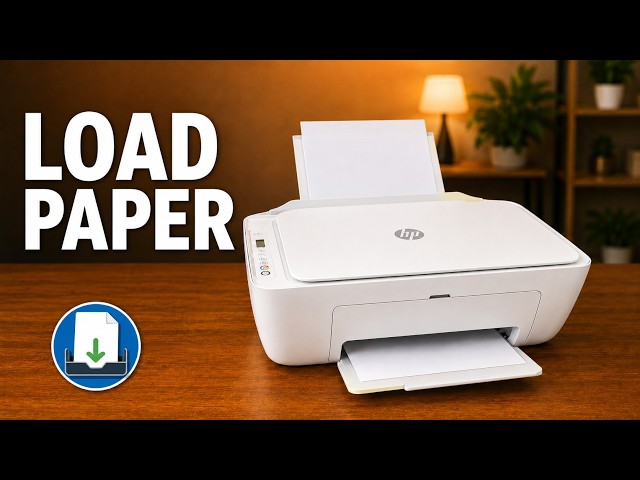
Open the rear input tray, position plain paper correctly and adjust the guide and output support on a DeskJet 2600.
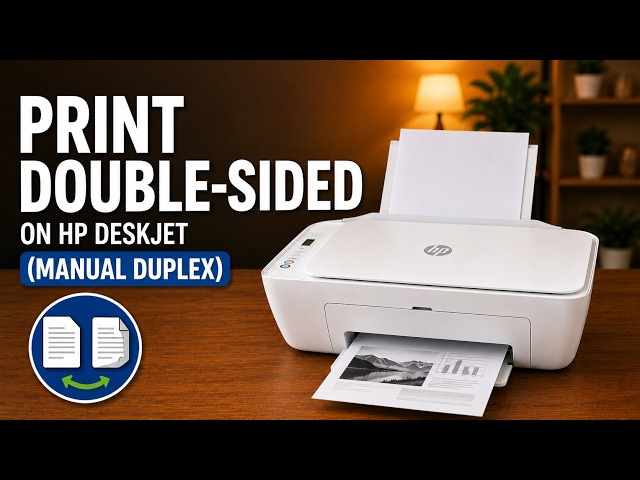
Print page one, reload that sheet and print page two using the HP phone app, with paper orientation and mismatch checks.
Reload a DeskJet 2600 correctly, check the rear feed path and clean its paper rollers safely if loading checks do not resolve the problem.
Press the red Cancel X to stop the current DeskJet 2900 operation. If more pages start, check the sending device’s remaining print queue.
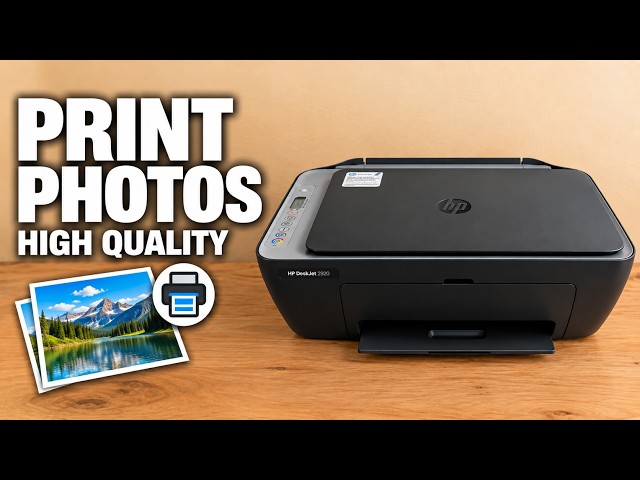
Match paper size and type, adjust the image preview and choose quality and colour settings in the HP app before printing.
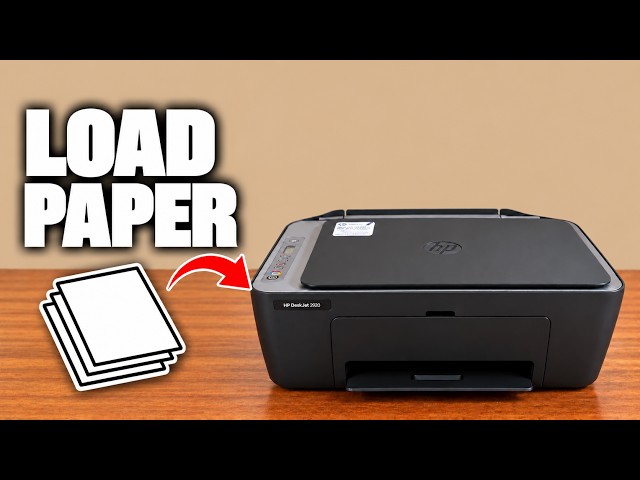
Raise the rear support, load a straight paper stack and adjust the guide on the demonstrated DeskJet 2920. Check the paper message before resuming a job.
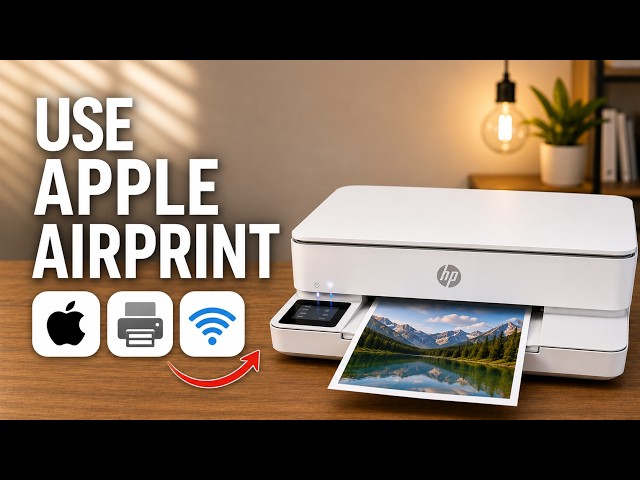
Open an iPhone document, select the ENVY 6100e through AirPrint and check the page settings and printed result.
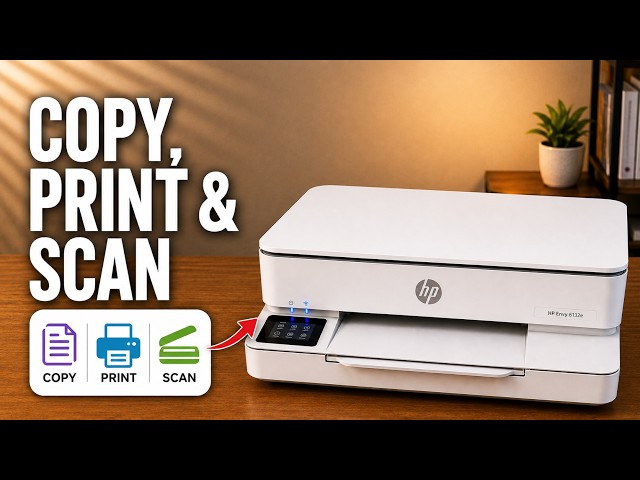
Make a copy at the printer, print a file from your iPhone, or scan a page with the HP app and save it as a PDF in Files.
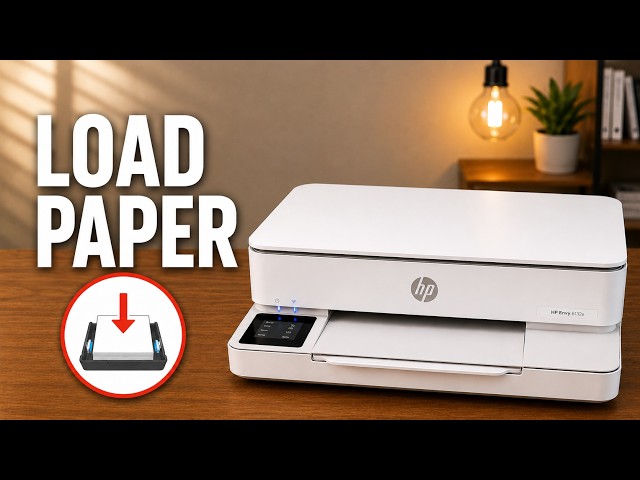
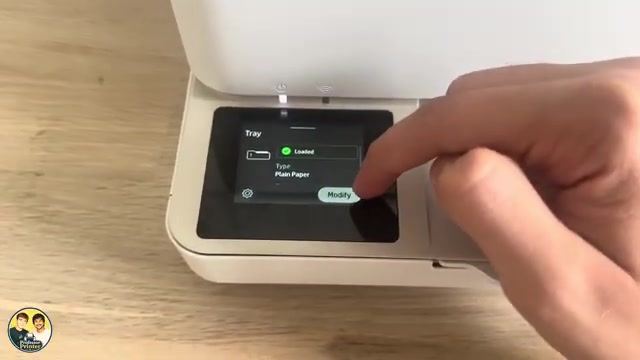
Load plain paper without bending the sheets, set the tray’s actual size and type, and check the next print on the demonstrated ENVY 6132e.
Set the photo-paper side, size and type, then choose the HP app’s photo print settings. The source demonstrates settings, without a glossy-paper test print.
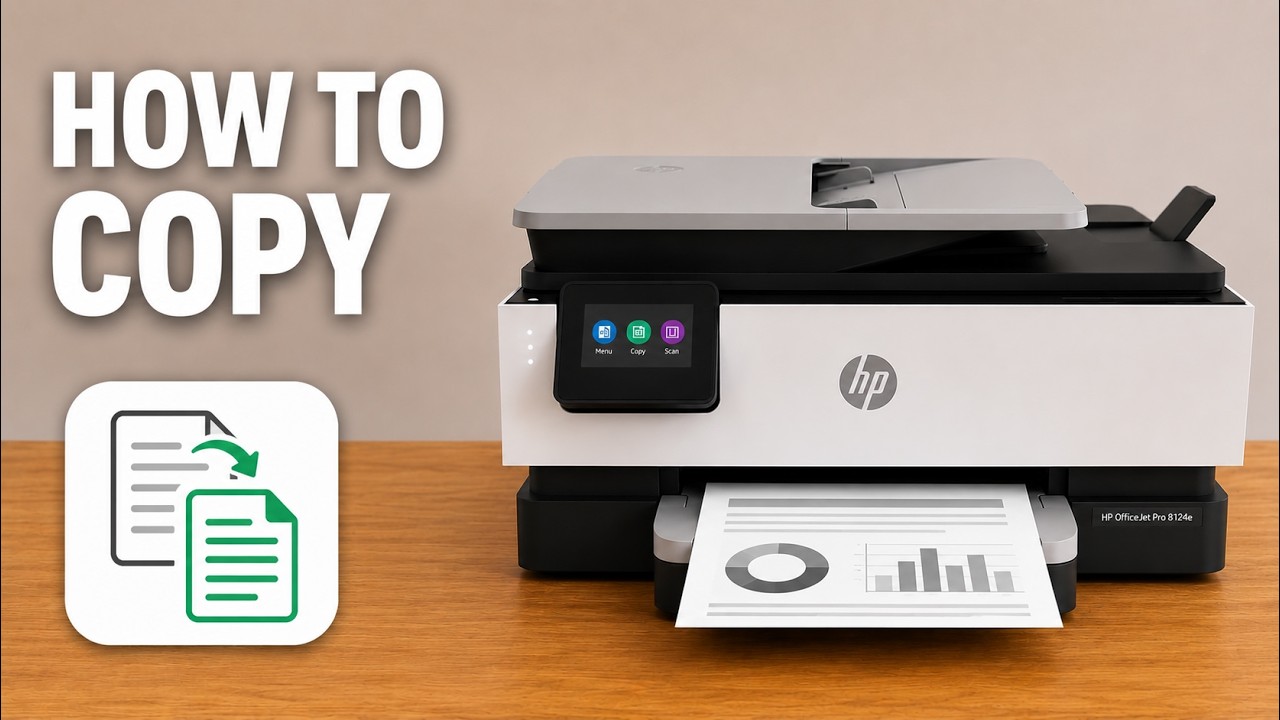
Make a copy from the scanner glass or feed several original pages through the top document feeder using the printer’s touchscreen.
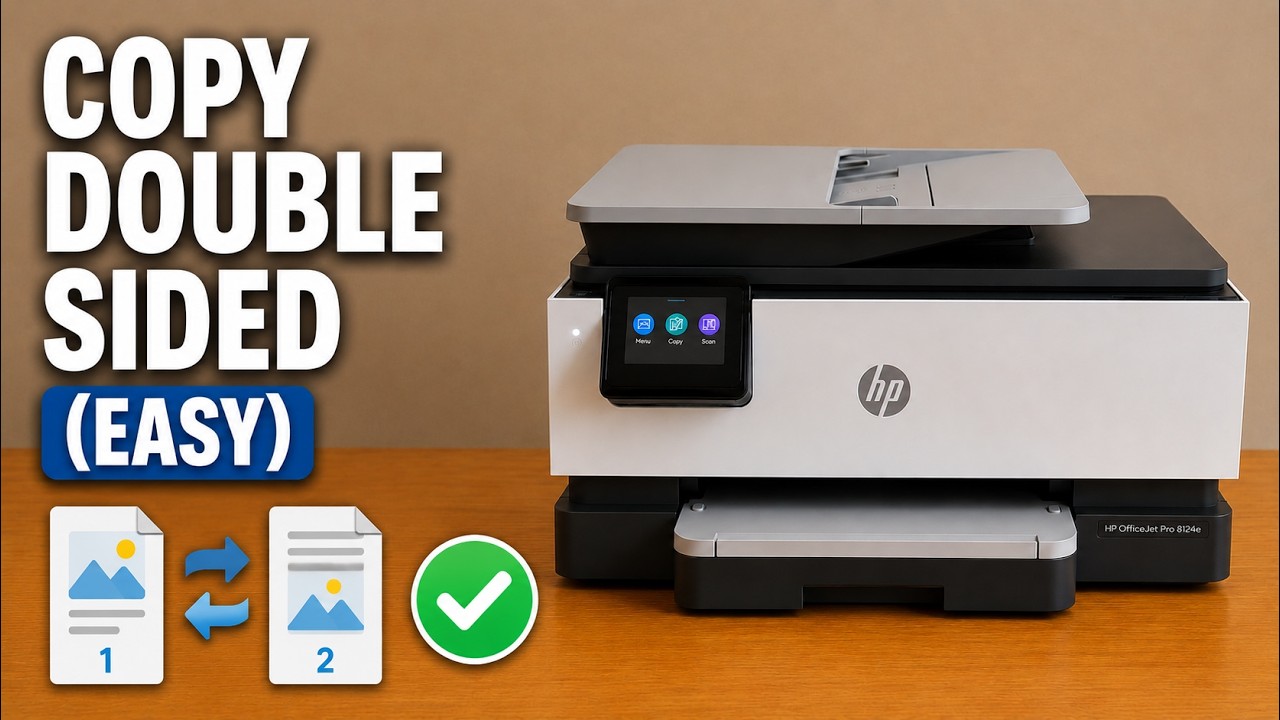
Scan each side of the original on the glass when prompted, then let the printer produce a two-sided copy automatically.
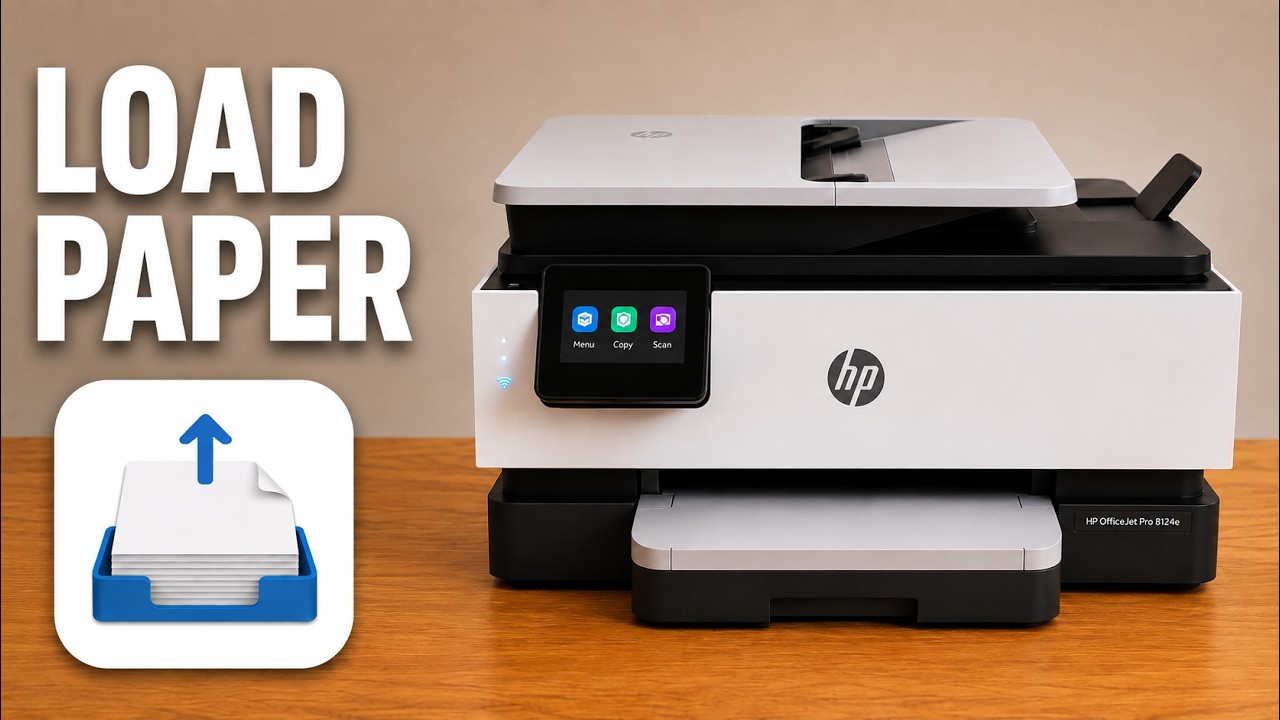
Load the bottom tray, adjust its guides and match the printer’s paper size and type settings. Photo paper goes with its printable side down.
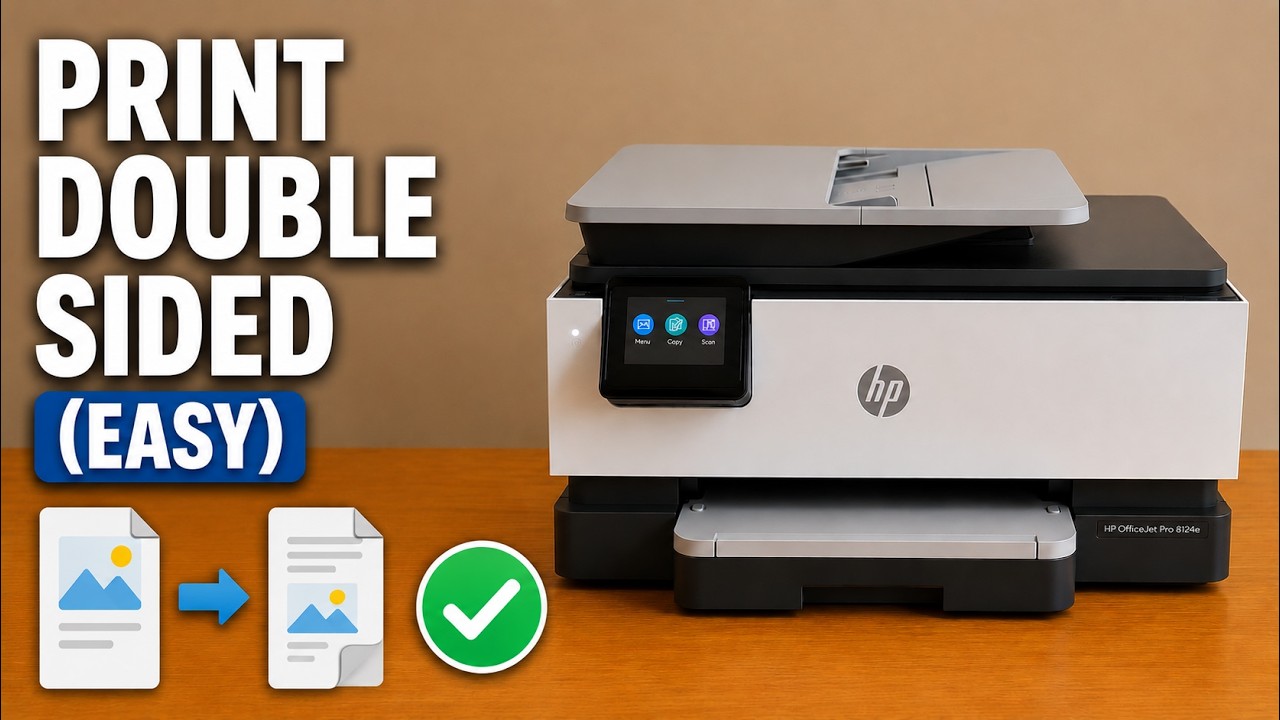
Choose two-sided printing in the HP app, select the binding edge and let the printer turn the sheet automatically.
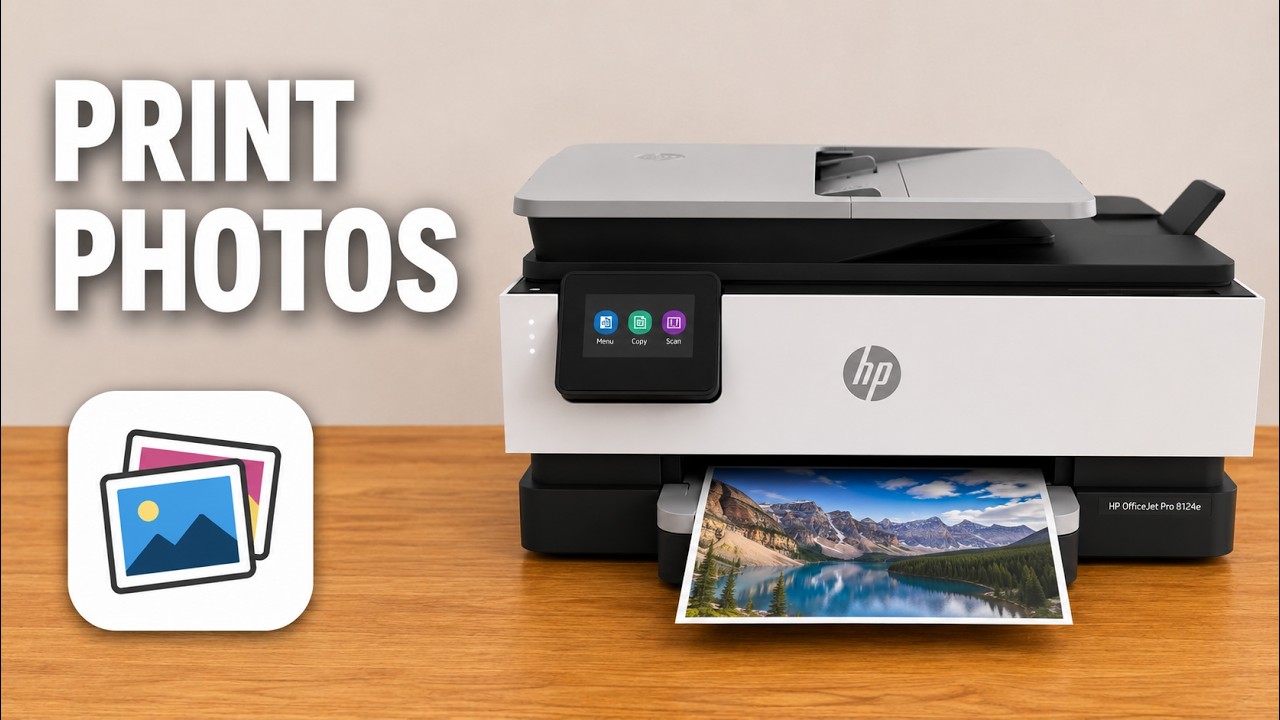
Match the loaded photo paper in the tray and HP app, review the crop and quality settings, then print a small sample before making more copies.
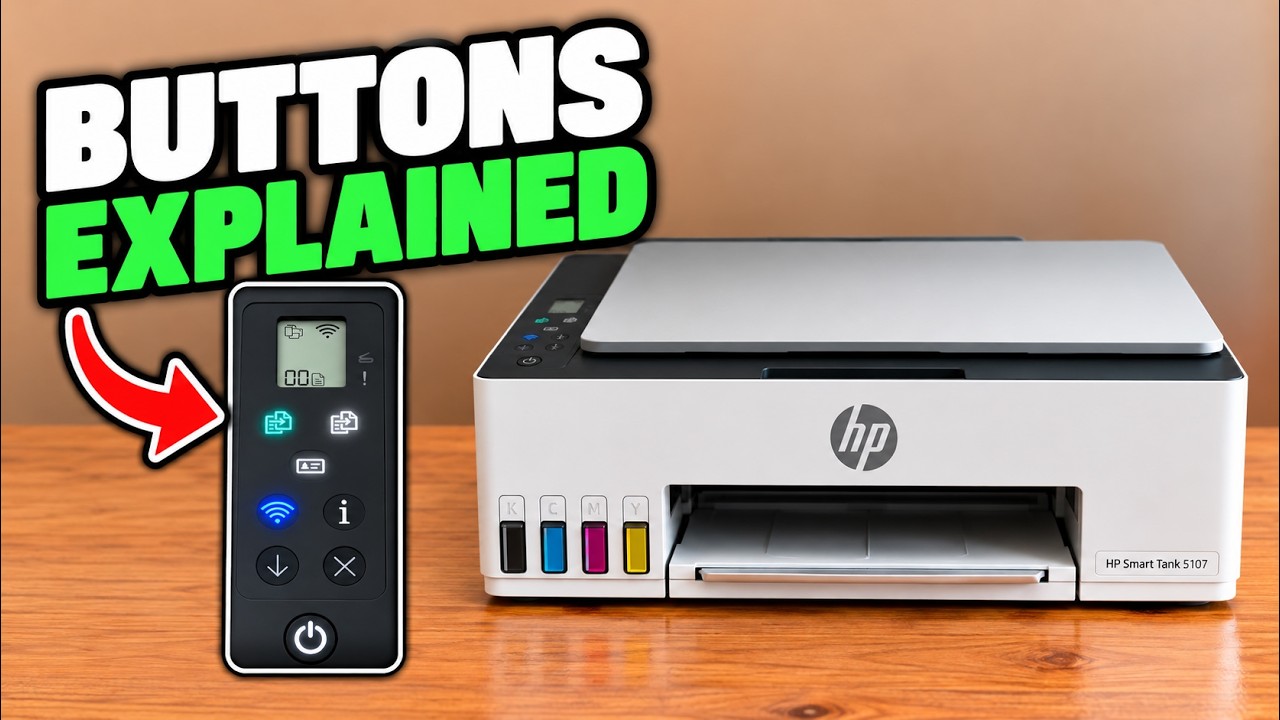
Identify the everyday controls, stop the current job and distinguish normal activity from a fast-blinking power-light error.
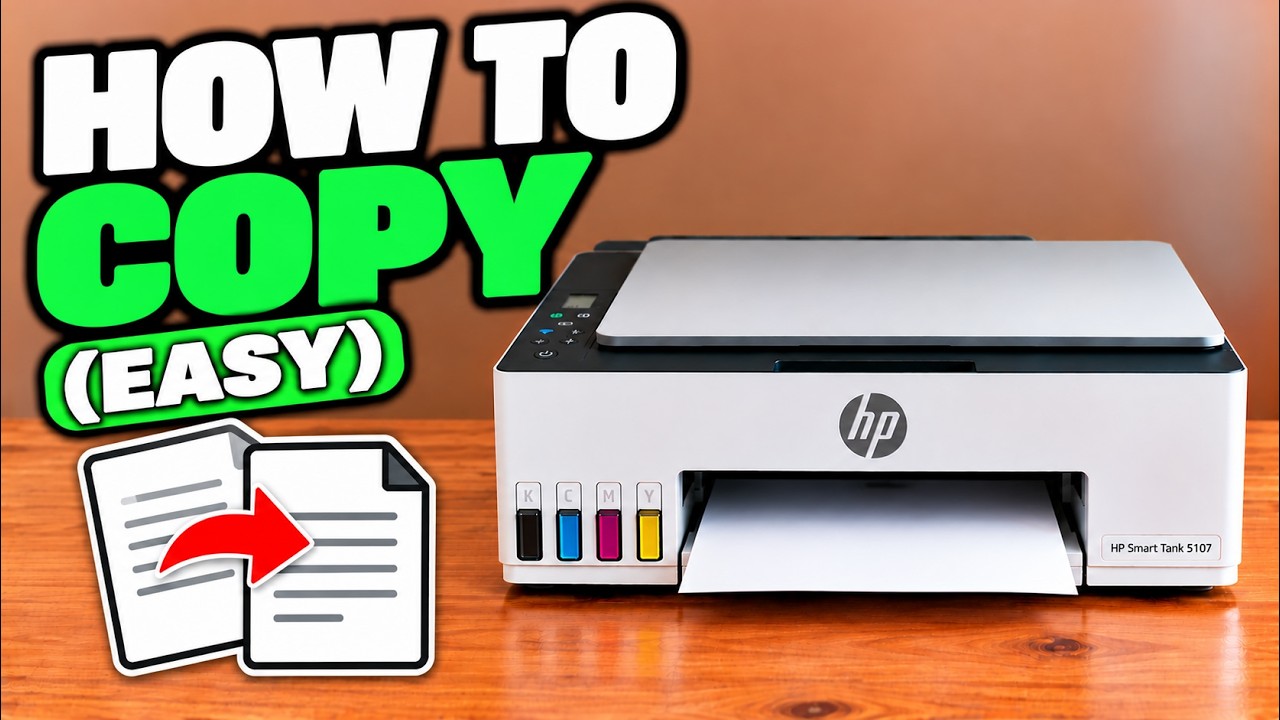
Place an original on the glass, choose black or colour copying and switch between document and photo-paper copy modes.
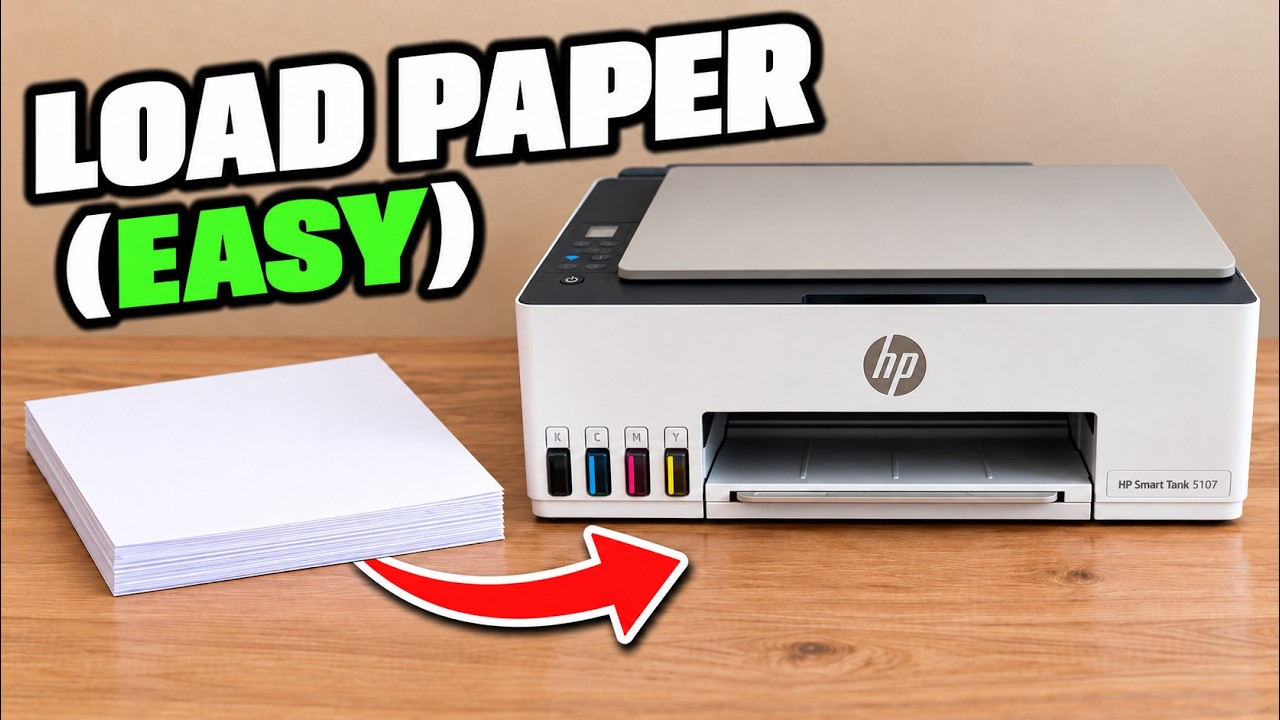
Load the rear tray with the printable side facing up, align the width guide and extend the output support.