Before you start
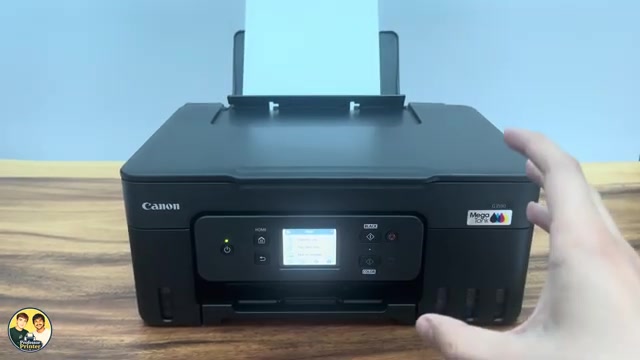
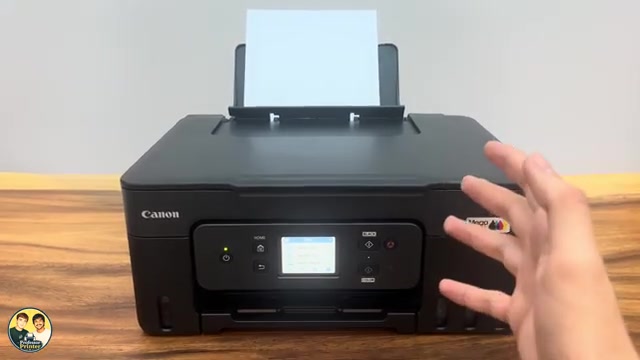
- The printer is on with ink available and suitable paper loaded in the rear tray.
- An original that fits the scanner glass; this guide covers a standard document copy.
Step 1:Place the original face down
Lift the document cover, place the side you want copied face down on the glass and align the document corner with the glass’s alignment mark. Close the cover gently. Pull out the output tray and open its extension.
Do not press heavily on the glass. Keep the document cover closed until scanning has finished.
Step 2:Choose Standard copy and the copy count
On HOME select Copy → Standard copy. On the copy standby screen, set the number of copies you want and check the paper and layout settings. For a straightforward single-page copy, use the one-sided layout and the paper size actually loaded.
Canon documents a copy-count control here. The source’s suggestion that you must press a button repeatedly or copy only one at a time is not the complete way to set multiple copies.
Step 3:Press Black or Color
Press Black for a black-and-white copy or Color for a colour copy. The printer scans and prints. Wait for it to finish before removing the original or collecting the output.
Check the result and finish
Confirm that the intended side was copied, the page is positioned correctly and the copy count matches your choice. If you need to cancel while the copy is running, press Stop. For reserved copy jobs, follow the screen’s choice between cancelling all reservations and the last reservation.
The source demonstrates a black copy and explains the Color button. It is not a comparison of measured colour accuracy or proof that every MegaTank model has this same copy menu.
Questions & troubleshooting
Why is the copy blank?
Check that the side you want copied faces the glass, not the lid. Also check the printed result and any ink or paper error; do not assume that a blank copy proves a scanner fault.
How do I make more than one copy?
Set the number on the Standard copy standby screen before starting. Repeatedly pressing Black or Color is not necessary to choose the basic copy count.