Before you start
- The printer must be on. This changes the printer’s Quiet setting, not a phone or computer’s sound volume.
Step 1:Open Quiet setting
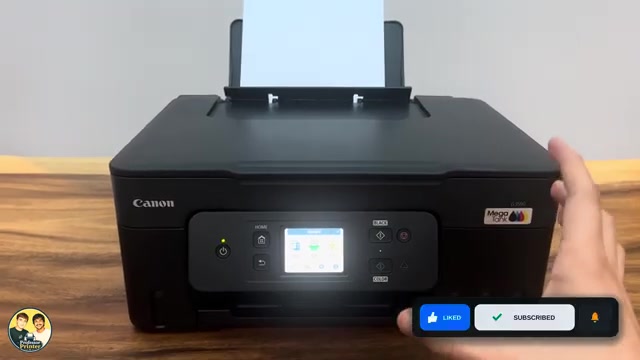
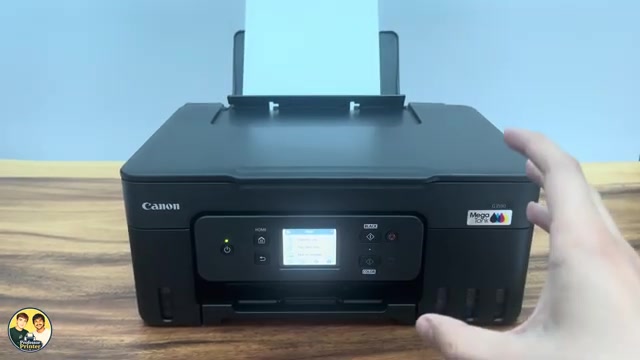
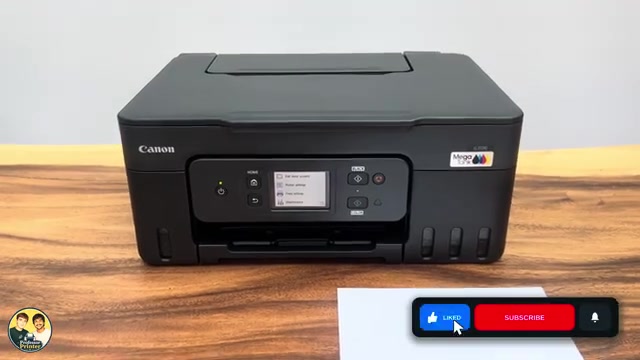
Go to the printer’s HOME screen and select Setup. Select Quiet setting from the Setup menu; it is a separate item from Printer settings.
Step 2:Select ON
Choose ON. Canon says a confirmation screen appears and the Quiet setting menu icon changes to show that the mode is enabled. The source demonstrates this icon change.
Step 3:Turn it off when you no longer need it
To restore normal operating speed, return to HOME → Setup → Quiet setting and select OFF. You can use this setting when reduced operating noise matters more than speed; it is not a promise of silent printing.
Button beeps use Sound control → Keypad volume instead. Changing Quiet setting does not replace that separate sound preference.
Questions & troubleshooting
Why is there still noise with Quiet setting on?
Canon notes that some sounds, including preparation for printing, are not reduced. The amount of reduction also depends on the printer’s settings.
Why is printing slower now?
Reduced operating speed is an expected trade-off of Quiet setting. Switch it to OFF when speed is more important.