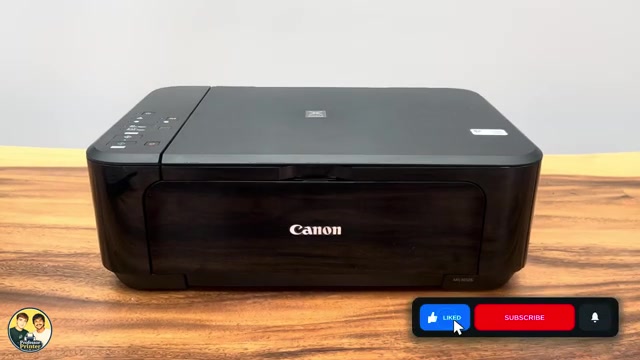
Before you start
- For network printing/scanning, finish printer connection setup and connect the phone or Windows computer to the intended network.
- Have Canon PRINT on the phone, or the supported Canon driver and IJ Scan Utility installed for your Windows version. Local button copying does not require a phone or network.
Prepare the front tray and original
Open the front cover and extend the paper support. Move the guides outward using the right guide. Load supported paper centrally in portrait orientation, printable side down, pushed to the back. Bring the guides gently against both edges without bending the stack or overfilling it.
Open the output-tray extension, the paper output tray and its support before printing. The source’s first print is interrupted because the output tray is closed; Canon confirms it must be open.
For copying or scanning, place the original face down on the glass, aligned with the indicated corner, and close the document cover. Leave it in place until scanning finishes.
Print a photo from Canon PRINT
- Open Canon PRINT with the correct printer selected. Choose Photo Print and select the image or images from the phone. Tap Next once the selection is complete.
- Open Print settings and match paper size and media type to the physical sheets. Review copy count, colour and any offered borderless setting.
- Tap Print and wait for the job to finish. If an output-tray warning appears, open the tray as described above and follow the printer/app message.
Document Print is a separate app choice for supported files. The demonstrated selection here is a photo; it does not establish that every phone file format can be printed through the same picker.
Print a document from Windows
- Open the document or photo in its Windows application and choose Print.
- Select the connected Canon printer. If it is missing, add the printer through Windows Printers & scanners or finish the model’s Canon driver setup before submitting a job.
- Review the application’s paper size, page range, colour and layout settings. Change two-sided settings only when the selected driver and paper support the option; this is not a manual paper-reinsertion tutorial.
- Choose Print. Wait for the page and check the correct content, size and orientation.
Application menus and Windows versions vary. Being on the same Wi-Fi is a prerequisite for this network route, not a guarantee that Windows already has every required scan component.
Make a plain-paper copy at the printer
- Load A4 or Letter plain paper and position the original face down on the glass.
- Press Paper until the upper Paper lamp is lit for the plain-paper setting. Check the configured A4/Letter choice matches your loaded sheets.
- Press Black for a black-and-white copy or Color for colour. A brief press uses the normal quality mode; holding it down is a different setting.
- Leave the original and cover undisturbed while the ON lamp flashes during scanning. Remove the original after copying finishes.
The source omits the Paper-button selection; Canon supplies that detail. If you need to change the printer’s A4/Letter choice, use the linked Canon page rather than guessing a button combination.
Scan and save from the phone
- In Canon PRINT choose Scan. Review the available scan settings and tap Scan.
- After a page is scanned, place the next original or turn the page over and tap Scan again if you want another page in the same document.
- When all pages are captured, choose Exit. Open the share/save control shown at the bottom left of the preview.
- Choose an offered format such as JPEG or PDF and a destination such as Files. Finish that destination’s save action, then open the saved file to check every page.
This recording uses iPhone sharing options such as AirDrop. Android screens and destinations are not asserted to be identical.
Scan and save with Canon IJ Scan Utility
- Place the original on the glass and open Canon IJ Scan Utility on Windows. Check the selected product is your Canon MG3600-series printer.
- Choose Settings, then Document Scan or Photo Scan as appropriate. Set the original size, colour and resolution you need.
- Under save settings, choose a file name, destination folder and data format. PDF (Multiple Pages) is the option for a multipage PDF when available. Confirm OK.
- Back in the main utility choose Document or Photo to start. Follow any additional-page/save prompt, finish the save, then open the file in the chosen folder.
Canon’s documentation says scans save to the configured Save in folder. A separate save-results dialogue depends on settings; if none opens, check that folder rather than assuming the scan was lost.
Questions & troubleshooting
Why will the first photo not print?
Check that the output tray and its support are open. This is the actual interruption in the source. Also read any displayed error instead of assuming every failure is the same tray issue.
Do I need Wi-Fi to make a copy?
No. Once the printer is ready and paper/original are loaded, the Black and Color buttons perform local copying without a phone or network.
Is the Windows scan program Microsoft Windows Scan?
No. This tutorial’s Windows controls are Canon IJ Scan Utility. Install the supported Canon scanning software for your exact model and Windows version.
Where is the saved scan?
On the phone, finish saving to the selected destination. In IJ Scan Utility, check Settings → Document Scan or Photo Scan → Save in. Open that folder and verify the actual file.
References
- Professor Printer: source demonstration
- Canon: MG3600-family loading, printable side down and output tray
- Canon: plain-paper copying and upper Paper lamp
- Canon: A4/Letter paper-size selection
- Canon: Windows IJ Scan Utility Document workflow
- Canon: Windows save destination and PDF settings
- Canon: MG3600 supported functions and software