Before you start
- Know the actual size and media type loaded in the rear tray. A screen setting does not change the paper physically in the printer.
Step 1:Open Rear tray paper settings
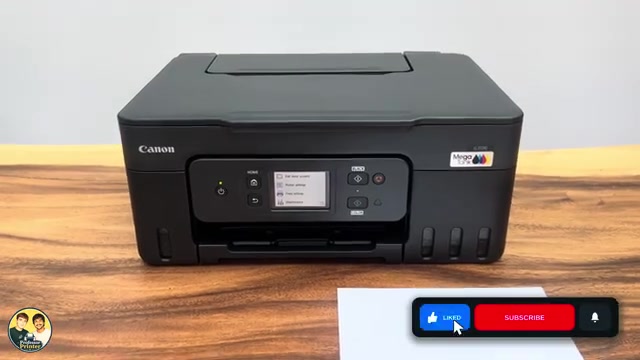
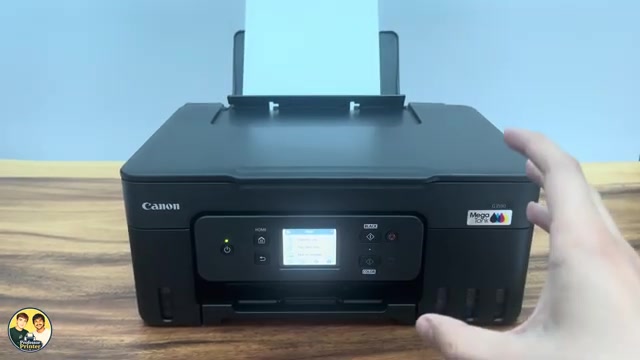
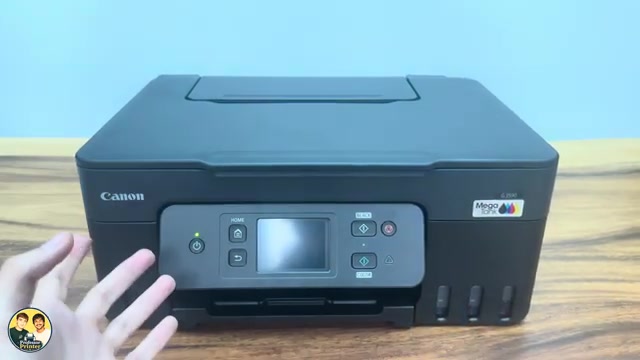
From HOME select Setup → Feed settings → Rear tray paper settings. This reaches the paper registration screen without removing and reinserting the sheets.
Step 2:Choose the actual size and type
Choose Change. Select the size of the loaded sheets, then the corresponding media type, such as Plain paper or the appropriate photo-paper category. Confirm Yes once the displayed combination is correct.
Use the type appropriate to the paper packaging and Canon’s supported-media settings. Do not choose a glossy-paper setting for plain paper just because you want brighter colours.
Step 3:Match the phone or computer print settings too
The tray registration tells the printer what is loaded. Your print job also has its own size and media settings. Check both before printing; they should describe the same paper.
Canon explains that wrong media settings can produce poor colours or scratches on the printed surface. The source’s claim that one mismatch necessarily causes irreversible printer damage is not supported by the cited instructions.
Use the automatic prompt when changing paper
When Check paper replacement is ON, changing the paper brings up a confirmation screen. Select Yes if the displayed size and type are correct, or Change if they are not. If the prompt is disabled, use the direct menu path above instead.
Questions & troubleshooting
Does changing this setting resize the sheet in the tray?
No. Register what is actually loaded, and set the document’s print options to match. If you want a different physical size, load that supported paper first.
Why do I still get a mismatch message?
Check the paper physically in the tray, the printer’s rear-tray registration and the app or driver’s print-job settings. Correct the item that differs.