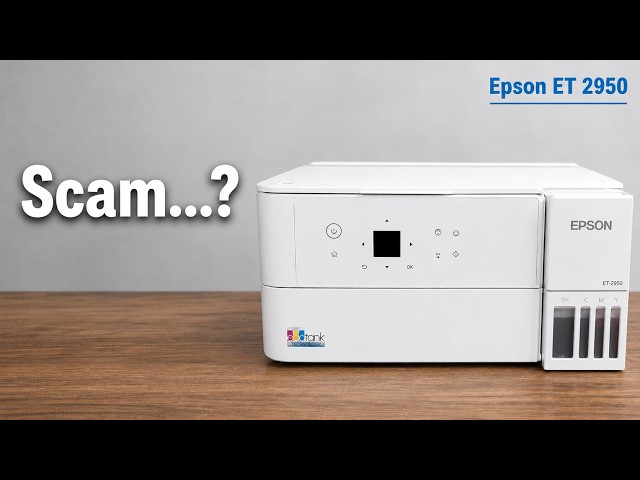
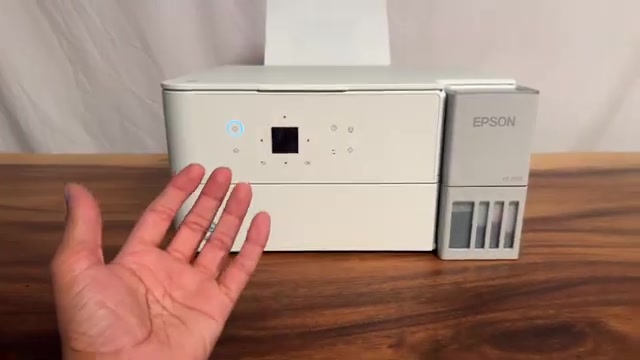
Before you start
- Load suitable plain A4 or Letter paper in the rear feeder, set the matching paper size/type and extend the output tray.
- Have the original ready. This flatbed workflow requires you to turn or replace the original between scans; it is not automatic two-sided scanning.
Step 1:Position the first side on the glass
Open the document cover, place the first side face down against the glass’s indicated corner and close the cover. Keep the original flat and within the glass area.
The source uses a double-sided music page. The same workflow can capture two separate originals, but each side still has to be placed manually.
Step 2:Select two-sided output and the binding direction
- Press Home, select Copy and press OK. Set the required copy count and colour or black-and-white choice.
- Open More → Print Settings. On menu layouts that show a further Settings item, open it.
- Select 2-Sided and choose 1→2-Sided. Check Paper Setting matches the actual size and type loaded.
- Set the original orientation and the output binding edge. The source uses Portrait and Left Binding for pages read like a book. Choose the appropriate setting for your originals rather than copying it regardless of orientation.
- Use Back to return to the copy start screen after confirming the settings.
Step 3:Scan each side when the printer asks
- Press Start to begin. Read the placement prompt, then press Start again if asked to scan the first original.
- Wait for the next-original prompt. Open the cover and turn the original over, placing the second side face down at the same indicated corner. Keep its orientation consistent with the binding choice.
- Close the cover and press Start to scan the second side. Follow the final on-screen completion prompt if offered; do not remove the original while its scan is in progress.
Turning the original is different from turning the output paper. Leave the output sheet to the printer’s automatic two-sided mechanism; do not reinsert it manually during this copy workflow.
Step 4:Check both sides of the completed sheet
Wait for the printed sheet to finish emerging. Check that it contains both intended sides, the correct page order and a readable orientation when turned at the chosen edge.
The presenter reports a finished two-sided copy. If your reverse side is upside down, check the orientation/binding settings and original placement before repeating. If output is one-sided, recheck 1→2-Sided and the loaded paper setting rather than assuming the second scan was automatically selected.
Questions & troubleshooting
Does the printer scan both sides without turning the original?
No. In this flatbed procedure you turn the original or place the next page when prompted. Two-sided refers to the printed output.
Why is the back upside down?
Check the original orientation, selected binding edge and the way the second original was placed. The video’s Portrait/Left Binding choice is an example, not the correct setting for every document.
Can I use any paper for automatic duplex?
No. Use paper supported for automatic two-sided printing; plain A4 or Letter is a straightforward choice here. The manual excludes automatic duplex for some media, including pre-punched and letterhead paper.