Before you start
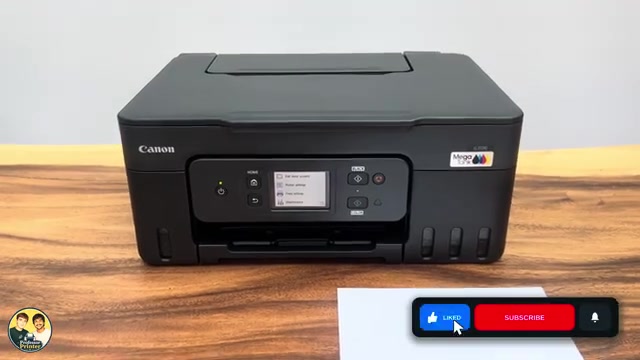
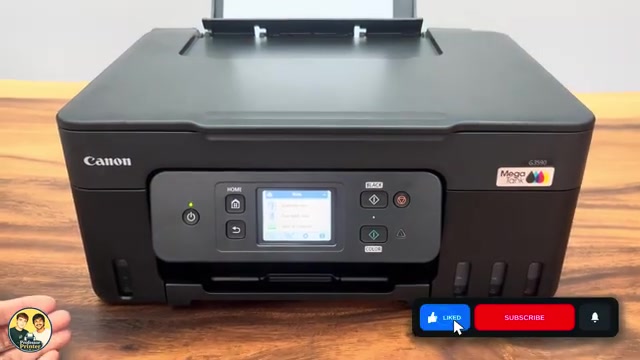
- Your G3590 is connected and available in Canon PRINT on the phone.
- Photo paper supported by the printer, with its actual size and printable side identified.
Step 1:Load the photo paper correctly
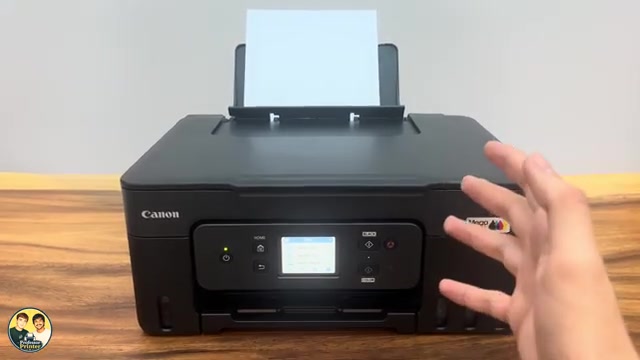
Place the paper in the rear tray in portrait orientation, printable side up. Keep it below the load-limit mark and bring the guides to the edges without bending the sheet. Pull out the output tray and its extension.
On the touchscreen choose Change if necessary, register the actual size and media type, then confirm Yes. The source uses 8 × 10-inch glossy paper; choose that only if those are your own sheets. You can also reach the registration through Setup → Feed settings → Rear tray paper settings.
Step 2:Select the image in Canon PRINT
Open Canon PRINT with this printer selected, choose Photo Print, then select Smartphone or the source containing your image. Select the picture and tap Next. Allow the photo access needed to select that image if the phone asks.
Step 3:Match settings and inspect the crop
Open Print settings. Check the copy count, paper size and media type against both the physical sheets and the printer’s tray registration.
For edge-to-edge output, use Borderless only when offered for the selected paper. The source chooses a medium amount of extension. Canon explains that borderless output enlarges the image beyond the paper edges, so edge content can be cropped. Inspect the preview before printing; a smaller extension can preserve more of the edge but may leave a margin.
There is no demonstrated universal best preset here. The source is one print on one paper type, not a controlled comparison proving Canon PRINT always beats AirPrint.
Step 4:Print and inspect the finished page
Return from settings and tap Print. Wait for the printer to finish feeding the photo, then handle it by the edges and follow the paper maker’s drying guidance.
Check the subject framing, paper size, colours and any visible streaks or smudges. The presenter reports satisfaction with the source photo; this is not a new colour-accuracy or durability test by printertutorials.com. If the result is poor, recheck media settings and the nozzle pattern before repeating the same job.
Questions & troubleshooting
Why did borderless printing cut something off?
The image expands past the sheet edges to avoid a white border. Check the preview and framing. Reducing extension can keep more of the image but may introduce a margin.
Should I select 8 × 10 glossy for every photo?
No. Those are the source’s sheets. Set the actual size and type of paper loaded in your own printer.
Does this prove the app is always better than AirPrint?
No. The source does not provide a controlled comparison. The useful part is matching the loaded media, reviewing the crop and checking the printed result.