Prepare the printer and original
Complete the printer’s initial setup and load the appropriate paper. Use plain paper with Document Copy mode or supported photo paper with Photo Copy mode. Changing copy mode does not make an unsupported paper size or type suitable.
Lift the scanner lid, place the original face down against the marked alignment corner of the glass, then close the lid. The copy controls become available as the printer detects this operation.
Step 1:Choose the paper’s copy mode
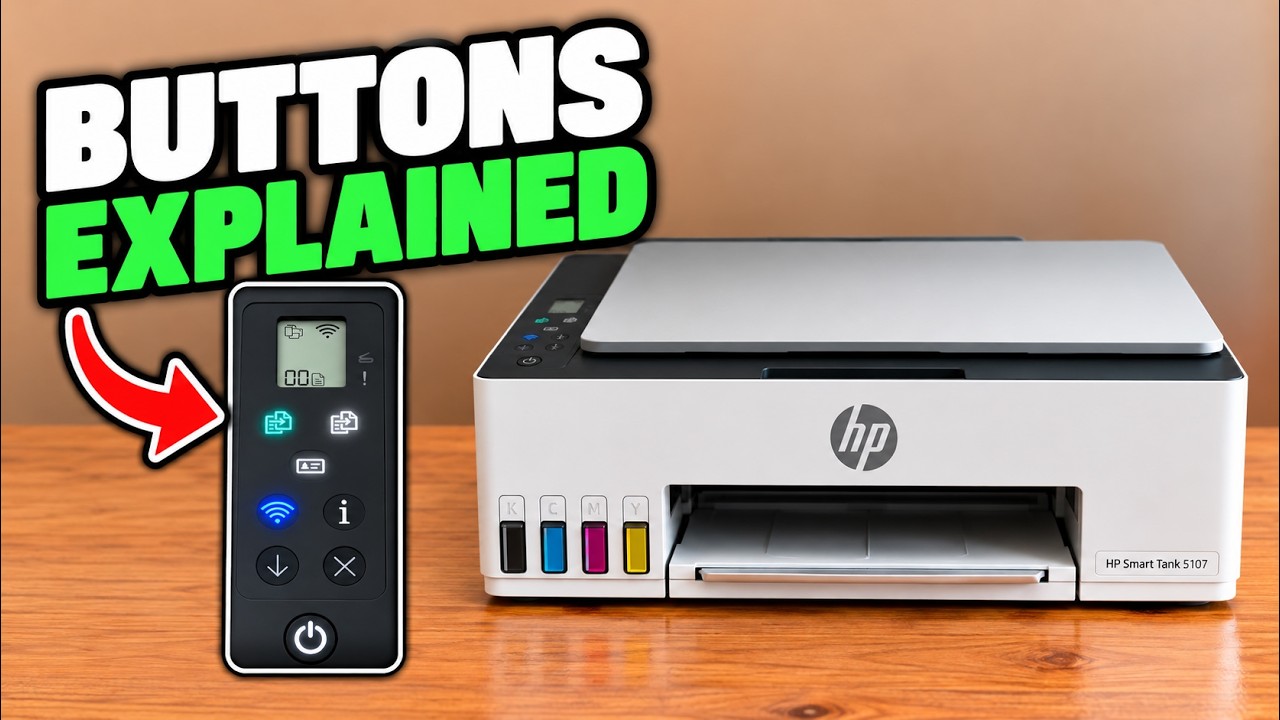
For an ordinary plain-paper document copy, use the document icon with horizontal lines. If you need to change modes, hold Information for five seconds until the control-panel buttons light, then hold Black Copy and Color Copy together for three seconds.
Check the display: the photo icon indicates Photo Copy mode; the lined document icon indicates Document Copy mode. The same sequence toggles back, so inspect the icon before repeating it. This is a copy-paper mode change, not a replacement for a computer print dialog’s paper settings.
Step 2:Start black-and-white or colour copying
Press Black Copy for a black-and-white copy or Color Copy for a colour copy. To request additional copies, press the chosen button repeatedly or hold it, watching the displayed count. HP says copying begins two seconds after the final button press.
Start with one copy to check alignment and paper choice. The source’s changing guesses about the maximum count are not a verified capacity specification; do not assume an unlimited queue.
Step 3:Check the printed result
Let the sheet finish printing, then compare it with the original. Check that the whole image is present and that the output uses the paper and colour mode you intended. For an unwanted active job, press Cancel once and allow any sheet to eject.
The document-copy recording deliberately cancels its job, while the photo-mode recording demonstrates the icon change without printing a completed photo. These illustrate the controls; they do not establish a finished copy-quality result.
Step 4:Return to ordinary document copying
After copying onto photo paper, replace it with plain paper before ordinary document copies and restore the lined document icon using the same Information-then-both-Copy sequence. Remove the old paper before loading a different paper type.
If the original is clipped, reposition it at the marked corner and check the paper size. If an error is displayed, resolve that named condition before resuming rather than repeatedly adding more copies.