Before you start
- Use this guide for an operation already running on the printer. You do not need to start a test copy to cancel a job.
Step 1:Find the Stop button
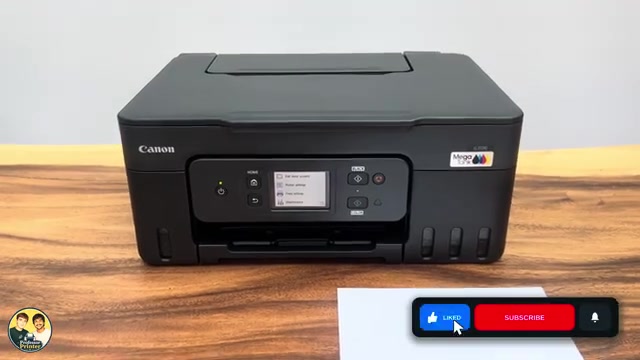
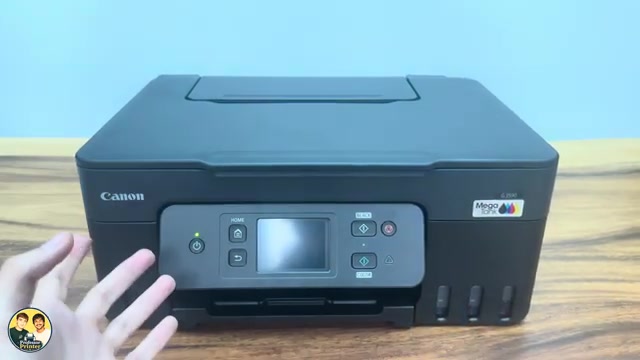
Use the red Stop button beside the Black copy button, to the right of the touchscreen. Canon identifies this control as the button that cancels an active print, copy or scan operation. It is separate from the ON button on the left.
Step 2:Press Stop during the unwanted operation
Press Stop once while the unwanted job is running. Allow the printer to stop and finish moving the sheet; do not pull paper out while it is feeding.
Step 3:Check that the current job has stopped
The source demonstrates cancelling black-and-white and colour copies after printing begins. A cancelled sheet may already contain part of the image; cancellation does not erase what has reached the page. Remove the output once the printer has finished moving it.
This button cancels the current printer operation. This guide does not claim that it deletes every job waiting on a phone or computer. If another job starts, check that device’s print queue and cancel the unwanted waiting document there.
Questions & troubleshooting
Does Stop mean the same as turning the printer off?
No. Stop cancels the active operation while leaving the printer on. Canon warns that using ON during printing can leave computer print data queued.
Why did a partly printed sheet come out?
The printer can already have printed part of the page before you cancel. The video demonstrates this with a copy. Cancellation is not a blank-page guarantee.