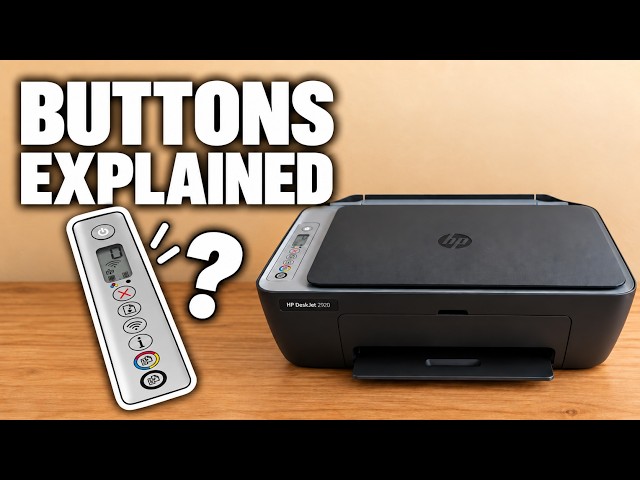
Step 1:Press the red X once
On the printer’s control panel, briefly press the Cancel button marked with a red X. You do not need a Wi-Fi reset or a long button hold. The video demonstrates stopping a black-and-white copy and then a colour copy midway through.
Step 2:Let the current operation stop
Give the printer time to stop moving the sheet. A partly printed page is possible when you cancel midway; do not pull it while the mechanism is moving. Cancel stops the operation rather than turning the printer off.
Step 3:If another document begins printing
A different job can still be waiting on the phone or computer that sent it. Open that device’s print queue and cancel the unwanted queued item there. The recording demonstrates copies at the printer, not clearing every operating system’s queue.
What you should see
The active copy or print stops. If you need the document later, send a new print request or start a new copy; Resume is not an undo button for a cancelled job.