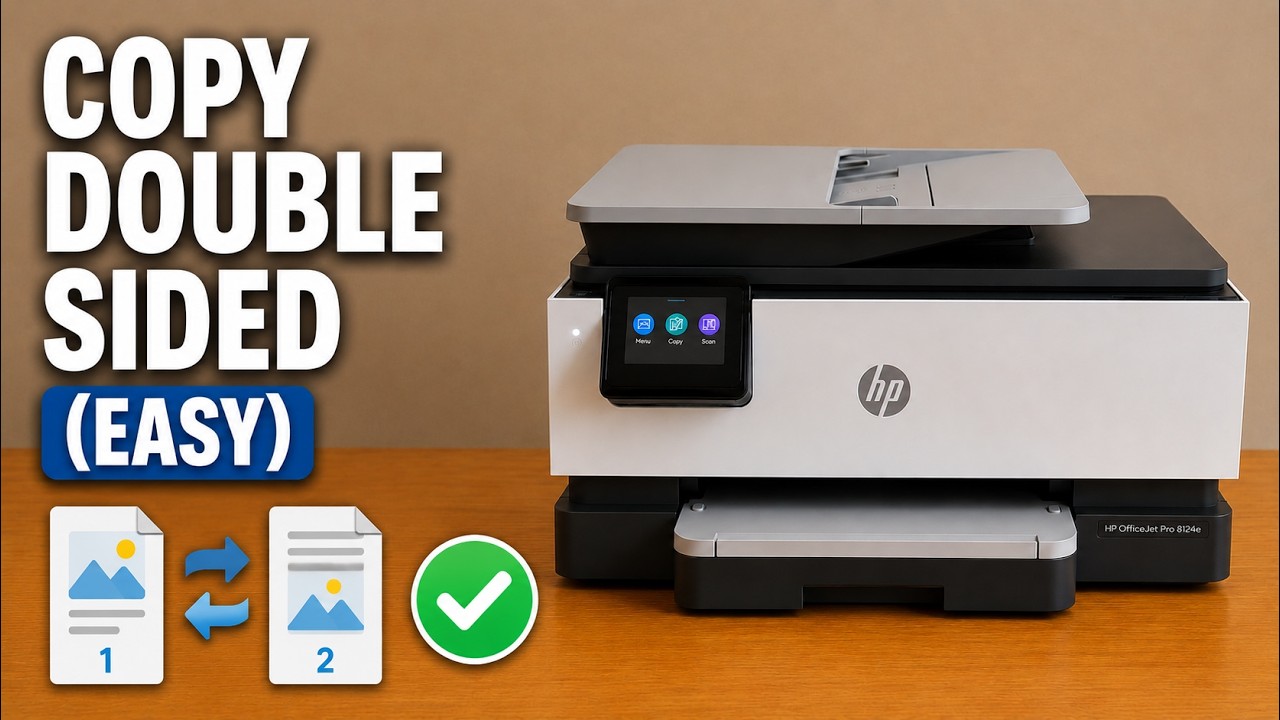
Use suitable plain paper and a multipage document
Have the printer already connected to the iPhone through the HP app. Load supported plain paper and extend the output tray. Use a document with at least two pages to check both sides.
Step 1:Open the file and Print Preview
In the HP app, select the OfficeJet and choose Print Documents. Open your document, then tap Print Preview. Check the printer, paper size, copies and page range before changing the sides setting.
Step 2:Choose Two-sided and the edge you want to turn
Open the Two-sided setting and choose long-edge or short-edge binding. For a normal portrait document read like a book, use long-edge. Short-edge turns the sheet like a top-bound pad; the best choice depends on the document’s orientation.
The source selects short-edge and later notes that long-edge may suit its document better. Make this choice for how you intend to turn the pages rather than copying its selection automatically.
Step 3:Print and wait for both passes
Start the print job. The printer prints one side, draws the sheet back inside and prints the other. Keep the output path clear and do not remove a sheet while it is being drawn back.
An odd final page can leave the reverse of the final sheet blank. The source’s three-page document illustrates this; the blank last side is not by itself a printing fault.
Step 4:Check the page order and reverse-side orientation
Read the first sheet by turning it the way you intend to read the document. If the back is upside down, change the binding edge and test the first two pages again before printing the complete document.