Load the photo paper and register it accurately
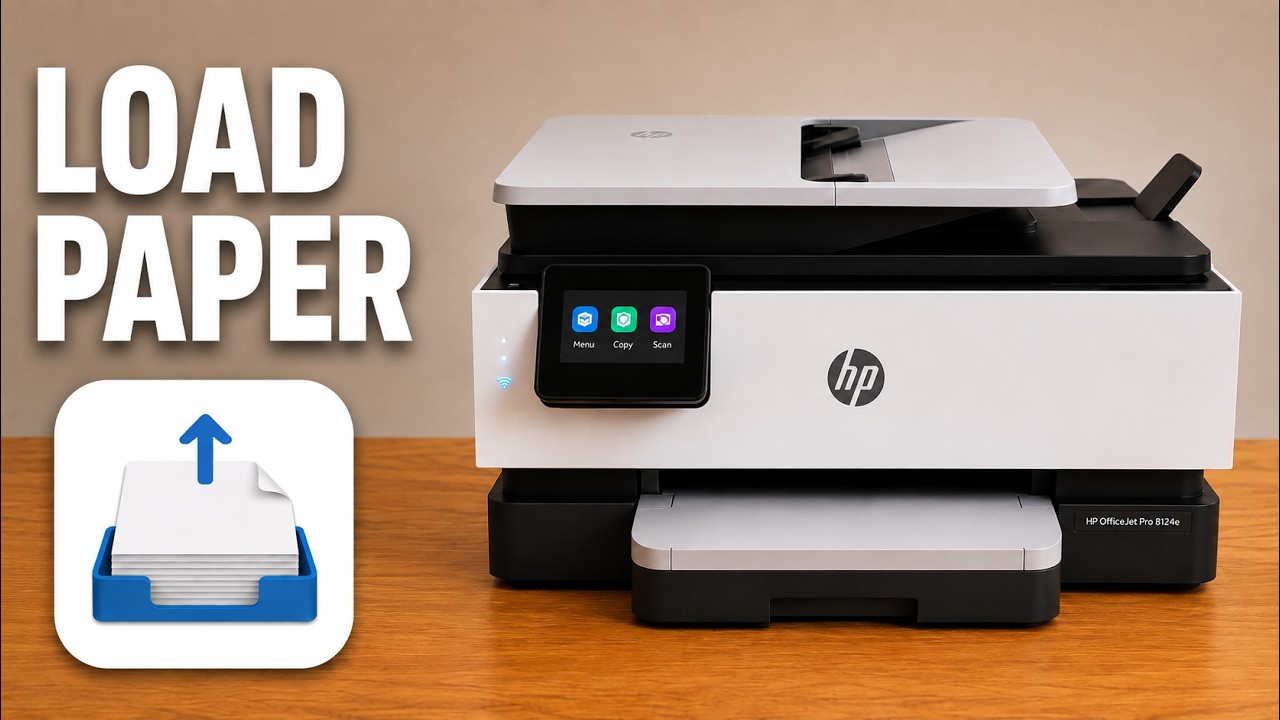
Use supported inkjet photo paper. Load the bottom tray with its printable side down and adjust the guides without bending the stack. Identify the printable surface from the paper package, not by guessing from another sheet.
If the tray-change prompt appears, choose Modify and set the actual size and paper type. If the prompt has disappeared, swipe right on the Home screen, open Trays, select the tray and choose Modify. Set the actual paper information and choose Done. Plain paper, glossy paper and matte paper should not be treated as interchangeable.
Step 1:Choose Print Photos and review the image
Open the HP app on the connected iPhone, select this OfficeJet and choose Print Photos. Select the image from your photo library. Review its orientation, crop and any brightness adjustment before moving to print preview.
Check the preview edges: a borderless or fill-page crop can remove part of an image. Do not assume selecting a photo-paper label guarantees a borderless result on every size or media combination.
Step 2:Match paper and choose the output quality
In Print Preview, confirm the paper size, type and source match the loaded tray. Choose Color for a color image. Select Best when you want that quality setting and can allow the extra printing time; this is not a guarantee that a low-resolution original will gain detail.
The source recommends Best and warns it is slower. It does not supply a measured quality comparison or a completed glossy-photo result in this recording.
Step 3:Print a sample and inspect it
Start printing and wait for the sheet to be released. Allow the ink to dry according to the paper’s instructions before handling the printed area. Check crop, orientation and color before printing multiple copies.
If the result remains poor, check paper and image settings first, then use the print-quality diagnostic guide. Cleaning and alignment are different maintenance actions and should follow the relevant diagnostic result, not be run indiscriminately.