Distinguish the two sides of the original from the output sheet
This method scans one side of the original at a time on the glass and prints both scans on one output sheet. It does not demonstrate automatic two-sided scanning through the document feeder.
Load suitable plain paper in the bottom tray and extend the output tray. Keep the original available so you can turn it over when prompted.
Step 1:Select one-sided input to two-sided output
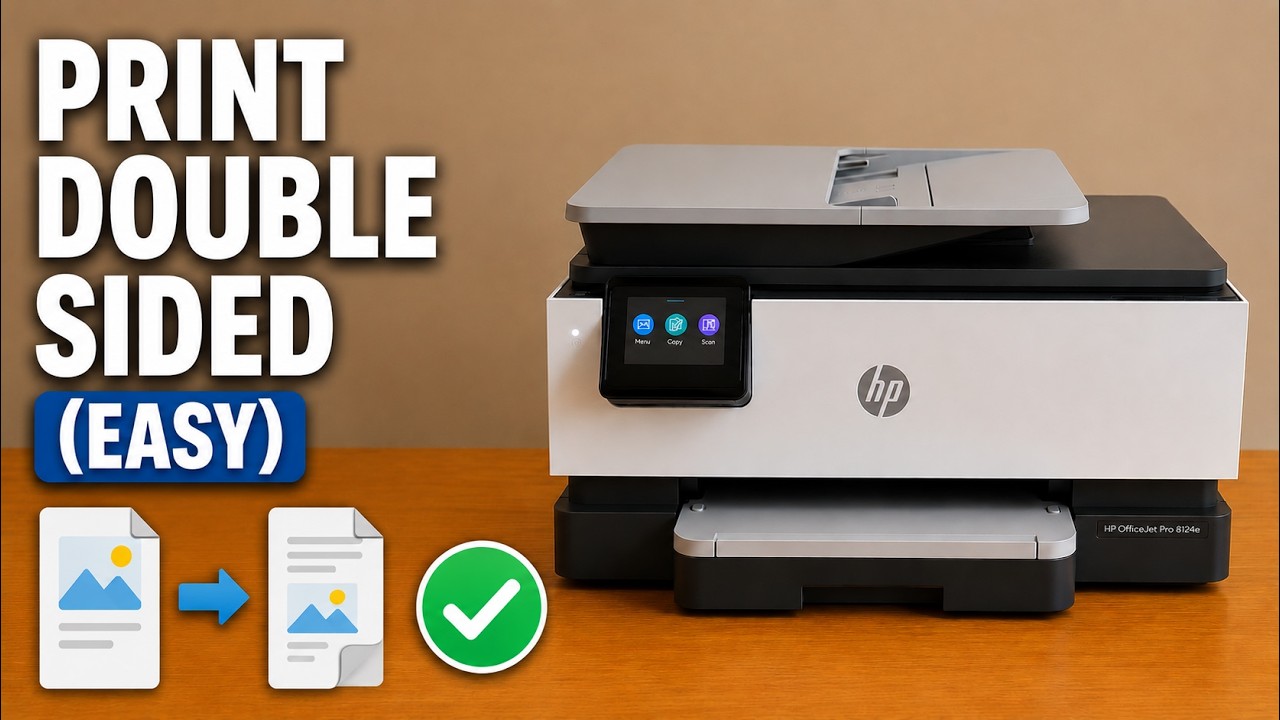
On the touchscreen, open Copy → Document Copy. Change Sides from 1 to 1-sided to 1 to 2-sided, as shown in the source. Review the copy count, paper size and color setting.
Place the first side of the original face down against the scanner glass’s marked corner and close the lid. Start the copy.
Step 2:Turn the original when the printer asks for the next page
Wait for the instruction to place the next page on the scanner glass. Open the document cover, turn the original over so its second side faces the glass, and realign it with the same marked corner.
Close the lid and choose Continue on the touchscreen. For two separate one-sided originals, place the second original instead of turning over the first.
Step 3:Let the printer finish both output sides
The printer prints one side of the new sheet, draws it back inside and prints the second side. Do not pull the sheet out during that movement. Wait until it is fully released.
Check both sides for the expected content, orientation and page pairing. The source shows a finished two-sided copy. If the second side is not oriented as intended, check the original placement and selected layout before making more copies.