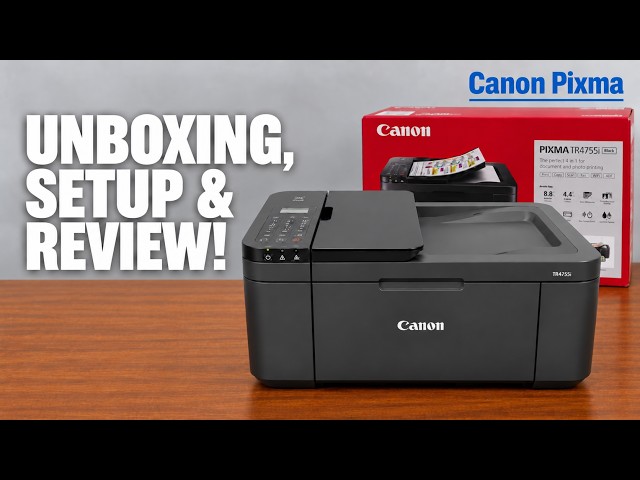
Canon PIXMA TR4755i
Canon PIXMA TR4755i setup: ink, Wi-Fi and Windows
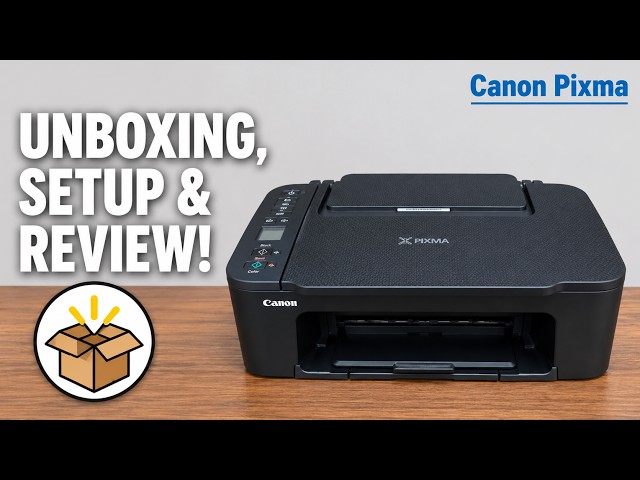
Install the TR4755i cartridges and paper, connect with Canon PRINT on an iPhone, then add Windows using the official installer if app setup fails.
Getting startedRead & watch
Find your way around a printer and prepare for its first use.
Install the TR4755i cartridges and paper, connect with Canon PRINT on an iPhone, then add Windows using the official installer if app setup fails.
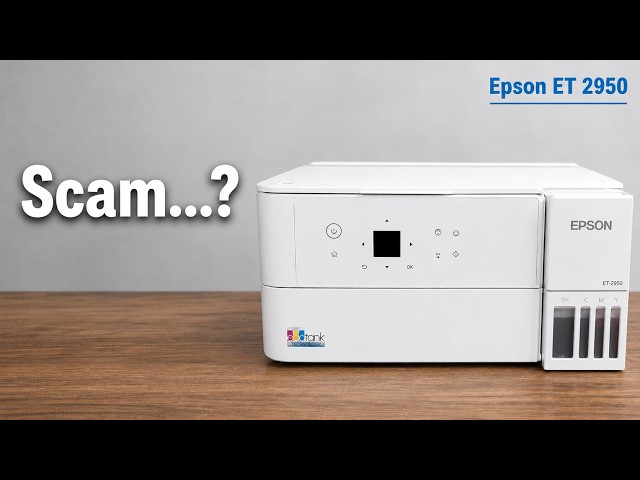
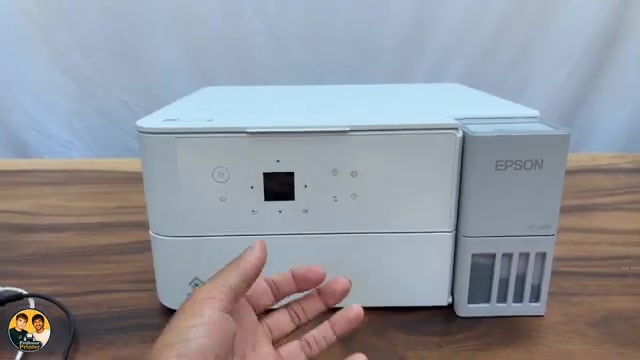
Professor Printer’s ET-2950 review weighs its everyday colour print against the small screen, interior access and purchase cost. See what the demonstration establishes.
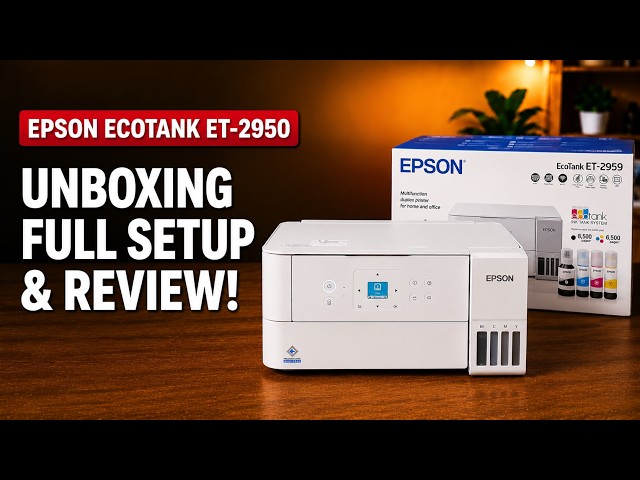
Set up the ET-2959 with Epson Smart Panel: fill and charge the ink, join Wi-Fi, complete alignment, then check Windows printing and Epson Scan 2.
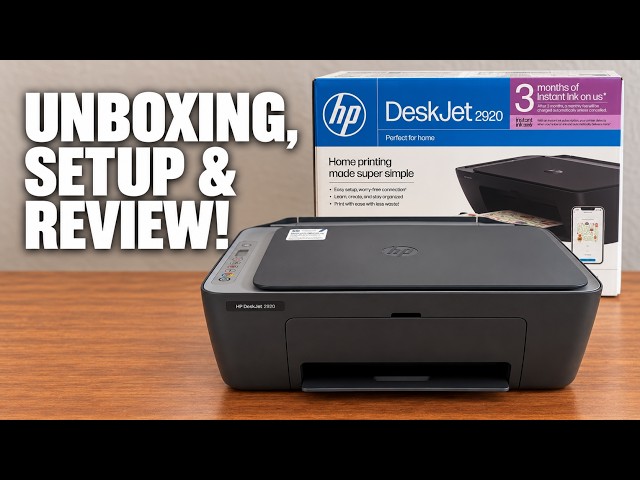
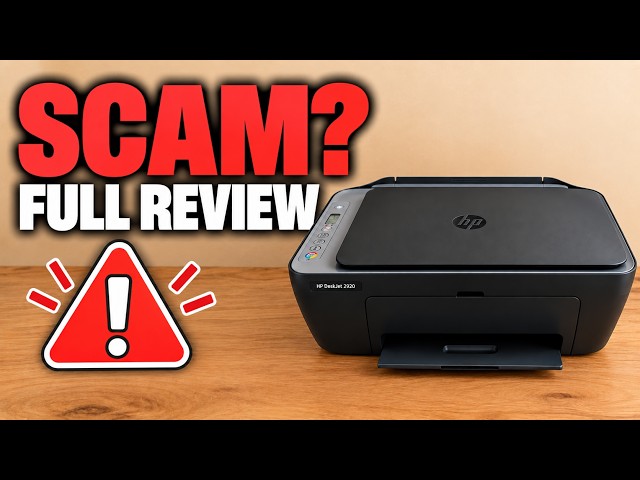
Set up the demonstrated DeskJet 2920 with paper, cartridges, alignment and iPhone Wi-Fi setup, then add it on a Mac and save a scan.
Install the TS3750i cartridges and rear-tray paper, connect with Canon PRINT, correct the first-print paper settings, and add the printer on Windows.
Use Brother Mobile Connect to open All Machine Settings, then sign in to the printer’s own web page with its current administrator password.
Open the firmware update in Brother Mobile Connect, use the printer’s administrator password and let the update and restart finish.
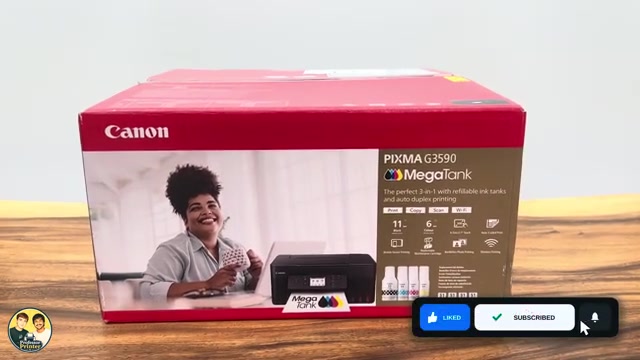
Unpack a G3590, follow its first-use prompts for printheads and ink, let initial preparation finish, then connect a phone or Windows computer and check a print.
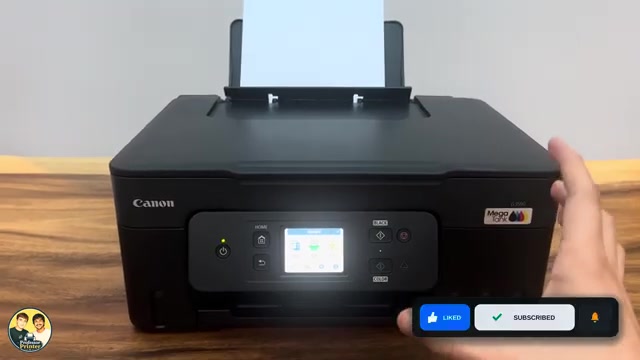
Change Keypad volume to silence Canon PIXMA G3590 button and touchscreen beeps. Alarm volume and printing noise have separate settings.
Choose your router’s exact network in Wi-Fi Setup Wizard, or use Epson Smart Panel on your phone. Complete setup and check a print from the same network.
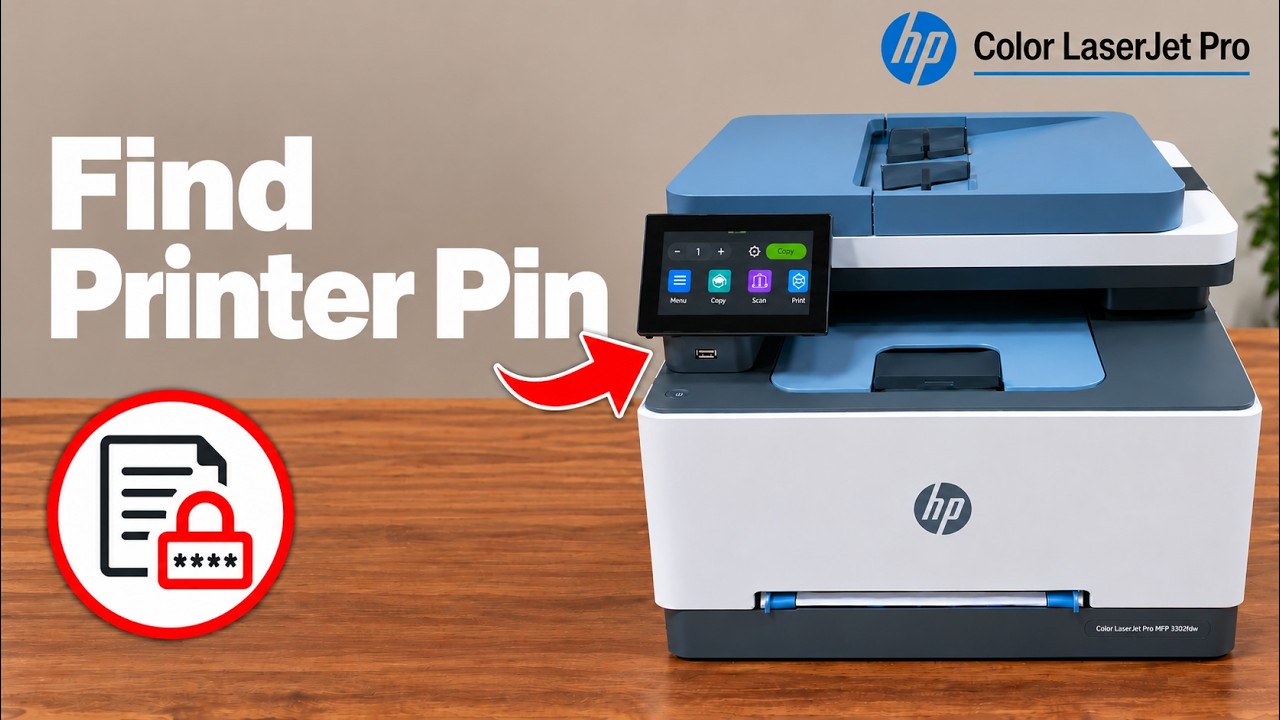
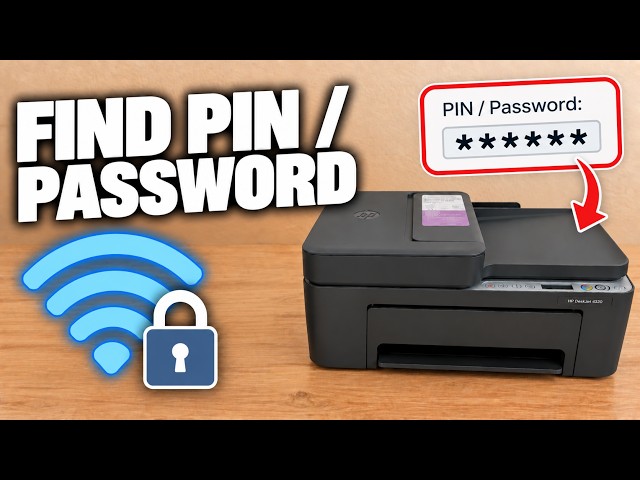
Locate the default PIN inside the front door and distinguish it from router Wi-Fi and Wi-Fi Direct passwords.
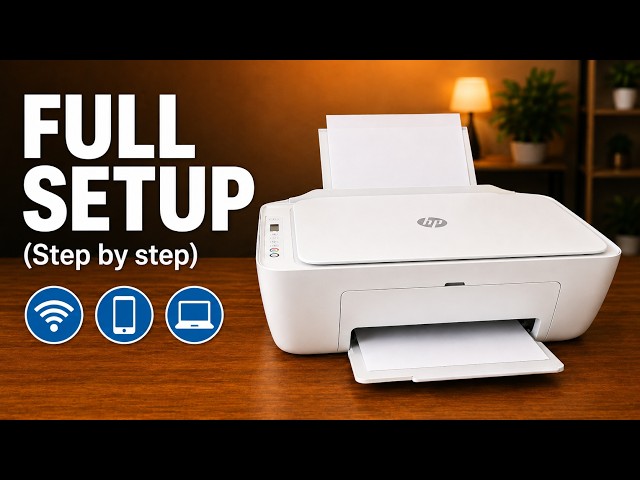
Check ink and paper, connect the printer to home Wi-Fi and confirm it is available to the HP app and AirPrint.
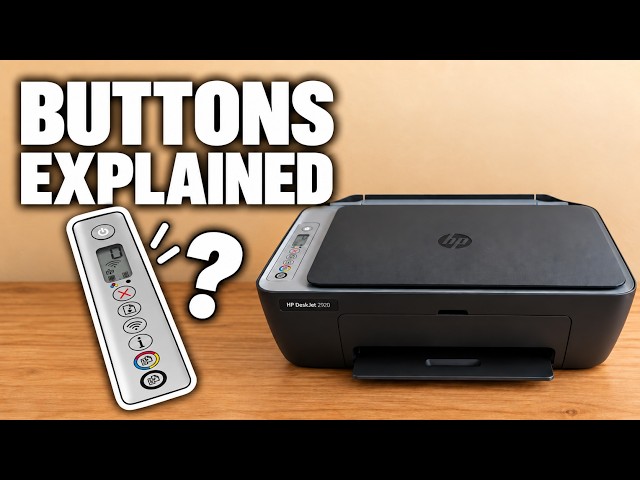
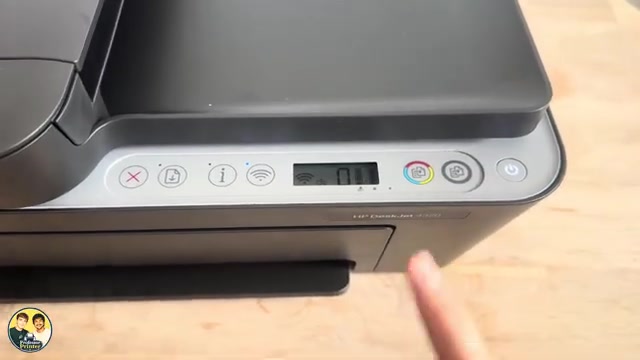
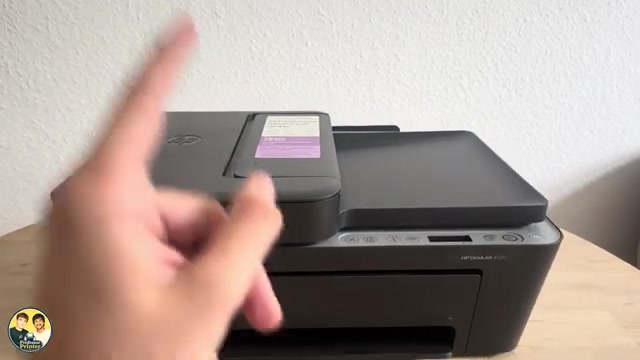
Identify Cancel, Resume, Wi-Fi, Information and Copy on the DeskJet 2900 panel, and read warning lights alongside the displayed error.
The presenter’s assessment of everyday printing and app use, with verified 2920/2955 feature limits and questions to check before buying supplies.
Identify Cancel, Resume, Information, Wi-Fi and Copy, understand the display, and avoid starting a network reset when you only need to stop a job.
Read the PIN label inside your printer when a genuine setup or printer-settings prompt requests it.
Remove the packing, load paper, fit the supplied cartridges and scan the alignment sheet before completing the recorded iPhone Wi-Fi setup.
Use the rear input tray for blank paper, adjust the width guide and extend the output tray. Keep the top document feeder for originals to copy or scan.
Use the touchscreen to select automatic firmware updates or update notifications, and check Internet access before expecting an installation.
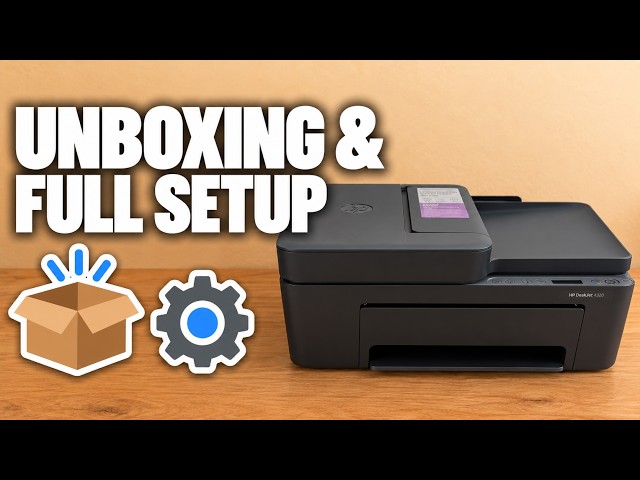
Unpack the printer, install its supplied setup cartridges, complete alignment and connect it with the HP app before checking your first print.
A source-based look at the touchscreen, paper tray and flatbed workflow, with the presenter’s opinions separated from unverified cost and speed claims.
Load paper and setup cartridges, align the printer, connect it to home Wi-Fi with an iPhone, then add the existing printer on a Mac.
A source-based look at the presenter’s OfficeJet Pro 8124e impressions, with clear limits on model equivalence, speed claims and ongoing ink costs.
Find your printer, print a file, distinguish printer scanning from camera scanning, save a PDF and locate settings in the HP app.
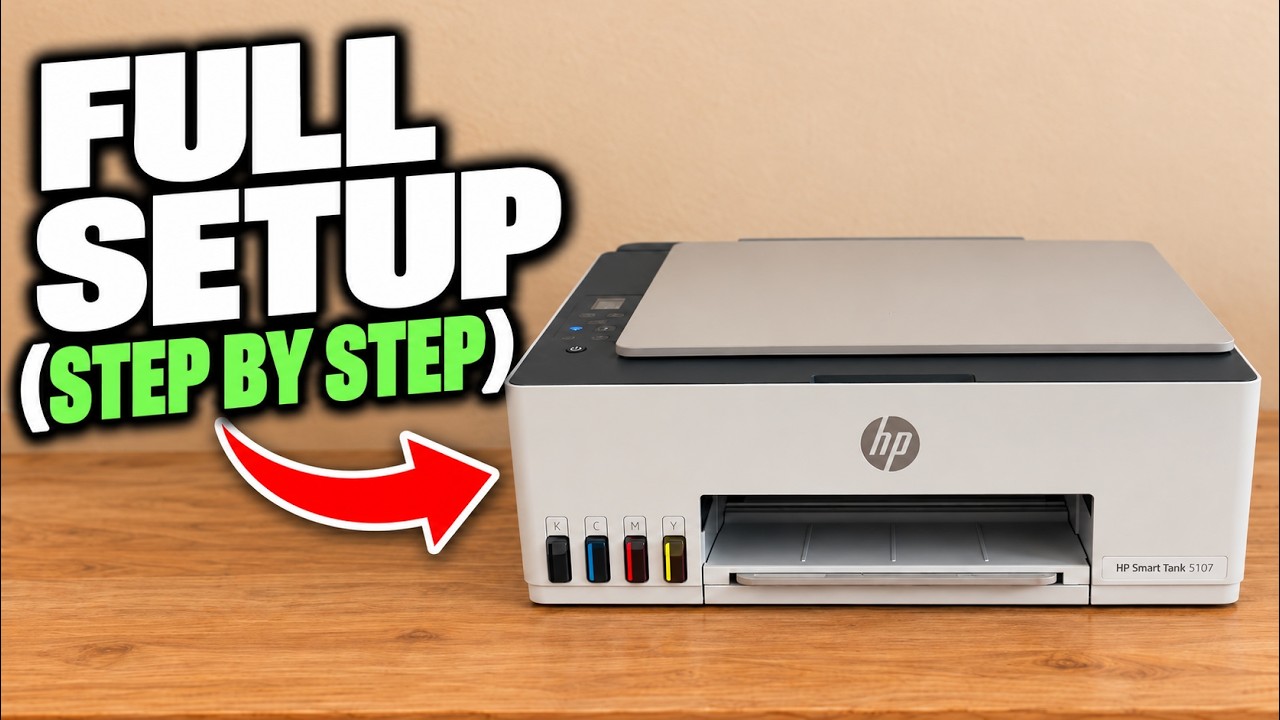
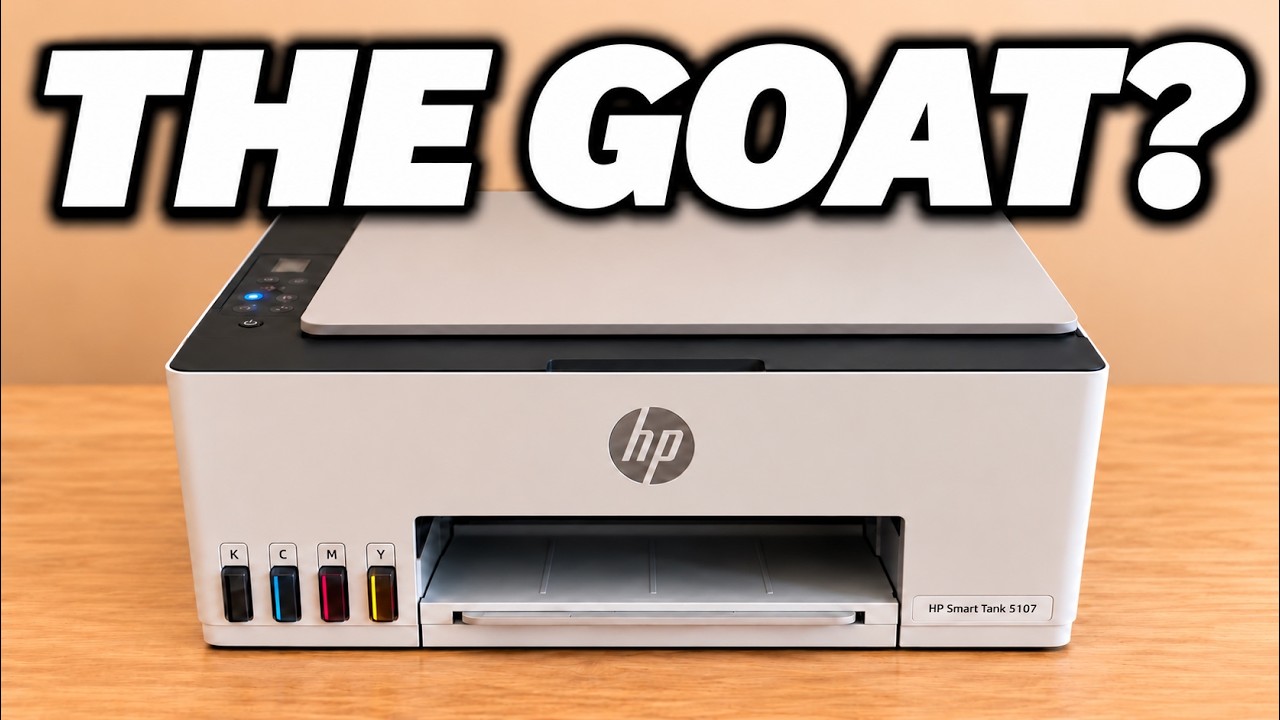
Set up the Smart Tank 5107 hardware, complete its alignment sheet and connect it to home Wi-Fi with the HP iPhone app.
The channel’s Smart Tank review favours refillable ink for home documents, while highlighting manual duplex, flatbed scanning and a button-heavy control panel.