Start with the symbol beside the button
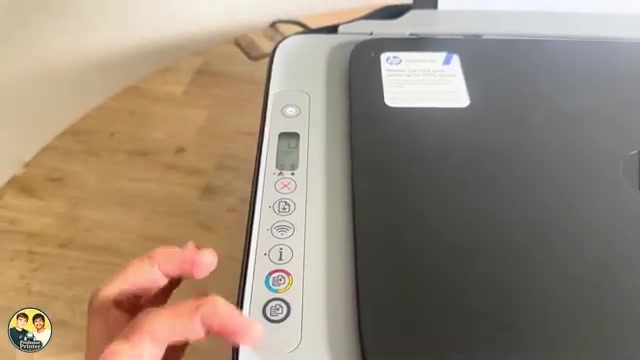
The vertical panel in the recording puts Power above the display, followed by the red X, Resume, Wi-Fi, Information and the two Copy buttons. Use the symbols to identify a control rather than assuming another DeskJet has the same layout.
Cancel stops; Resume continues after a problem
Press Cancel, marked with an X, to stop the current operation. Resume is useful after you have corrected an interruption, such as adding paper. It does not undo a job you cancelled. In the video, the presenter uses Cancel to stop a copying request.
Wi-Fi and Information have different jobs
A normal press of Wi-Fi switches the printer’s wireless connection on or off. The video shows the light blinking while reconnection is attempted. A steady wireless light indicates a network connection; it does not by itself prove that a document printed.
Information, marked i, prints a page about the printer and its status. During app setup, use it to confirm the connection when the app and blinking Information light request that confirmation.
Choose colour or black copying
Place the original face down on the scanner glass and close the lid, with paper loaded for output. The colour-marked Copy button starts a colour copy; the black-marked button starts a black-and-white copy. Quick repeated presses increase the copy count shown on the display. Check that count before leaving the printer.
Read a warning with the display
A blinking ink indicator is not always a request to buy ink: it can also indicate a cartridge problem. Likewise, Resume can signal a warning or error rather than only an empty tray. Read the accompanying paper/ink icons, E code and any HP app message.
The video’s general description of blinking Wi-Fi means the printer is not connected yet. Setup, an attempted connection and a connection failure need different next actions; wait for setup to finish or read the current app message before restoring settings.