Before you start
- Use flat, dry paper supported by your exact model. Do not add paper while a job is printing.
Use the rear input tray
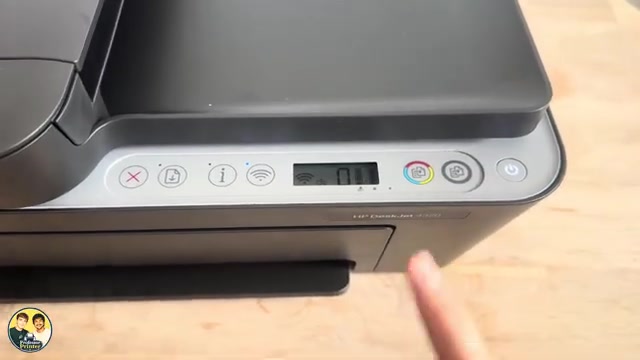
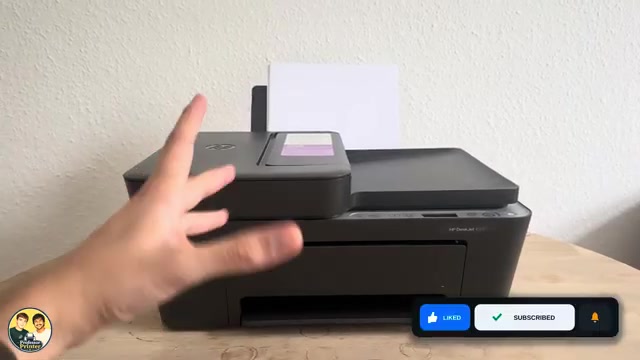
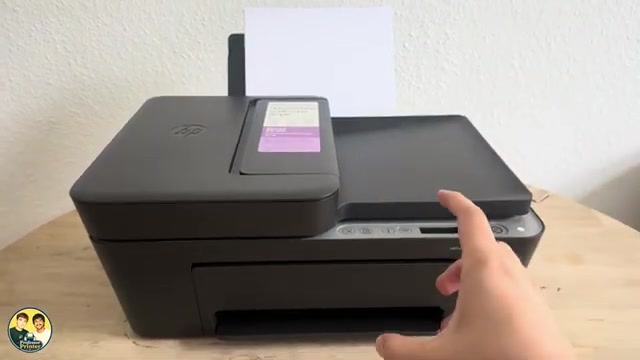
The rear support holds the blank paper the printer will print on. The separate top document feeder holds existing documents for copying or scanning. Putting blank paper into that feeder does not load the printer’s paper supply.
Step 1:Raise the support and open the guide
Lift the rear input support into its open position. Move the paper-width guide to the left when viewed from the front. Remove a different paper size or type before loading the new stack.
Step 2:Insert the stack print-side up
Square the stack and insert it in portrait orientation, with the side to be printed facing up, until it stops naturally. Do not force it farther down. For small paper, align the stack with the far-right side of the tray.
HP lists a 60-sheet input capacity for these models, but thickness affects how much fits. Stay within the supported capacity and do not squeeze an oversized stack into place. A4 and US Letter are different sizes: select the size actually loaded rather than copying the source’s approximate inch conversion.
Step 3:Set the guide and output tray
Slide the guide right until it touches the edge without bowing the paper. Lower the front output tray and pull out its extension to catch the finished sheets.
Step 4:Match the settings and check a print
In the app or print dialogue, choose the actual paper size and type. Send a short test page when you are ready and check that one sheet feeds straight. Loading paper alone does not prove a previously displayed error has cleared; follow the displayed message if the printer still reports a problem.
Questions & troubleshooting
Which tray is for blank paper?
Use the rear input tray. The top document feeder is for originals that you want to copy or scan.
How tight should the paper guide be?
It should just touch the edge. A loose guide can allow skew; squeezing the stack can bend it.
Can I treat A4 as Letter?
No. Use the actual size in your paper and print settings. The source’s guessed inch measurement is not used here.