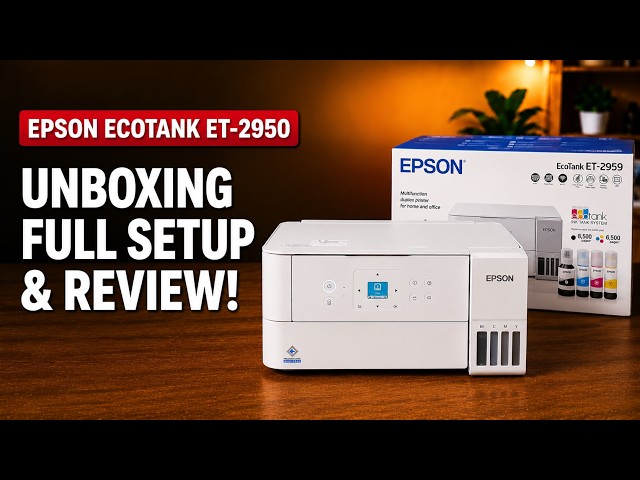
Epson EcoTank ET-2959
Epson EcoTank ET-2959 setup: ink, Wi-Fi and Windows
Set up the ET-2959 with Epson Smart Panel: fill and charge the ink, join Wi-Fi, complete alignment, then check Windows printing and Epson Scan 2.
Getting startedRead & watch
Find a guide for turning a paper document into a digital file.
Set up the ET-2959 with Epson Smart Panel: fill and charge the ink, join Wi-Fi, complete alignment, then check Windows printing and Epson Scan 2.
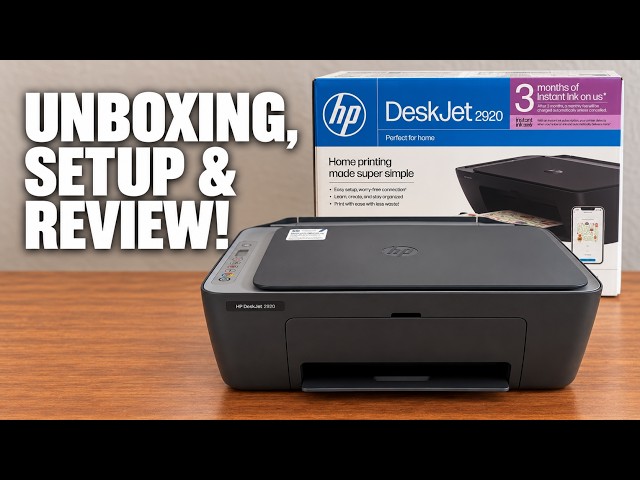
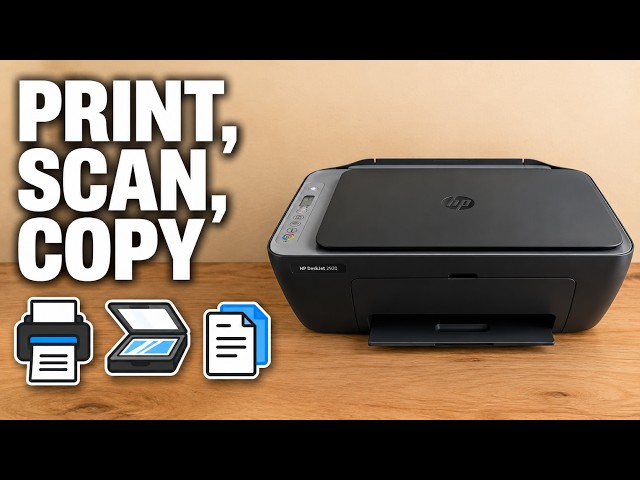
Set up the demonstrated DeskJet 2920 with paper, cartridges, alignment and iPhone Wi-Fi setup, then add it on a Mac and save a scan.
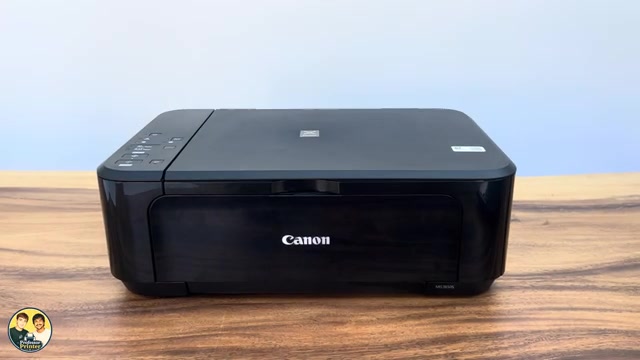
Prepare the front tray, print from Canon PRINT or Windows, copy with the panel buttons and save scans from a phone or Canon IJ Scan Utility.
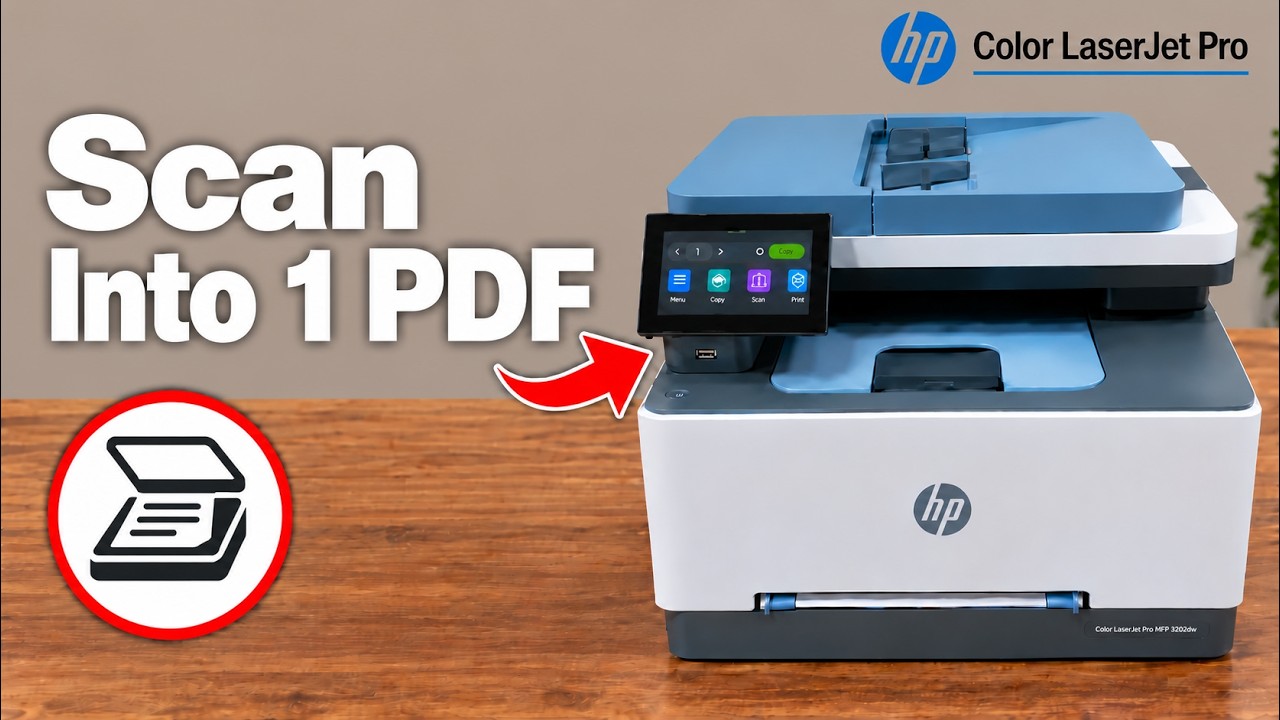
Choose the feeder or flatbed in the Windows HP app, review both sides and save the selected pages together as a PDF.
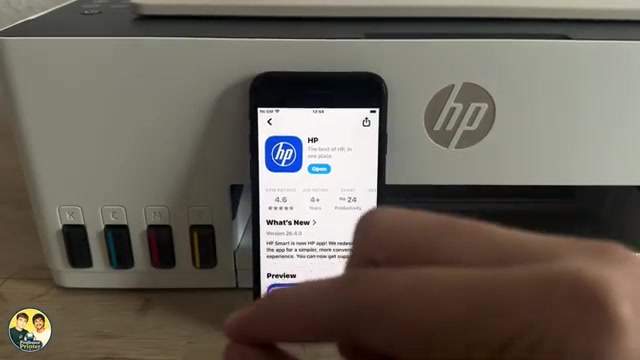
Use the copy buttons, print from the HP app, and scan one or several flatbed pages into a PDF saved on your iPhone.
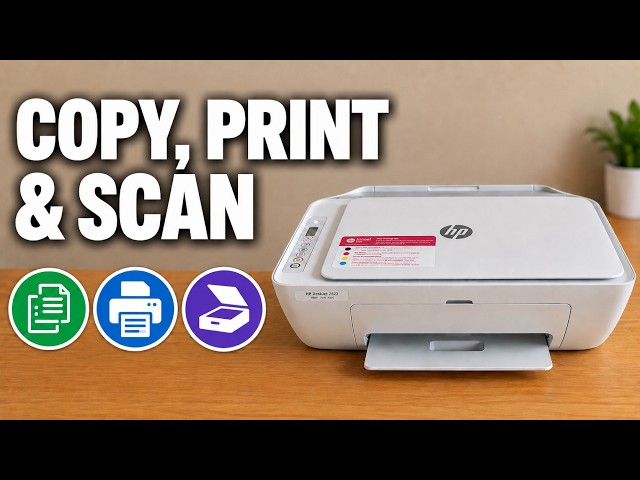
Make a copy at the printer, print from an iPhone and save a scanner-glass document as a PDF in Files.
Copy from the glass or document feeder, print from the HP app, and save a checked iPhone scan as a PDF. Wi-Fi is needed for this app workflow, not standalone copying.
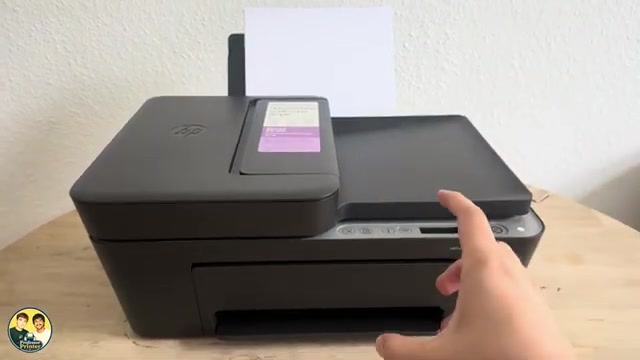
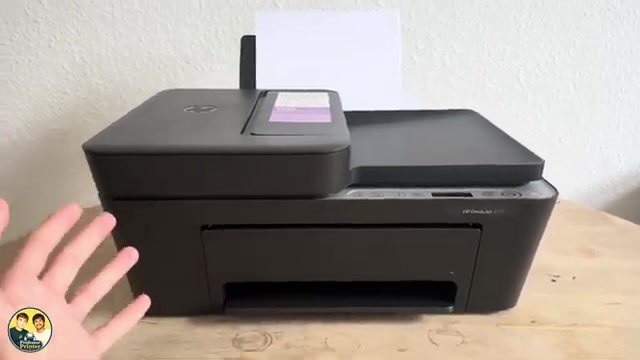
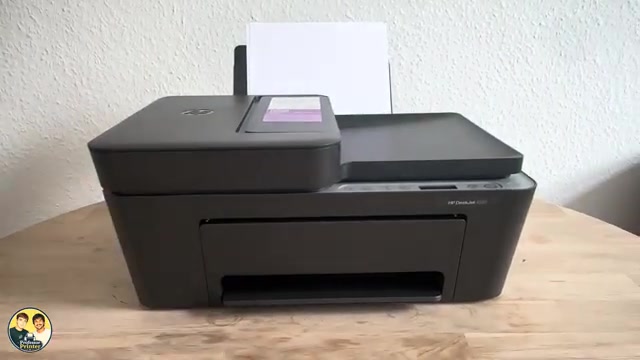
An attributed look at the DeskJet 4300 models, with a 2955 comparison: a document feeder, manual duplex, shared everyday limits and the costs to check before buying.
Choose the glass or document feeder, then scan with the HP app or macOS scanner controls. Select a destination and confirm the saved file.
Make a copy at the printer, print a file from your iPhone, or scan a page with the HP app and save it as a PDF in Files.
Add the network printer in macOS, open its scanner and select a save destination before scanning from the flatbed.
Use the HP app to scan from the glass, review the preview and save the document with a deliberate format and destination.
Scan a page from the glass or several originals from the document feeder, check the page order, then save the scan as a PDF in Files.
Find your printer, print a file, distinguish printer scanning from camera scanning, save a PDF and locate settings in the HP app.
Use the printer’s flatbed in the HP app, check the page edges and save the finished PDF to a chosen location on your iPhone.
Open the connected scanner from macOS, check the scan area and save the result to a chosen folder.
Connect the Smart Tank 5107 by USB, choose it in the Mac print dialog and open its scanner without setting up router Wi-Fi.