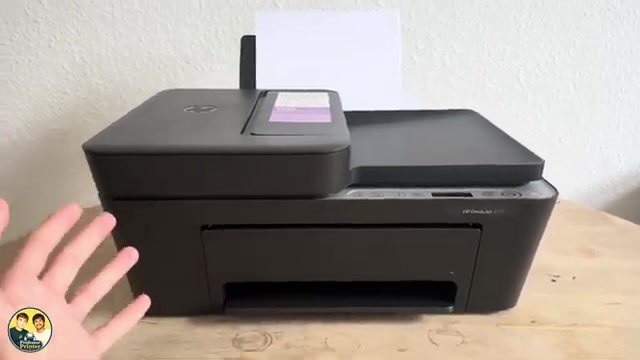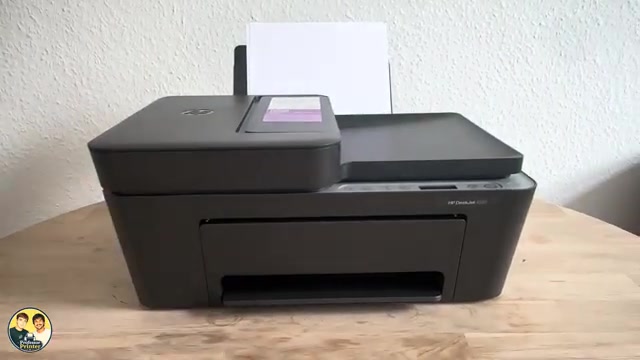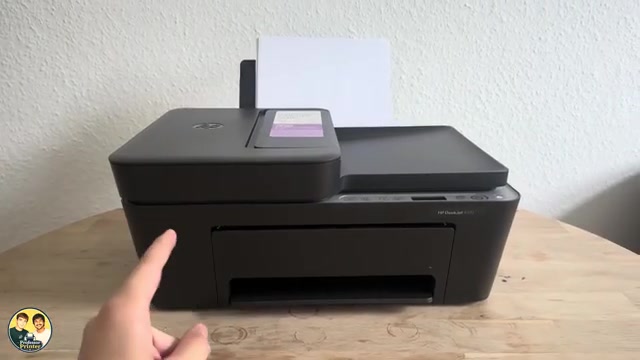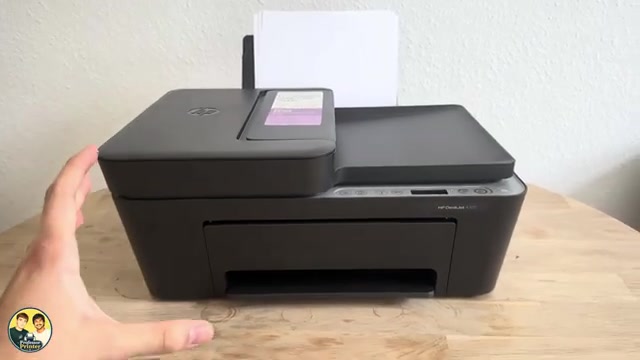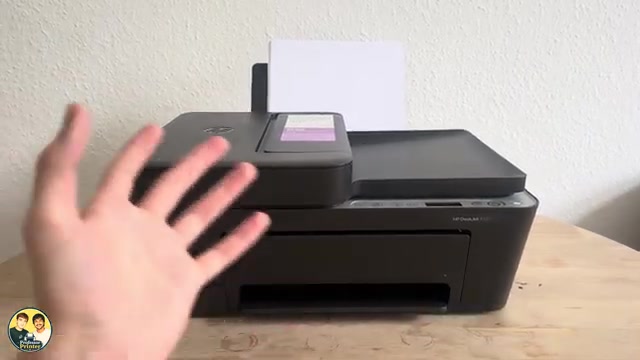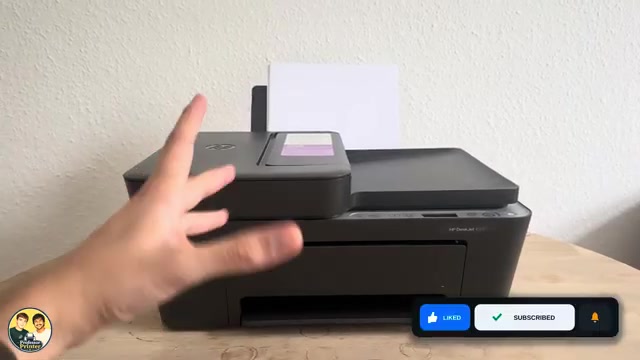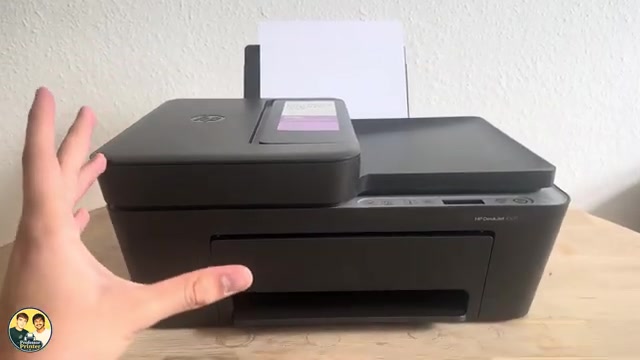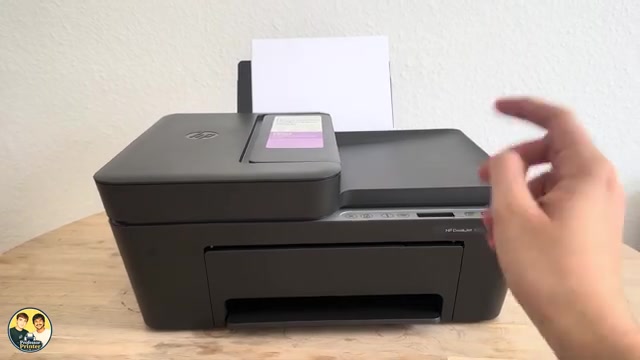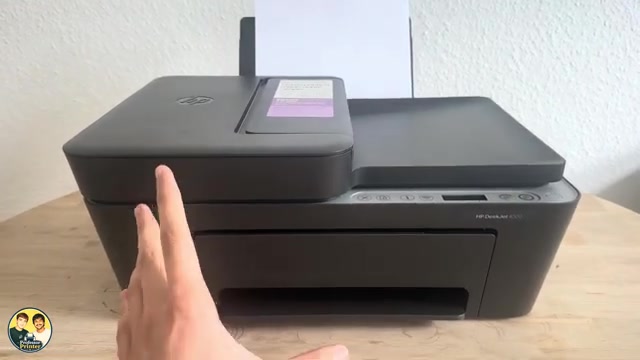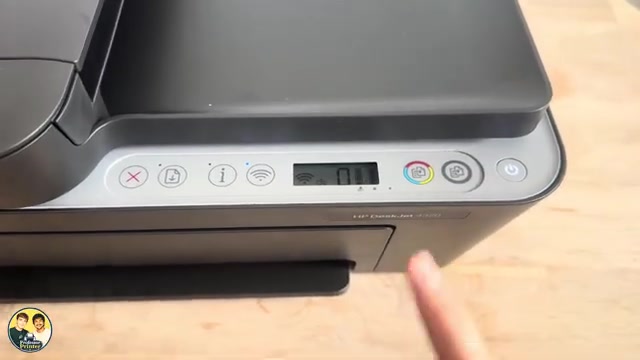
HP DeskJet 4320 and 4355 buttons, lights and Cancel control
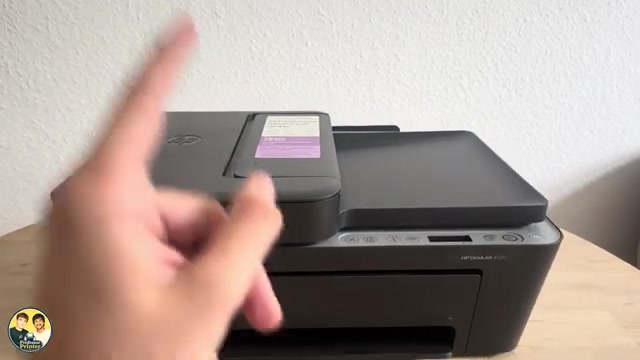
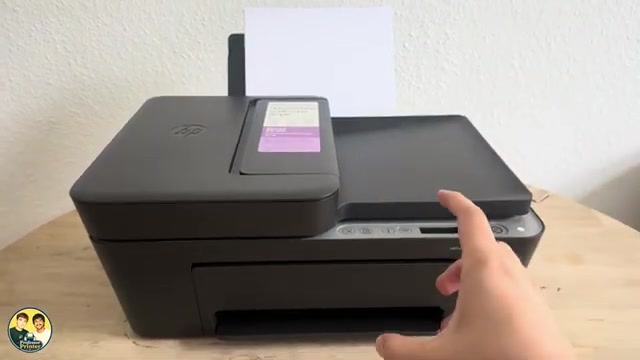
Identify Cancel, Resume, Information, Wi-Fi and Copy, understand the display, and avoid starting a network reset when you only need to stop a job.
Find your next step, from getting connected to everyday printer tasks.
Guides shown here are assigned to this exact model. Similar model names are kept separate.
Watch this model’s channel playlist19 guides across 6 tasks
Identify Cancel, Resume, Information, Wi-Fi and Copy, understand the display, and avoid starting a network reset when you only need to stop a job.
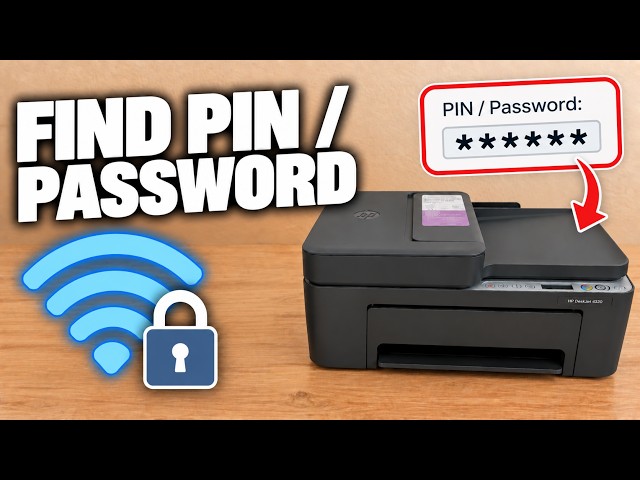
Read the PIN label inside your printer when a genuine setup or printer-settings prompt requests it.
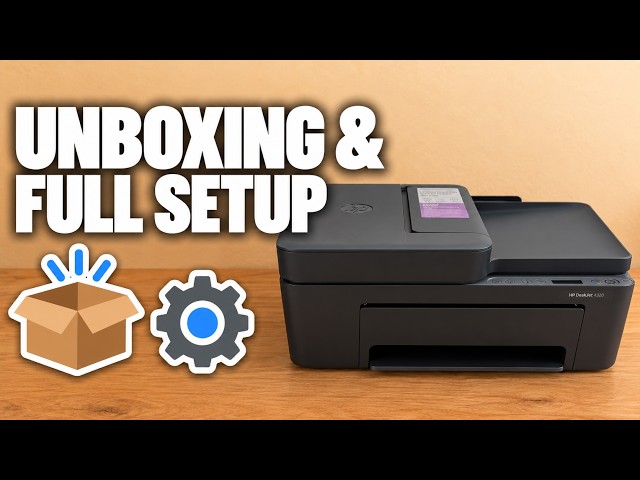
Remove the packing, load paper, fit the supplied cartridges and scan the alignment sheet before completing the recorded iPhone Wi-Fi setup.
Use the rear input tray for blank paper, adjust the width guide and extend the output tray. Keep the top document feeder for originals to copy or scan.
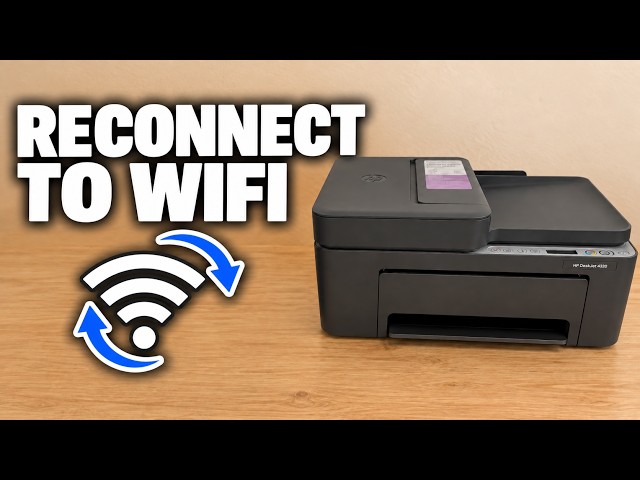
Read the wireless light pattern, restore network setup only when needed and use the iPhone HP app to join your own network.
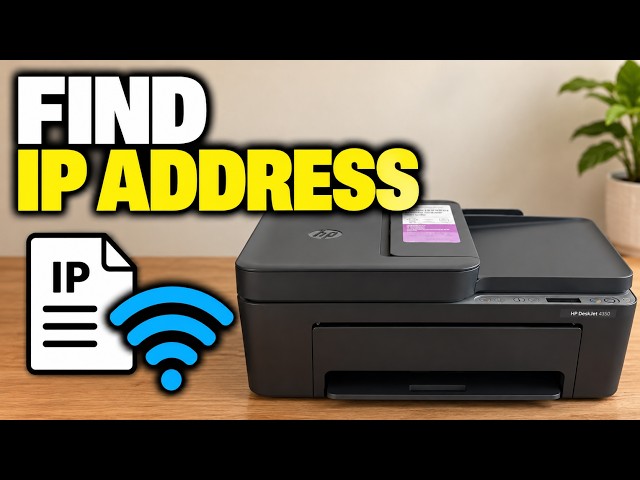
Connect the printer to your network, print a fresh information page and read the address for that active connection.
Read the PIN label inside your printer when a genuine setup or printer-settings prompt requests it.
Remove the packing, load paper, fit the supplied cartridges and scan the alignment sheet before completing the recorded iPhone Wi-Fi setup.
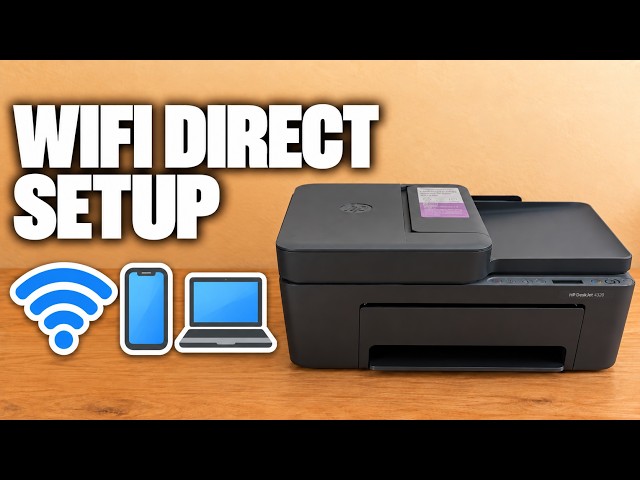
Print your printer’s Direct name and password, enable Direct if needed and connect an iPhone without a router.
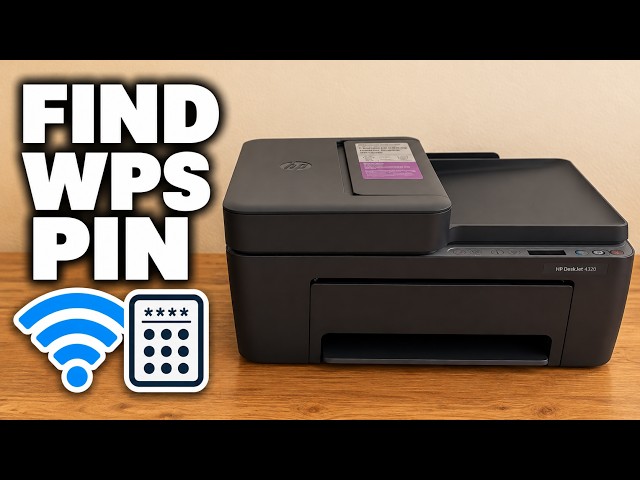
Generate a fresh WPS-PIN page with Information and Wi-Fi, then enter your own temporary code in the setup prompt.
Copy from the glass or document feeder, print from the HP app, and save a checked iPhone scan as a PDF. Wi-Fi is needed for this app workflow, not standalone copying.
An attributed look at the DeskJet 4300 models, with a 2955 comparison: a document feeder, manual duplex, shared everyday limits and the costs to check before buying.
Choose the glass or document feeder, then scan with the HP app or macOS scanner controls. Select a destination and confirm the saved file.
Read the colour and black level icons or view estimated supplies in the HP app. Use the estimates to plan, alongside the actual print quality and cartridge messages.
Identify the affected cartridge, check compatibility, tape and seating, then use HP’s E0 restart or replacement steps only if the error remains.
Check the supply number for your printer’s region, replace the required cartridge with the carriage stopped, and complete the alignment if a new-cartridge page prints.
Cancel the job, inspect the relevant paper path and remove sheets without sharp tools. Follow the model’s bottom-door positioning instead of turning it upside down.
Copy from the glass or document feeder, print from the HP app, and save a checked iPhone scan as a PDF. Wi-Fi is needed for this app workflow, not standalone copying.
Use the rear input tray for blank paper, adjust the width guide and extend the output tray. Keep the top document feeder for originals to copy or scan.
Print page 1, reload the same sheet correctly, then print page 2. This small-job phone method does not enable an automatic duplex unit.
Check the paper and rear tray first. If pickup still fails, clean the paper rollers with power disconnected, let them dry and test again.
Match the actual photo paper, size and layout in the HP app, then choose an available quality setting and inspect a sample. These models do not offer borderless printing.
Use the quality report to choose alignment or cleaning, scan the alignment sheet to finish calibration and match photo settings to your loaded paper.
An attributed look at the DeskJet 4300 models, with a 2955 comparison: a document feeder, manual duplex, shared everyday limits and the costs to check before buying.
Identify Cancel, Resume, Information, Wi-Fi and Copy, understand the display, and avoid starting a network reset when you only need to stop a job.
Cancel the job, inspect the relevant paper path and remove sheets without sharp tools. Follow the model’s bottom-door positioning instead of turning it upside down.
Read the wireless light pattern, restore network setup only when needed and use the iPhone HP app to join your own network.
Identify the affected cartridge, check compatibility, tape and seating, then use HP’s E0 restart or replacement steps only if the error remains.
Check the paper and rear tray first. If pickup still fails, clean the paper rollers with power disconnected, let them dry and test again.
Use the quality report to choose alignment or cleaning, scan the alignment sheet to finish calibration and match photo settings to your loaded paper.