Before you start
- Use plain paper within both your exact model’s supported media range and HP’s general two-sided range of 60–105 g/m²; the upper limit is not permission to exceed a narrower model limit. Prepare a two-page portrait test document in the connected HP app. Avoid photo/glossy paper, envelopes and transparencies for this manual two-sided task.
- This method is for a small checked job. For longer documents, use a supported computer-driver manual-duplex workflow and follow its prompts.
Step 1:Print only the first page
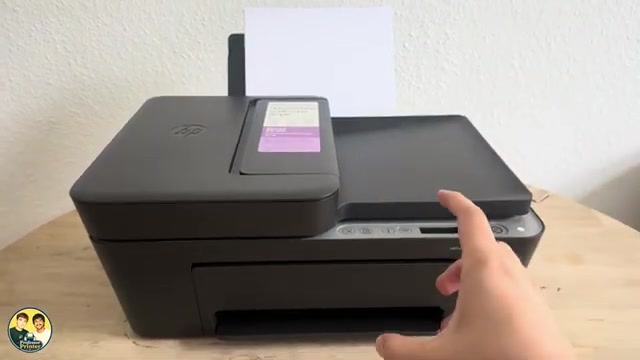
Load plain paper print-side up in the rear tray, adjust the width guide and open the output tray and extension. In the HP app choose Print Documents, select the file and open Print Preview → Page Range. Select page 1 only, confirm the correct paper size and send Print.
Wait for the complete sheet to exit and for the ink to be dry enough not to smear. The source selects the first two pages of a three-page file; the unselected third page is outside this example.
Step 2:Reload for book-style page turning
Remove the unused paper so the printed sheet will feed next. For this top/rear-loading tray, put the already printed side down, the blank reverse side up, and the top edge into the printer first. Bring the width guide to the edge without bending the sheet.
That precise orientation comes from HP’s top-loading manual-duplex guidance. The recording says “upside down and flipped around” without clearly showing the reload. Do not use that ambiguous phrase as a guide for a different page orientation or tablet-style flip.
Step 3:Print only the second page
Return to Page Range, deselect page 1 and select page 2 only. Check the same printer and paper size, then Print. Allow the job to finish before collecting the sheet.
Step 4:Check the two-sided result
Turn the sheet like a book and confirm that each side is upright, in order and complete. The presenter reports page 1 and page 2 on the same sheet. Keep a small test before printing an important original and do not assume this phone method automatically manages a long stack.
Questions & troubleshooting
Does the printer turn the paper over for me?
No. HP lists manual duplex for these exact models. You reload the sheet yourself in this method.
Why did page 2 print on another blank sheet?
Remove unused sheets before reloading the printed sheet so it is the next page taken by the printer.
Why is the back upside down?
Check whether you need book-style or tablet-style turning. The guide’s top-edge-first orientation is for book-style portrait pages; use a two-page test rather than applying an ambiguous flip description.