Before you start
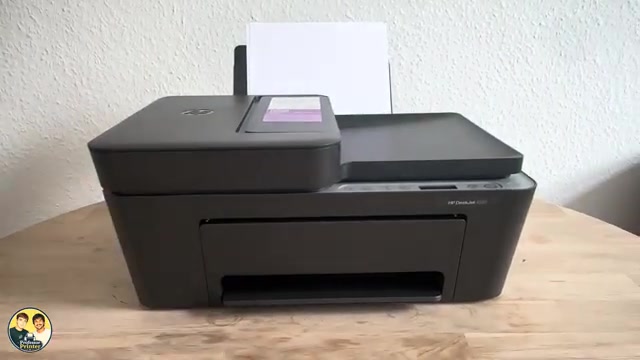
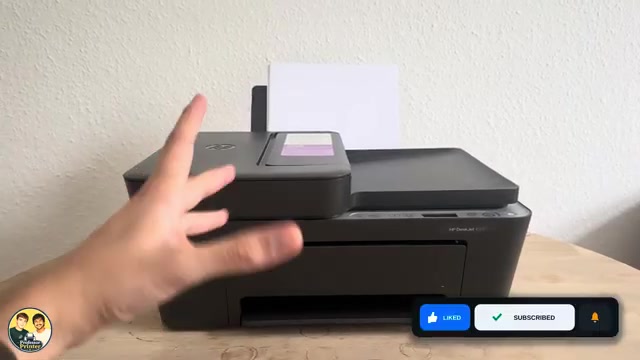
- For copying or printing, load blank paper in the rear tray, adjust the guide and open the output tray and extension. Have the appropriate ink installed.
- For the iPhone app route, finish printer setup and connect the printer and iPhone to the same intended network. Use the HP app with your actual printer selected.
Step 1:Place the original in the right source
- For one sheet on the glass, lift the lid, place the printed side down against the marked corner and close the lid. Use the engraved guides rather than guessing a corner from a reversed camera view.
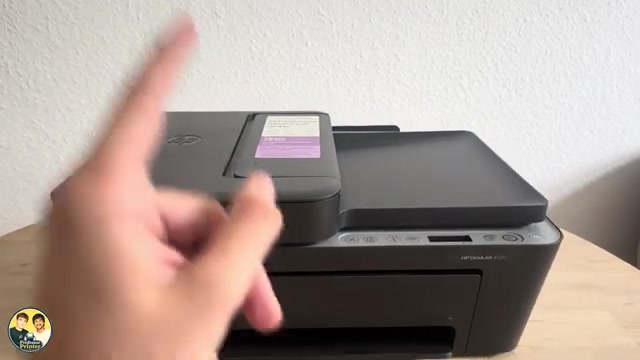
- For multiple single-sided sheets, open the top feeder and its extension, move the guides out, then load the originals print-side up in the intended order. Bring the guides to the edges without bending the stack.
- Select Scanner Glass or Document Feeder in the app when that choice is available. Verify the selected source instead of assuming every app version detects it automatically.
The source initially loads its feeder pages upside down, then rotates them in the app. Orient every original consistently before scanning and check the preview. Do not move sheets while the feeder is pulling them.
Step 2:Make a standalone copy
With blank paper loaded and the original in place, press Black Copy or Color Copy. For more than one copy, press that button again quickly until the display shows the desired count, up to nine. Wait for the output and check it. Press the X/Cancel button if you need to stop the current job.
The Wi-Fi prerequisite in the source applies to its phone features. The printer’s physical copy buttons do not require the iPhone app.
Step 3:Scan and check every page on iPhone
- In the HP app, choose Scan for the selected printer. Use the printer scanner rather than a phone-camera scan. With the original correctly loaded and source selected, tap Scan.
- Wait for completion. For another glass page, replace the original after scanning stops and use the app’s add/scan option. For a feeder job, check that all intended pages appear in the preview.
- Open the page preview and check cropping, readability, order and rotation. Correct the detected edges if text is missing; automatic cropping is not always correct.
The main source scans three feeder pages and then rotates them; the shorter supporting source demonstrates one glass scan. Neither establishes that this feeder scans both sides automatically.
Step 4:Save the completed scan to Files
Choose the app’s Share/Save control and select PDF for a document. In the demonstrated iPhone version, Continue and View More lead to Save to Files. Choose the destination and filename, confirm Save, then open that file in Files and check that every page is present.
Searchable PDF, Word conversion and other enhanced choices may depend on app version or account features. A normal PDF is enough to save the scan; a preview alone is not proof that a file has been saved.
Step 5:Print a saved document or photo
Choose Print Documents in the HP app to select a file, or Print Photos for an image. Open Print Preview and check the printer, paper size, page range, copies and colour options. Match paper type to the physical sheets; review any image crop before sending Print.
Wait for the sheet and inspect it. The main recording cancels its document print demonstration after showing the controls, so it does not prove that every print option was tested to completion.
Questions & troubleshooting
Does copying require Wi-Fi?
No. Use the physical copy buttons with an original, blank paper and ink. The wireless connection is for the phone workflow described here.
Why is my scan upside down or cropped?
Check the original orientation and chosen source, then inspect rotation and crop in the preview. The source itself needs a rotation correction. Save only after checking all pages.
Where is the saved PDF?
Use Save to Files and choose a destination. Then open Files and look in that location; the document does not have to appear in Photos.
Does the document feeder scan both sides automatically?
This guide demonstrates single-sided originals. Do not interpret multiple-sheet feeding as automatic two-sided scanning.