Before you start
- For the demonstrated wireless route, the printer and Mac must be on the same network with printer setup completed.
- Prepare the originals and decide between the glass and document feeder. Exact macOS and HP app versions in the recording are unknown.
Step 1:Load the original and choose the source
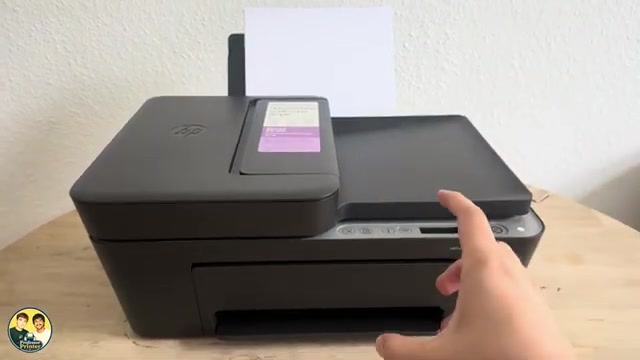
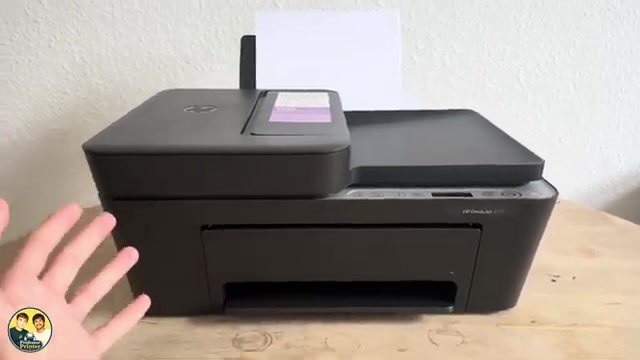
Place a glass original print-side down against the marked corner, then close the lid. For the feeder, open the tray and extension, adjust the guides and load the pages print-side up. Bring the guides to the edges. The source’s HP app requires Document Feeder to be selected explicitly; do not leave the app on Flatbed for a feeder job.
Step 2:Scan with the HP app
- Open the official HP app. If the printer is not listed, choose Add a Device and select your actual available printer. Discovery requires the intended connection; a printer appearing immediately in one recording is not guaranteed.
- Select Scan. If the app requests an HP account, sign in to use that route. The recording encounters this prompt.
- Select Document Feeder or Scanner Glass to match the original. Check the available scan settings and choose Scan. Wait for the preview and inspect all intended pages.
- Use the app’s Save/Share option to choose a file format and destination, then save and open the file to check it.
The source reaches a scan preview but does not demonstrate a complete saved-file check. The final save/check step completes the written task; available menu names can vary. HP’s manual confirms that software scanning must be completed through its onscreen save flow.
Step 3:Alternative: use the Mac’s scanner controls
The recording opens the scanner from Print Center. Apple’s current documented route is System Settings → Printers & Scanners → your printer → Open Scanner. Use this route if you prefer the available native scanner instead of the HP app account prompt.
- Choose the source: select Use Document Feeder for the top feeder, or deselect it for the glass. Show Details can expose Scan Mode and other settings.
- Set Scan To to a known folder. Choose a filename and format, such as PDF, plus the size and colour settings appropriate to the originals.
- Choose Scan. After it completes, open the saved file from the selected folder and verify page count, orientation and readable edges.
Only options supported by the selected scanner appear. This is not a claim that every macOS version has the same Print Center interface or that a duplex scanner option is supported by this printer.
If Open Scanner is missing
Check that the powered-on printer is added in Printers & Scanners and reachable on the intended network. Apple’s linked scanner-setup guide explains Add Printer, Scanner or Fax. Do not reset all printer settings merely because one app has not found the scanner.
Questions & troubleshooting
Do I need an HP account to scan?
The HP app in this recording requests sign-in. The available macOS Open Scanner route is an alternative; it does not require using that HP app prompt.
Why is the printer scanning an empty glass?
The app may still be set to Flatbed while originals are in the feeder. Choose the source that matches their actual location.
Is a preview already a saved PDF?
Not necessarily. Choose a destination and complete Save, then open the actual file to confirm it.