Before you start
- Use a connected HP app and the correct printer. Choose a clear original image and suitable inkjet photo paper within your exact model’s media limits.
- The recording uses plain paper as a stand-in; it does not demonstrate or measure a finished glossy-paper result.
Step 1:Load the actual paper you will print on
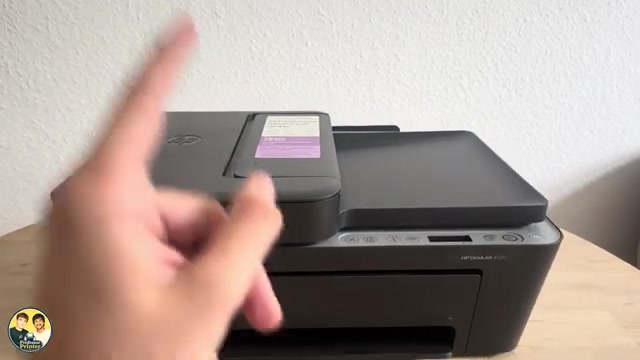
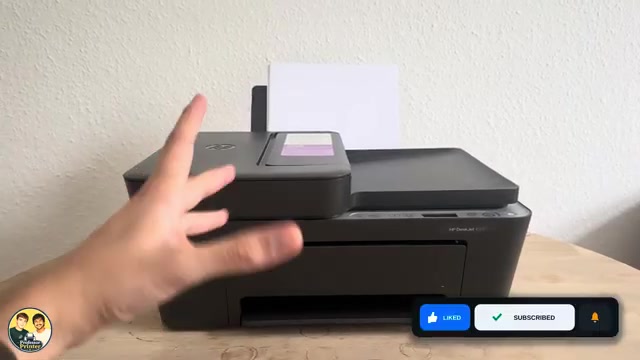
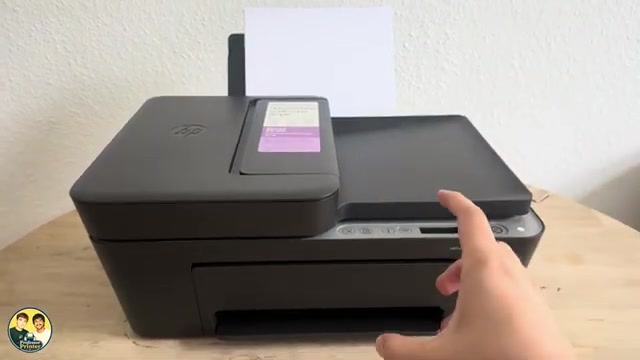
Remove a different paper size/type from the rear tray. Raise the support and open the guide. Load the new paper print-side up in portrait orientation until it stops naturally; small photo paper sits against the far-right side. Bring the guide to the edge, then lower the output tray and extend it.
Use the printable side identified on the paper’s packaging. Match the paper type in the app to the actual media; selecting Photo Paper does not improve plain paper by itself. The source’s anecdote that a wrong setting necessarily destroys a printer is not established.
Step 2:Open the image and review its layout
In the HP app choose Print Photos, allow access to the intended photo when asked, and select it. Check layout, image position and any crop. Adjust brightness only if the image needs it; a brightness slider cannot restore detail missing from a low-resolution original.
HP lists no borderless printing for DeskJet 4320 and 4355. An app layout control does not create that hardware capability. Keep important image content away from the intended edges and plan for the printer’s margins.
Step 3:Match the print settings
Choose Next to reach the print preview. Select the real paper size and type, choose colour for a colour image, and review the available print-quality choices. Best is an available option in the demonstration, not a guarantee that every image becomes better.
Higher quality can take longer and use more ink. The source’s “five times longer” and “three times better” figures are not measured results and are not used here.
Step 4:Send one print and inspect it
Confirm the selected printer, paper and preview, then choose Print. Allow the sheet to finish before handling it. Check crop, colour, text/detail and unwanted marks before printing more copies.
If colour is missing, lines are broken or alignment is poor, use the relevant print-quality diagnosis. A higher quality setting cannot by itself repair a blocked nozzle or cartridge fault.
Questions & troubleshooting
Can I print without borders?
HP specifies no borderless printing for these exact models. A photo-layout screen does not override that limitation.
Should I select photo paper while using plain sheets?
No. Select the type actually loaded. This recording uses plain sheets while discussing photo-paper options.
Is Best exactly three times better?
No such measured multiplier is established. Print a sample and choose the result that suits the image, paper and task.