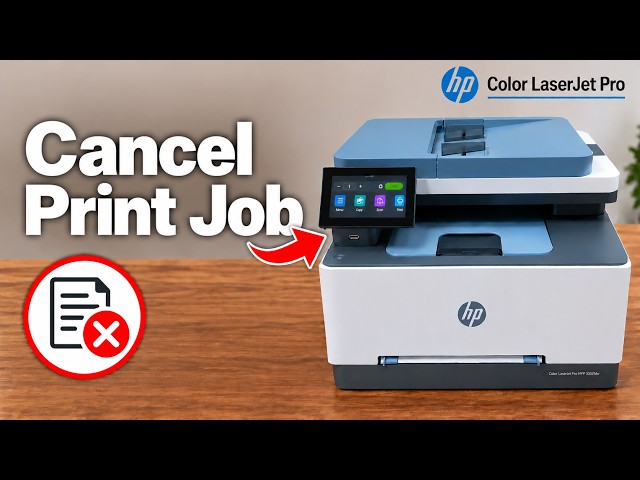
Cancel a print job on the HP Color LaserJet Pro MFP 3301fdw or 3302fdw
Open Jobs on the printer’s touchscreen, select the active job and confirm Cancel, then check that the intended job has stopped.
Browse a printer family
Explore related 3301fdw and 3302fdw videos in one collection. Every guide identifies its source printer and any model-specific scope.
Watch videos for this printer family19 guides to read and watch. The source printer is shown on every card.
Open Jobs on the printer’s touchscreen, select the active job and confirm Cancel, then check that the intended job has stopped.
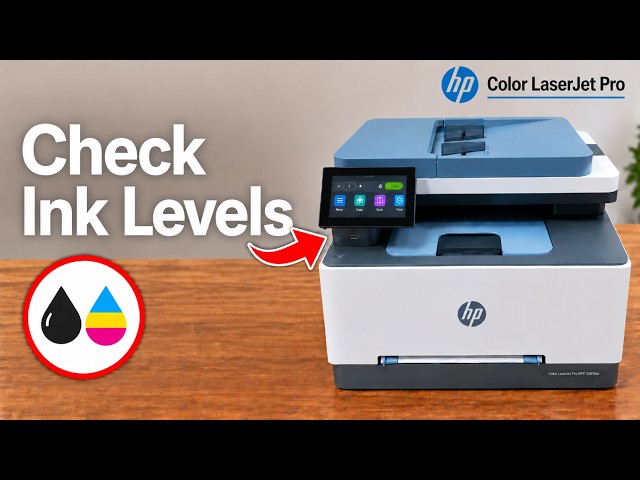
Open Supplies → Cartridges on the touchscreen or view the selected printer in the HP app. Use the estimates for planning rather than treating them as exact measurements.
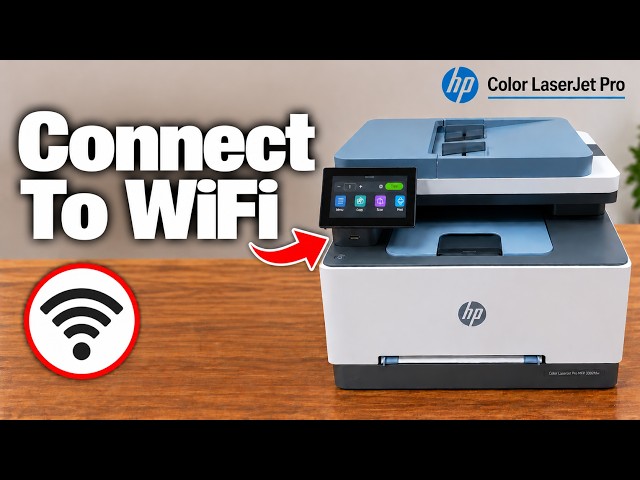
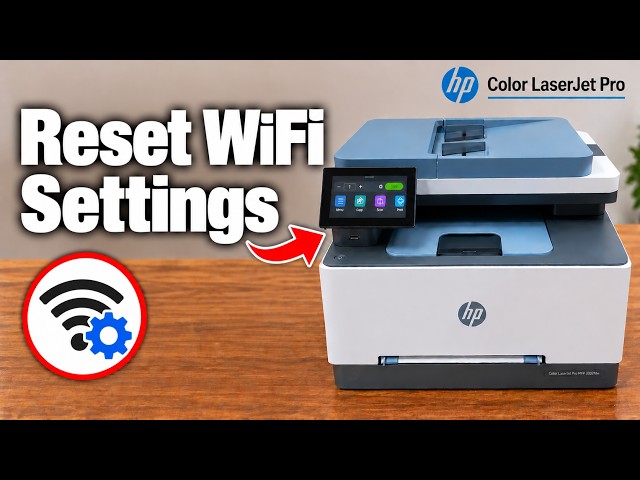
Use the touchscreen’s Wi-Fi Setup Wizard to select your router and enter its current password, then check the printer’s connection.
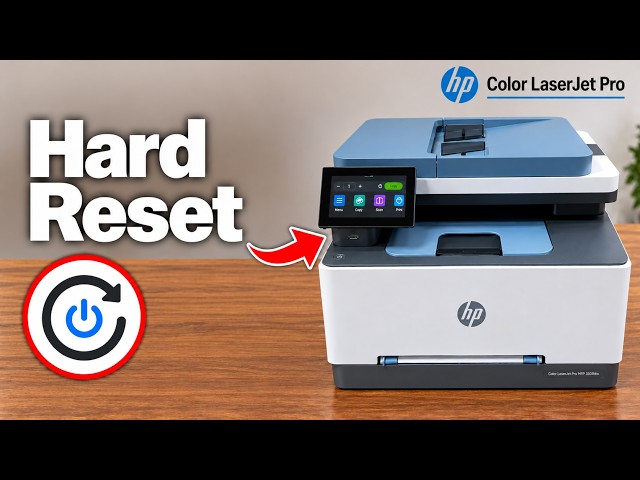
Use the touchscreen’s Restore all factory defaults command deliberately, then complete setup again. This resets settings rather than repairing a physical printer fault.
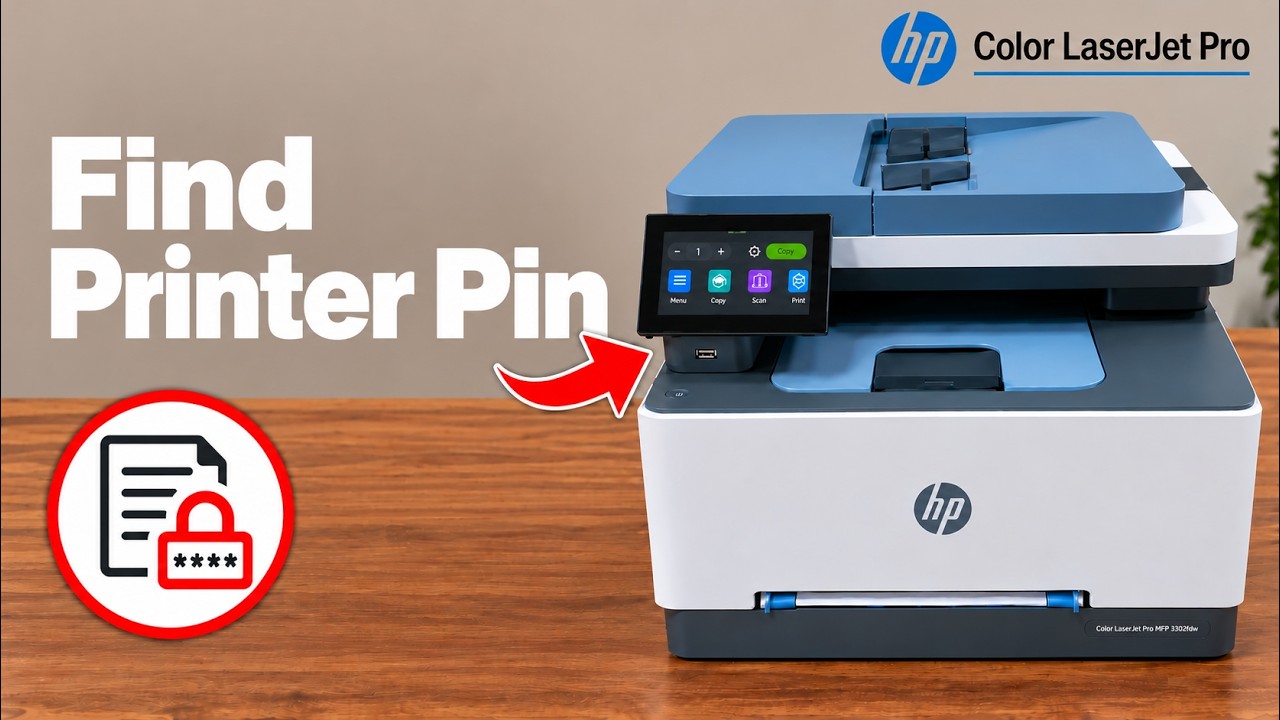
Locate the default PIN inside the front door and distinguish it from router Wi-Fi and Wi-Fi Direct passwords.
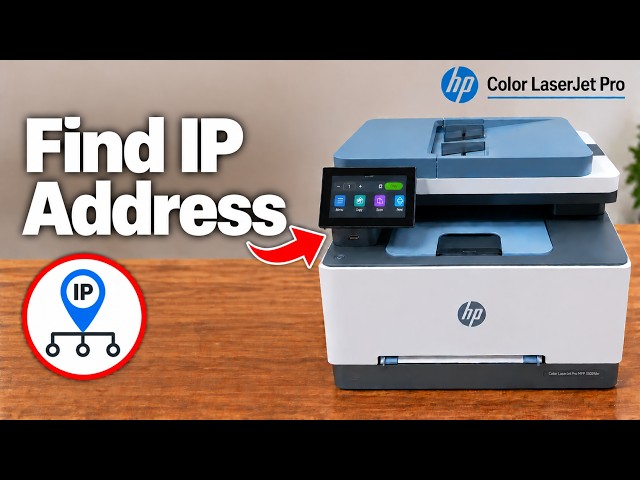
Read the printer’s current network address from its touchscreen, then use that address on a device connected to the same network.
Prepare the printer and Tray 2, complete touchscreen network setup, install the matching software and check a first page before adding the phone app.
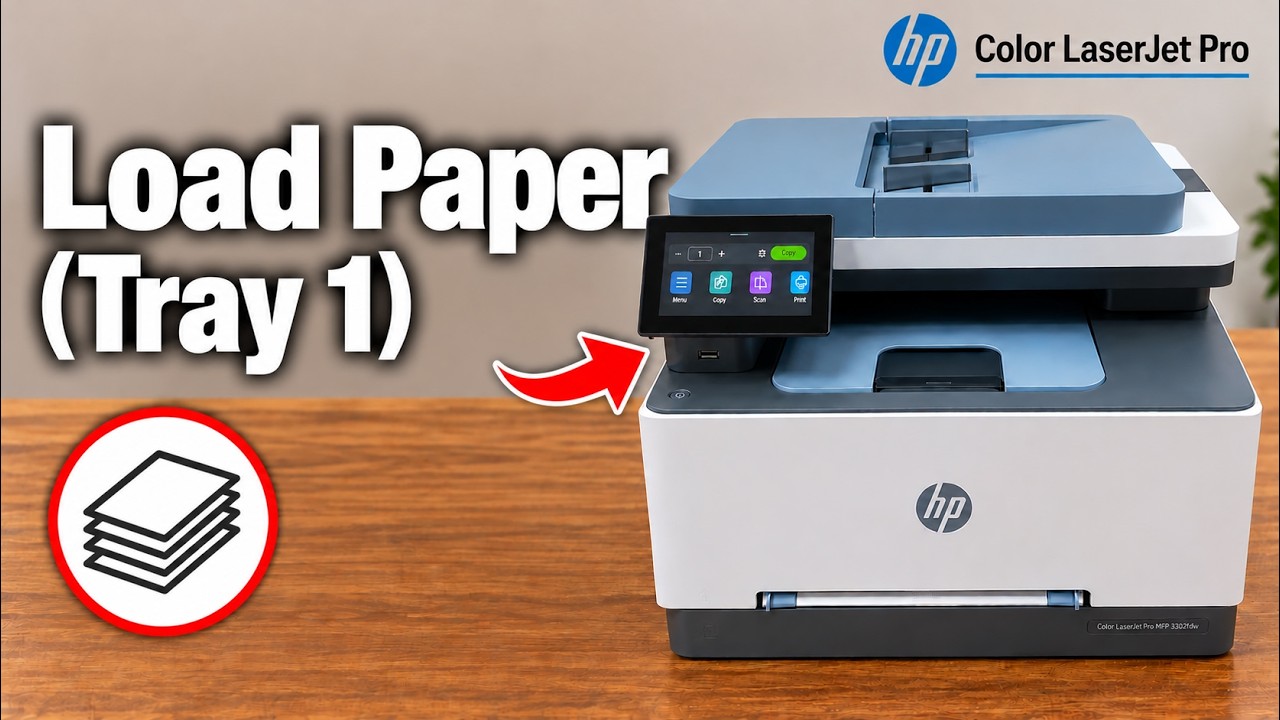
Use the single-sheet priority slot or load the lower paper tray, then match the paper size and type in your print settings.
Clear the printer’s network configuration without selecting the separate full factory-settings reset, then reconnect it to the intended network.
Check which tray the job requests, reload the right amount of supported paper and fit the guides before retrying a small job.
Use the printer’s jam location and HP’s access points for the priority slot, lower tray or rear path. Stop if paper cannot be removed gently.
Use touchscreen copying without a computer, print from the HP app and save a flatbed scan. Select the correct original sides and paper source before starting.
Check paper settings and toner estimates, use the printer’s diagnostic page and choose cleaning or colour calibration for the actual defect.
Open the toner drawer, match the replacement to its colour slot and close the drawer and access door before checking the printer.
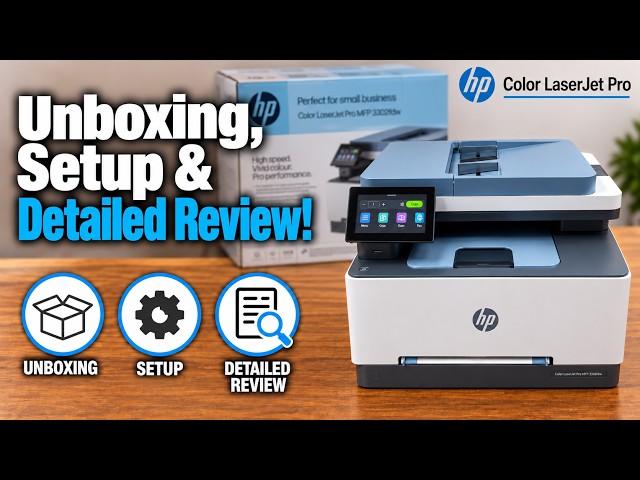
The presenter values the touchscreen and document workflow but criticises photo output, curled pages and setup friction. Here is what the demonstration supports and what to check for your own workload.
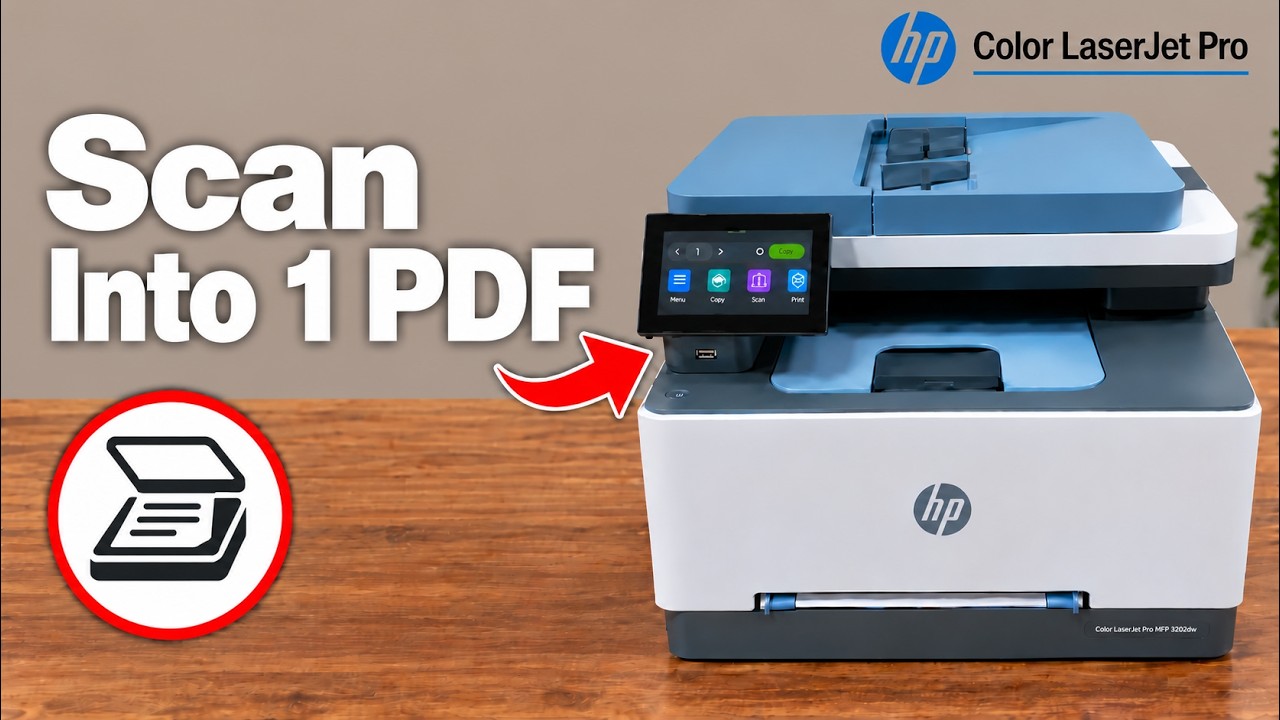
Choose the feeder or flatbed in the Windows HP app, review both sides and save the selected pages together as a PDF.
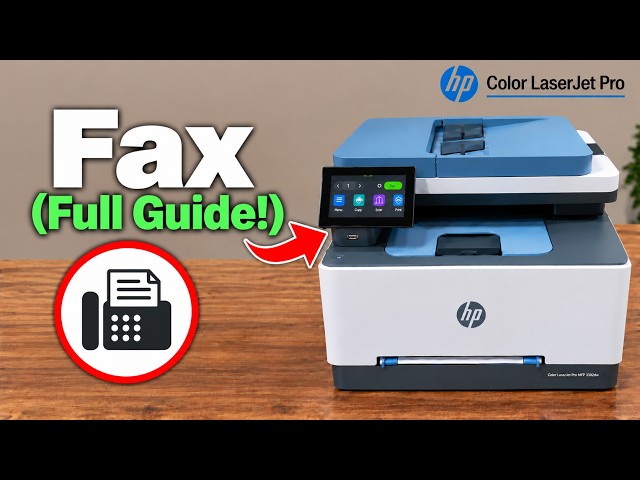
Connect the printer’s fax port to a suitable telephone service, enter your real header details, send to a confirmed recipient and check the fax result.
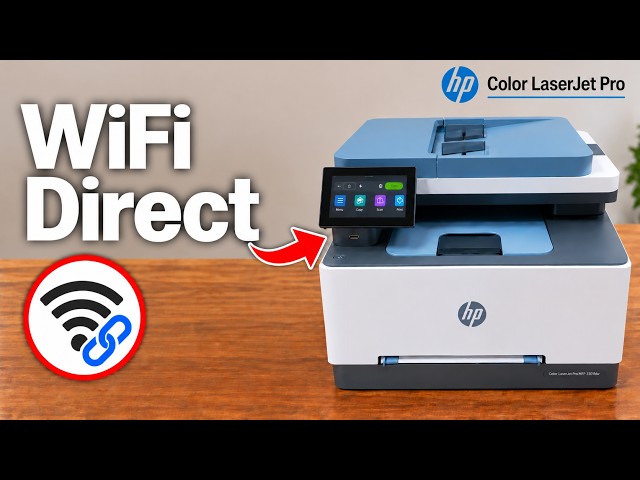
Enable the printer’s local wireless connection, join its own network using its current password and send a supported local print.
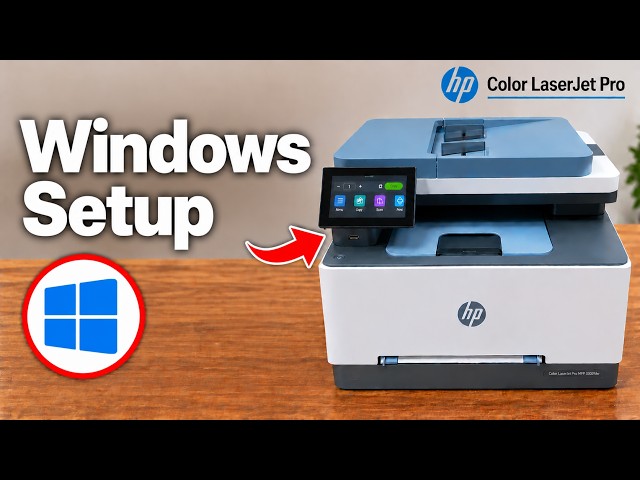
Connect the printer to the network, install HP’s exact-model software and add it in the HP app, then check printing and scanning separately.
Open your printer’s hub to see its guides and related tutorials from this collection.
These are related printers covered in the channel’s tutorial collection. Grouping helps you browse; each article retains its own model and task scope.