Before you start
- A stable work surface, A4/Letter plain paper and the printer’s supplied setup/unpacking instructions.
- Your intended network credentials and a computer/phone with supported HP software.
Step 1:Prepare the printer and a first stack of paper
Place the printer on a stable surface with room for its trays and covers. Get help moving the bulky unit if needed. Remove the shipping plastic, tape and protection identified by the supplied unpacking instructions, including beneath the scanner lid; do not dismantle the casing or toner mechanism.
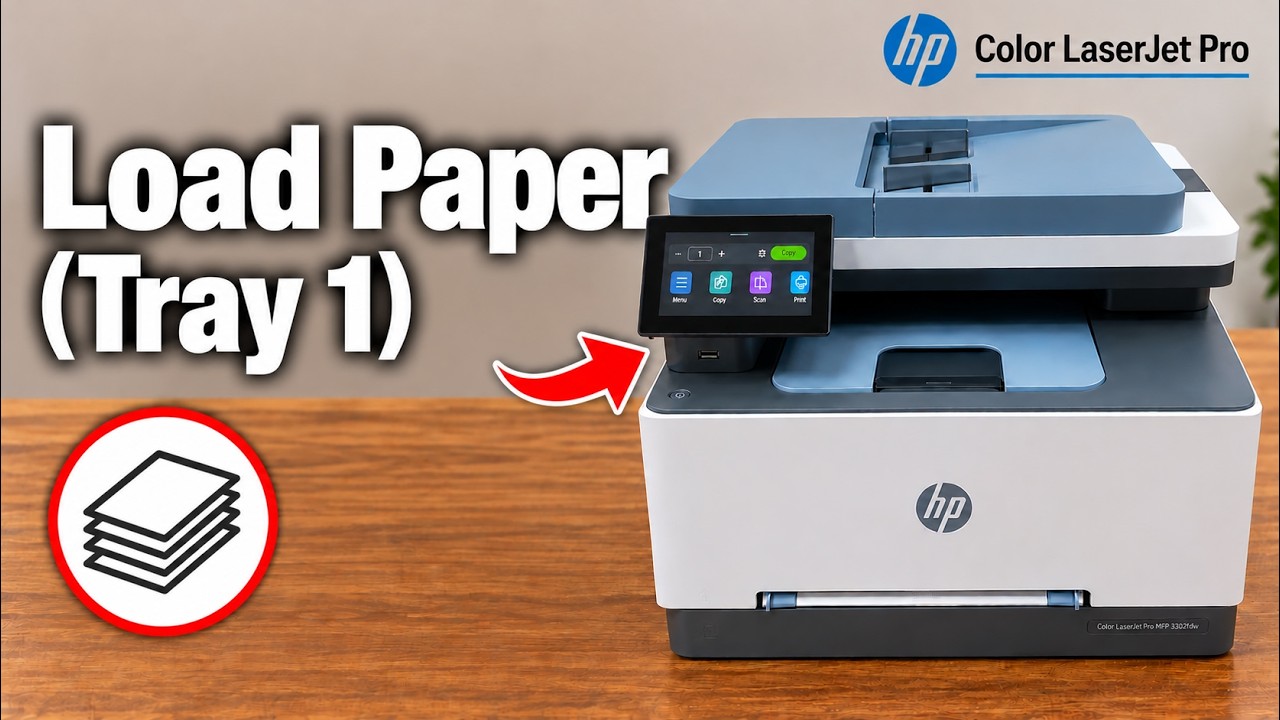
Use the supplied appropriate power cord and turn the printer on. Select the language and actual country/region on the touchscreen. Open Tray 2, release and position the width/length guides for A4 or Letter plain paper, then load a flat stack below its height mark. Fit the guides without bending the paper and close the tray.
The video loads paper later, before its test page; HP’s setup guide places loading earlier. Either way, complete correct loading before sending the test. A preprinted sheet used for a single-sided test goes face up with its top edge toward the rear, per the applicable tray instructions.
Step 2:Complete the touchscreen connection prompts
Choose the connection you will actually use. This recorded route uses Wi-Fi: leave Ethernet disconnected, select the intended router network and enter its current password. Confirm the result and continue through the remaining touchscreen prompts.
Review data-sharing choices and firmware-update preferences according to your needs. Keep the printer powered during any update or calibration. The recording’s claim about sale of user data is speculation, not part of these instructions.
Step 3:Install the exact-model software
On the computer connected to the same accessible network, use HP’s official support/setup route for the exact model and operating system. In the recording, HP Easy Start discovers the network printer and installs the selected printing/scanning components. Verify the device it finds, then follow the actual installer prompts to completion.
HP’s setup guide distinguishes basic local printing from optional advanced cloud administration. Choose the route you need; this article does not enroll you in a subscription or promise every advanced feature without an account. The related Windows guide covers device installation in more detail.
Step 4:Check the first page and let calibration finish
When the installer offers its test page, confirm matching tray paper and send the test. The presenter reports a completed test page at 9:23–9:34; inspect your own sheet for complete text, correct orientation and colour.
Finish the installer and any remaining printer prompts. If colour calibration runs, let it finish before starting another task. Successful printing does not by itself confirm scanning, faxing or every optional service.
Step 5:Add the already-connected printer in the HP app
Install the genuine HP app through HP’s official store link. HP Smart was also HP’s genuine application; the source’s blanket claim that its name denotes a scam is incorrect. Check the actual publisher rather than a review count.
With the phone on the same reachable network, allow needed local-network discovery and choose the plus/Add Existing printer flow. Select your printer and let its dashboard load. Optional survey choices are separate from network access. Account requirements depend on the selected feature.
The source also adds the printer in the Windows HP app and needs another search before discovery. If it is absent, verify the actual connection and use its current IP address where the app offers that option; do not assume computer and printer should have the same IP address. Test the intended phone task separately.