Before you start
- Paper and suitable ink installed.
- For phone printing and scanning, the iPhone and printer on the same working network and the printer selected in the HP app. Standalone copying does not need Wi-Fi or a phone.
Step 1:Make a copy at the printer
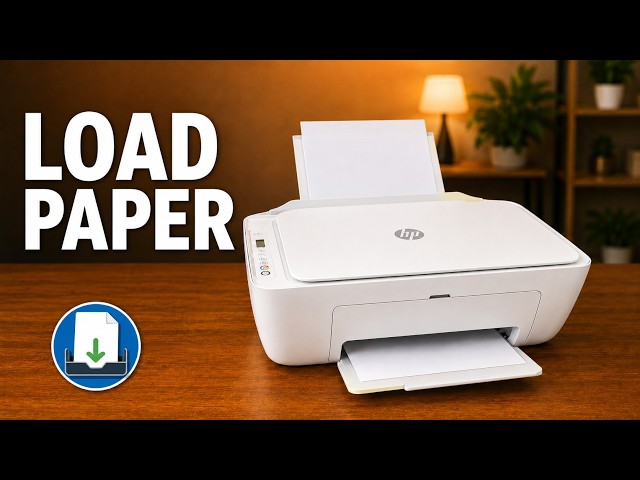
Load plain paper correctly in the rear input tray and extend the output tray. Place the original face down on the scanner glass at the marked corner and close the lid. Press Black Copy or Color Copy. To increase the number of copies, press that same button repeatedly and quickly, watching the display.
Wait until the sheet is fully released, then compare it with the original. Cancel stops the active operation. The overview recording produces a poor-quality copy; that result does not establish an ink repair. Use the separate print-quality guide if colours or text are missing.
Step 2:Print a file from the iPhone
In the HP app, select the connected DeskJet, then Print Documents or Print Photos. Select the file and open Print Preview. Check the actual loaded paper size, page range, colour and quality before sending the job.
For photo paper use the suitable media setting and the correct loading orientation for that paper; choosing Best does not change a low-resolution source into a higher-resolution image. Wait for a physical print and check it rather than treating the preview as completion.
Step 3:Start a printer scan
Place the page face down at the glass mark and close the lid. In the HP app select this printer and open Scan using the printer scanner, not Camera scan. For several pages choose Batch if that task is available in your iPhone app; HP also supports adding pages from the preview.
Start Scan and wait until the first page is complete. The dedicated demonstration uses two separate originals. Leave the printer connected while the app finishes rather than changing networks midway.
Step 4:Add the remaining originals and inspect them
Replace the first page on the glass with the next original, keeping the side to be scanned face down at the mark. Choose Scan for the next page or Add page in your app version. Repeat for the pages you need.
When finished, select the completed page/file preview. Check page order, crop and orientation; reorder or rotate if necessary. The overview’s upside-down scan is corrected in the preview. This flatbed workflow requires changing each original by hand.
Step 5:Save one PDF and reopen it
Choose Share/Save, give the document a useful name and select PDF to keep its pages in one document. Optional compression reduces file size; check that small text remains readable. Continue to the iPhone share sheet and choose Save to Files, opening the additional sharing options if necessary.
Choose a folder, finish Save, then open that PDF in Files and check its page count and legibility. The two-page demonstration actually reopens its PDF; seeing a scan preview alone would not establish a saved file.
Questions & troubleshooting
The printer scans, but I cannot find the PDF.
Return to the completed preview and finish Share/Save → PDF → Save to Files. Choose a destination, then reopen it in Files. The printer does not decide the phone’s save folder for you.
Do I need to reset Wi-Fi to copy?
No. The copy buttons operate at the printer. A working phone connection should also be left intact; use the connection guide only when network setup is actually needed.