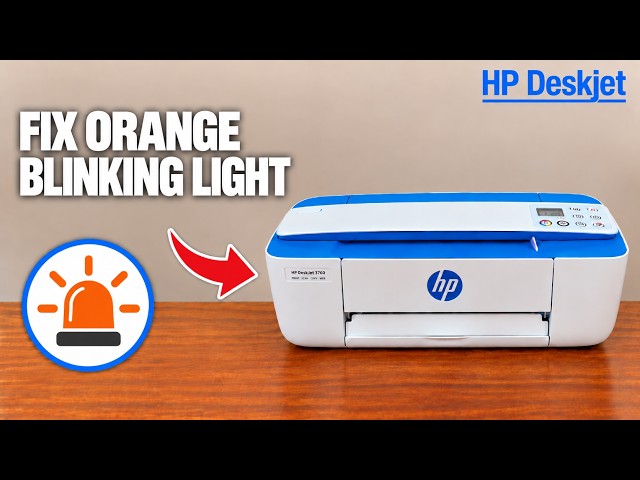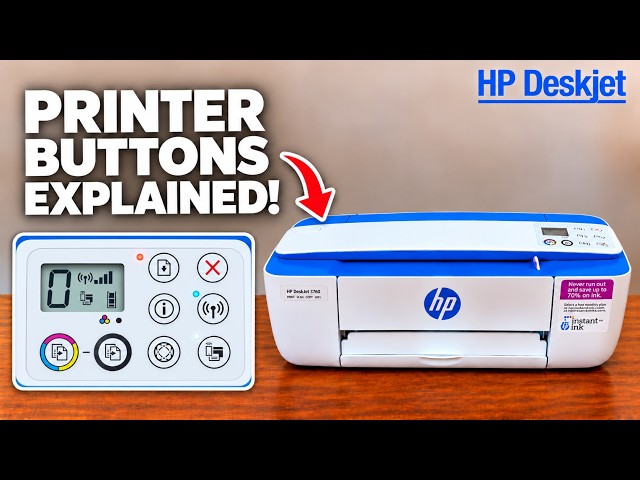
HP DeskJet 3755 buttons, display icons and warning lights
Identify the main controls, read the wireless and ink indicators, and distinguish paper-size errors from a stalled carriage before choosing a remedy.
Find your next step, from getting connected to everyday printer tasks.
Explore tutorials for HP DeskJet 3700 series and related printers. Each card names its source model, and every guide explains the method shown in its video.
Watch this model’s channel playlist18 guides across 6 tasks
Identify the main controls, read the wireless and ink indicators, and distinguish paper-size errors from a stalled carriage before choosing a remedy.
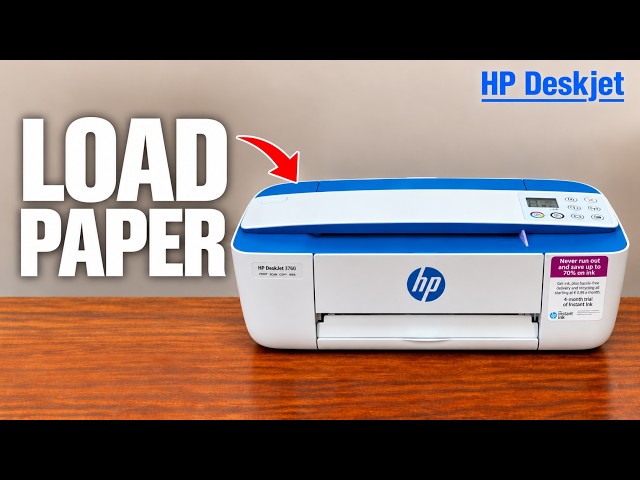
Raise the rear input support, load paper with its print side facing up, fit the width guide and open the output support before printing.
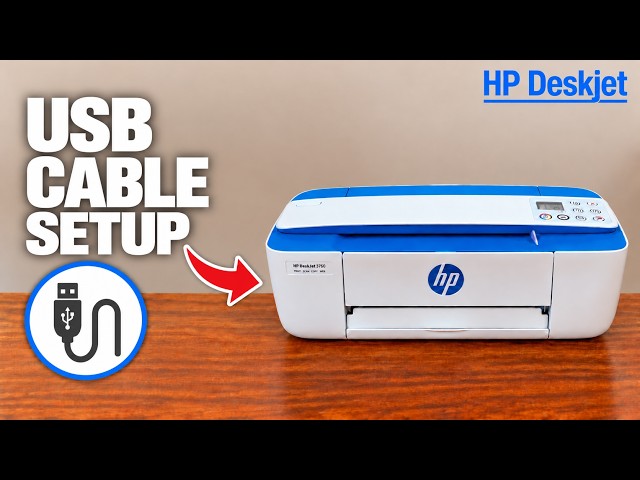
Install the appropriate HP software, connect the printer’s rear USB port when prompted and verify a printed page. A USB connection does not require printer Wi-Fi.
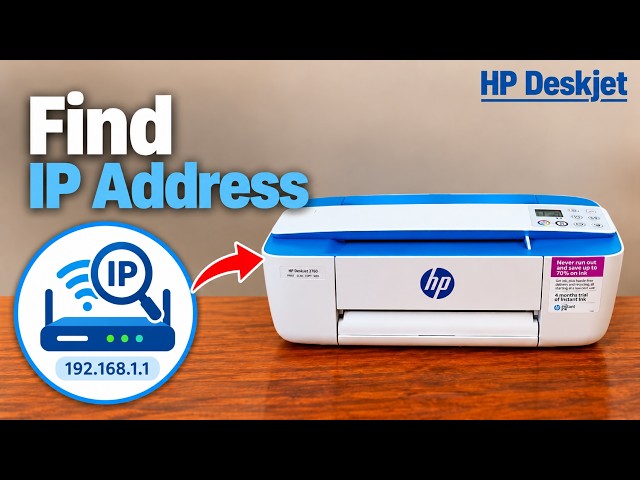
Print the network configuration page for the home-network address, or identify the separate Wi-Fi Direct connection before opening printer settings.
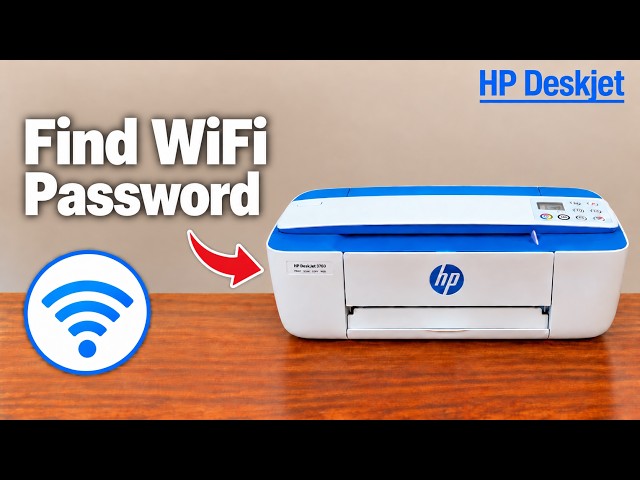
Match the password to the prompt: use the printer’s information page for its Direct network and its own administration credentials for local settings. Neither is your home-router password.
Reach the printer’s wireless wizard through its direct connection, save the home network, then return your phone or Windows computer to that network and check discovery.
Clear the saved wireless configuration with the documented Wireless and Cancel controls, then run setup again. This is not a full factory reset or a repair for ink and paper faults.
Install the appropriate HP software, connect the printer’s rear USB port when prompted and verify a printed page. A USB connection does not require printer Wi-Fi.
Connect the iPhone directly to the printer’s own wireless network, print a local document, then return to your normal Wi-Fi. A router is not needed for this local connection.
Feed one original face up along the scanner’s right edge, scan in the HP app, inspect the preview and complete Save to Files. An app preview alone is not a saved PDF.
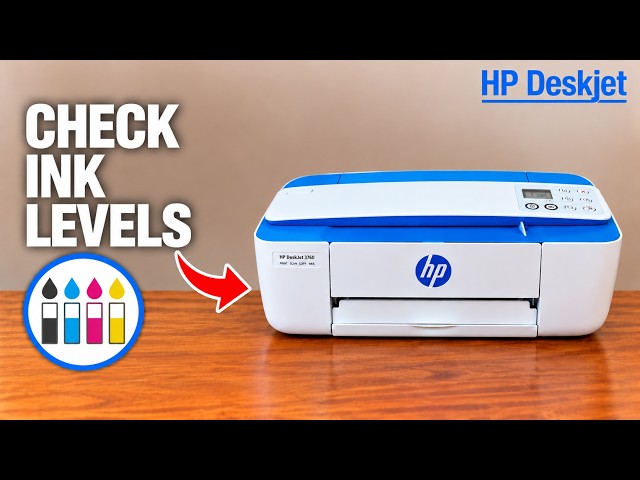
Read the black and tri-colour indicators on the printer or open the supply display in the HP app, while treating every reading as an estimate.
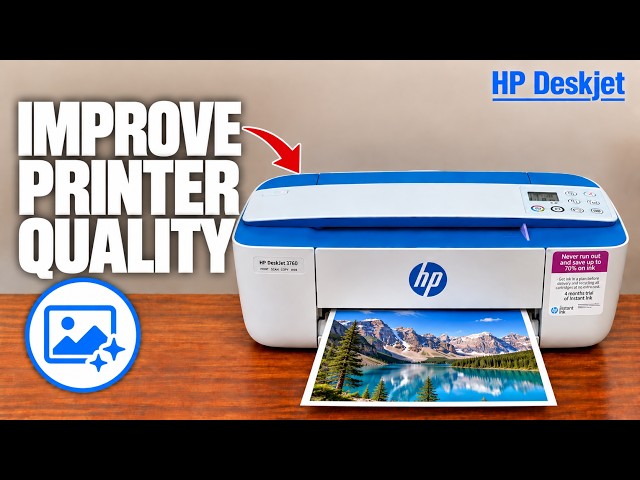
Check ink, paper and job settings, then use the printer’s automatic cleaning tools and inspect the diagnostic page. Use alignment for crooked lines and stop when the output is acceptable.
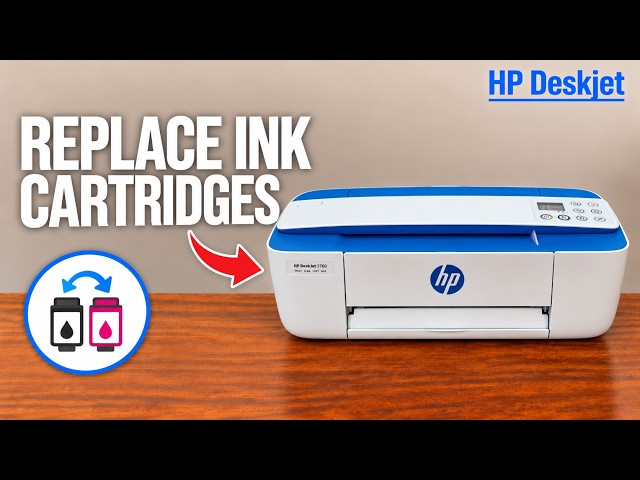
Wait for the carriage to stop, release the old cartridge downward and install the correct replacement at a slight upward angle until it clicks. Check the printer and a completed page afterwards.
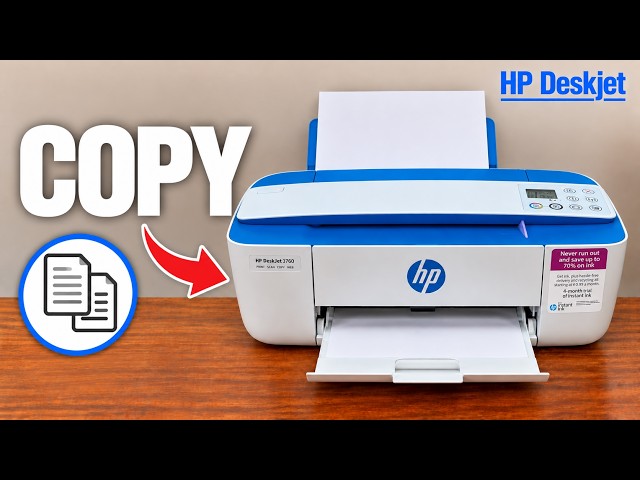
Load plain paper, feed one original face up against the scanner’s right edge and press the black or colour Copy button. Repeated presses within two seconds request additional copies, up to nine.
Raise the rear input support, load paper with its print side facing up, fit the width guide and open the output support before printing.
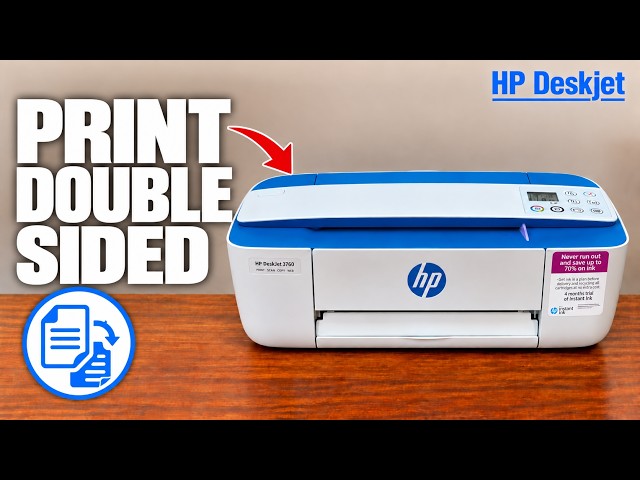
Use the Windows manual two-sided workflow and reload the sheet yourself. For a portrait document that opens like a book, the rear-tray reload is printed-side down with the top edge entering first.
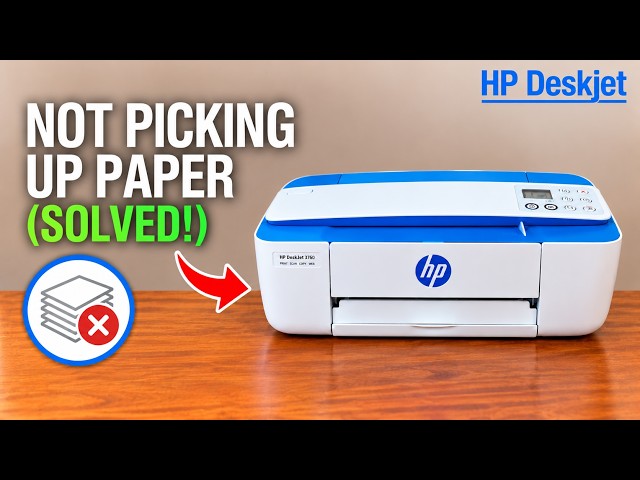
Start with a flat, correctly loaded stack and matching settings. If pickup still fails, use HP’s powered-off roller-cleaning procedure, allow the rollers to dry, then retry one page.
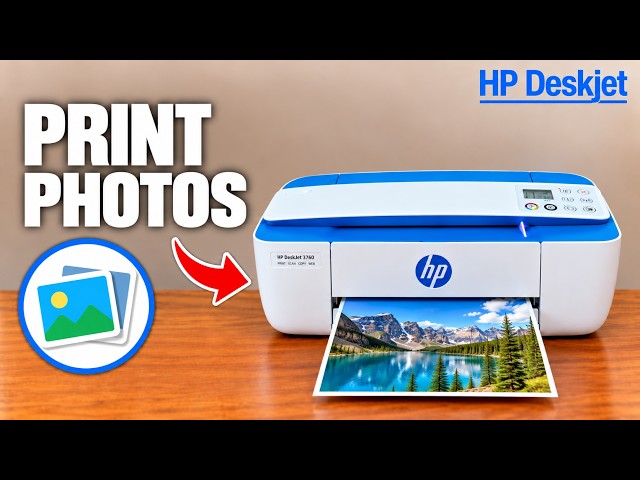
Load supported photo paper print-side up, match the size and media settings in the HP app, then print and inspect the result. The DeskJet 3755 does not support borderless printing.
Connect the iPhone directly to the printer’s own wireless network, print a local document, then return to your normal Wi-Fi. A router is not needed for this local connection.
Identify the main controls, read the wireless and ink indicators, and distinguish paper-size errors from a stalled carriage before choosing a remedy.
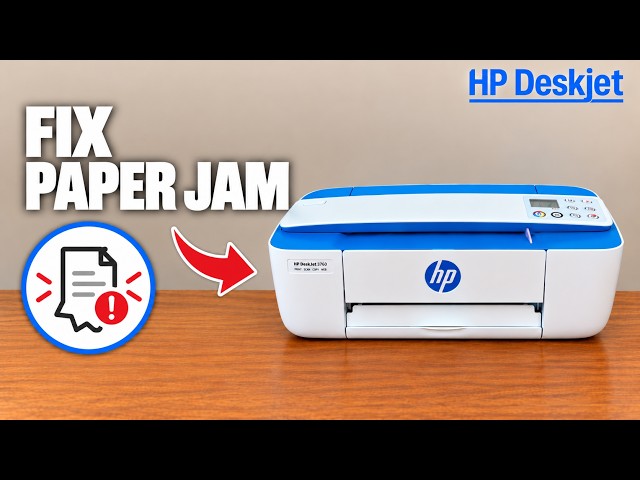
Identify E3 correctly, disconnect power for internal inspection and remove accessible paper that blocks the cartridge carriage without tools or force.
Read the exact code and lights before replacing ink or resetting Wi-Fi. E2 is a paper-length mismatch; an ink warning, stalled carriage and absent connection need different checks.
Start with a flat, correctly loaded stack and matching settings. If pickup still fails, use HP’s powered-off roller-cleaning procedure, allow the rollers to dry, then retry one page.
Check ink, paper and job settings, then use the printer’s automatic cleaning tools and inspect the diagnostic page. Use alignment for crooked lines and stop when the output is acceptable.
Clear the saved wireless configuration with the documented Wireless and Cancel controls, then run setup again. This is not a full factory reset or a repair for ink and paper faults.
Find more tutorials in this printer’s family or channel collection. Every guide keeps the source printer visible.