Before you start
- Plain printing paper and one flat, dry original; no staples or paper clips.
Prepare paper and one original
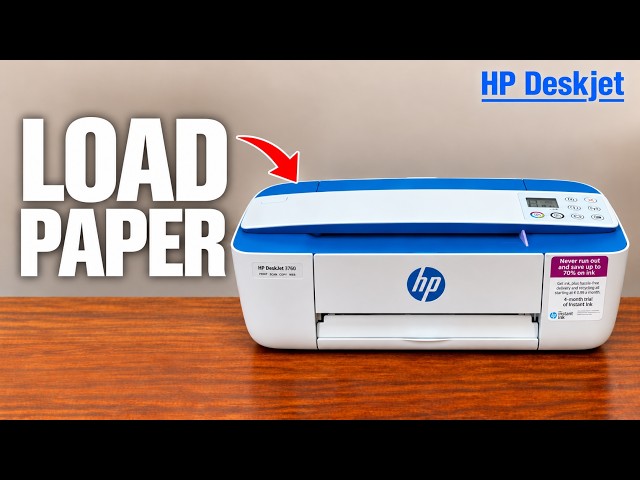
Raise the rear input tray and extension. Load suitable plain paper against the right side, print-side up and short edge down. Bring the guide against the stack without bending it, then extend the output tray and raise the paper catch.
Use one flat, dry original without staples or clips. The scanner takes a single sheet; do not insert a stack. No phone or network connection is needed for these physical Copy buttons.
Step 1:Feed the original face up
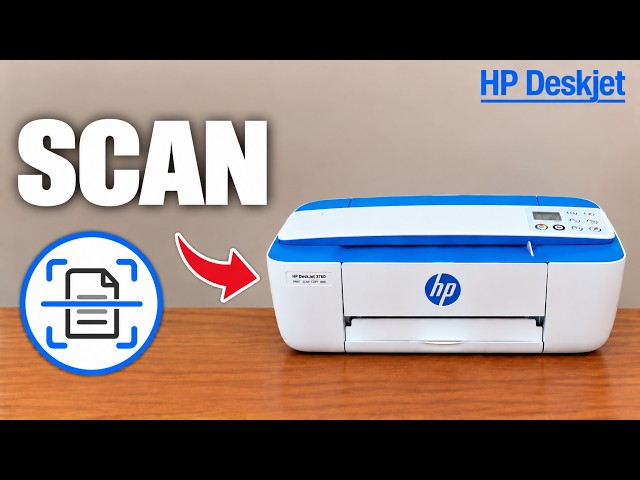
Insert the original printed-side up into the scanner, aligned fully to the right. Move it forward gently until the printer takes it in and the scan light comes on. If it has not taken hold, advance it gently until the mechanism begins moving it; do not force it through.
Step 2:Choose black or colour and the number of copies
Press Start Copy Black for a black-and-white copy or Start Copy Color for colour. To request additional copies of the same original, press that same Copy button again quickly, within two seconds. The model supports up to nine copies per job.
Let the original and printed sheets pass through fully. Do not tug on a moving original or paper. Remove the original once scanning has finished.
Step 3:Check the whole copied page
Confirm the requested number of sheets, readable content and all intended edges. Both source recordings show feed/cropping problems; those attempts must not be described as clean full-page copying. If the page is skewed or cut off, check flatness and right-edge scanner alignment and try again.