Before you start
- A neat stack of supported plain paper; use the photo-loading instructions for photo media.
Step 1:Raise the input tray and extender
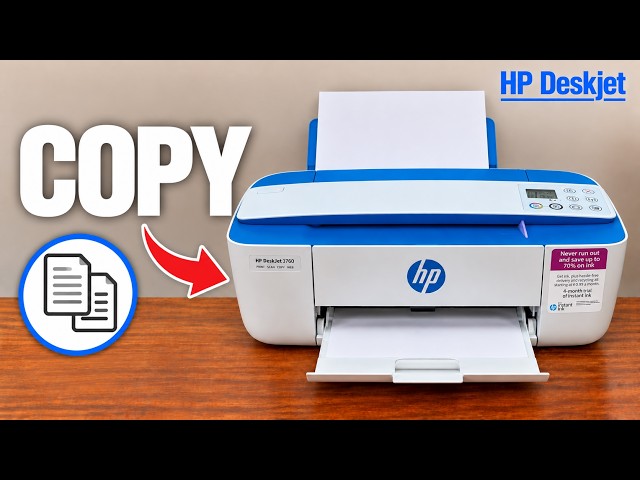
Raise the rear input tray and its extender. Move the paper-width guide out of the way so you can insert the stack without bending it. The rear slot is the paper input; the front scanner path is for originals.
Step 2:Insert plain paper in the correct direction
Put a neat stack into the input tray with the short edge down and the side to be printed facing up. Slide it down until it stops. Do not force in additional sheets or leave the stack folded against the guide.
Step 3:Move the width guide to the paper edge
Slide the guide to the right until it meets the edge of the stack. It should support the paper without bending it. This is the grey guide moved beside the paper in the recording.
Step 4:Extend the output support
Pull out the output tray and its extender, then lift the paper catch. This completion step is in HP’s loading instructions even though the short source video ends after fitting the input guide.
Before you print
Check that the input stack is supported and the output area is ready to receive pages. Select a matching paper size in the print job. The recording demonstrates loading; it does not show a completed test print or establish a maximum stack capacity.