Before you start
- Supported photo paper, your image and an already working connection in the genuine HP app.
Choose suitable photo paper and a working connection
Use photo paper supported by your exact printer, such as the source’s 4 × 6 inch format, and a sufficiently detailed image. The written workflow follows the recorded phone app; desktop labels can differ. Have the printer already selected and reachable in the genuine HP app.
HP’s specification lists no borderless printing for the 3755. Expect margins; a Best setting changes quality, not that hardware capability. The source’s broad claim that older printers or older guides no longer work is not adopted.
Step 1:Load the photo paper
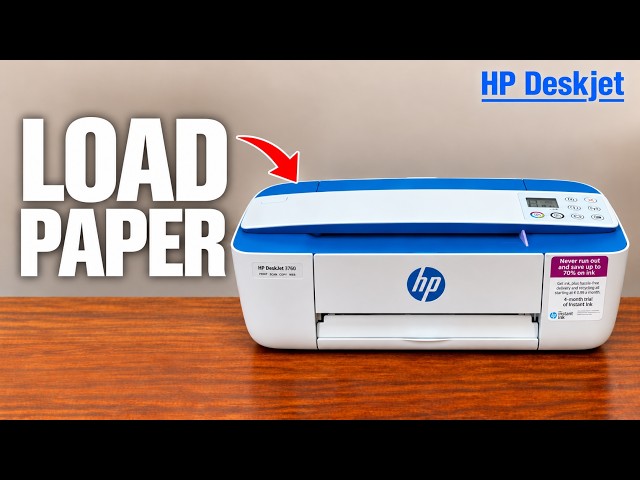
Remove other paper. Raise the rear input tray and extension and slide the guide outward. Place the photo paper against the right side, short edge down and print-side up. Move the guide inward until it lightly touches the paper without curling it. Extend the output tray and raise its paper catch.
Step 2:Select the image and match the print settings
In the HP app, select the intended printer and open Print Photos. Allow access to the photo you want to use, select it and inspect the preview.
Open the paper settings and choose the loaded size, such as 4 × 6 inches, and its actual photo-paper type. Choose Best quality where offered, check orientation and cropping in the preview, then continue to the final print screen. Do not select an unavailable size or assume all photo paper uses the same setting.
Step 3:Print and inspect the completed photo
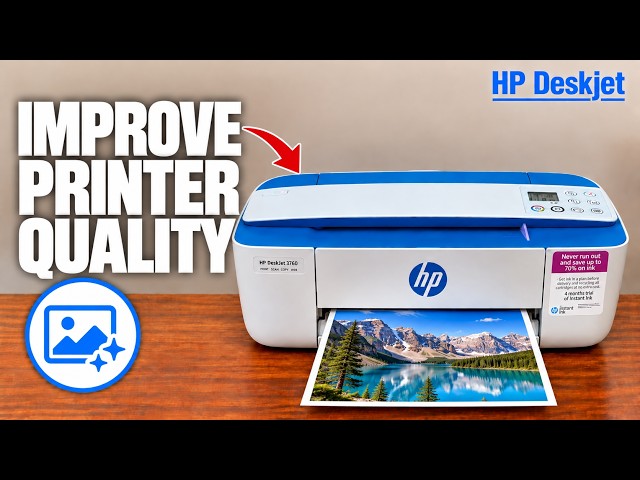
Check the printer and size again, then select Print. Let the sheet finish and exit before handling it. The presenter reports a completed bordered photo near the end of the source; that is one example rather than a guaranteed result for every image or paper.
Inspect the whole image, margins and colour. If the image is cropped, revisit the preview/fit settings; if colours are missing, use the separate print-quality guide. Remove unused photo paper from the tray and store it appropriately after printing.