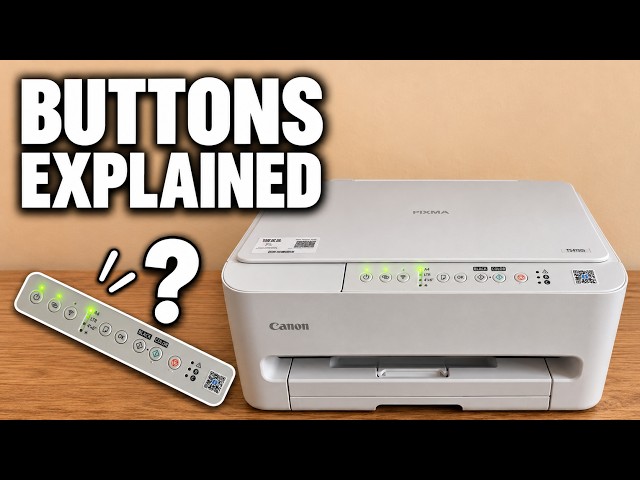
What the buttons and lights mean on a Canon PIXMA TS4150i
Find the everyday controls for wireless setup, paper size, copies and stopping a job. The lamp beside each symbol tells you which part of the printer needs attention.
Find setup, troubleshooting and everyday guides for Canon PIXMA TS4320 and related printers.
14 guides across 6 tasks
Find the everyday controls for wireless setup, paper size, copies and stopping a job. The lamp beside each symbol tells you which part of the printer needs attention.
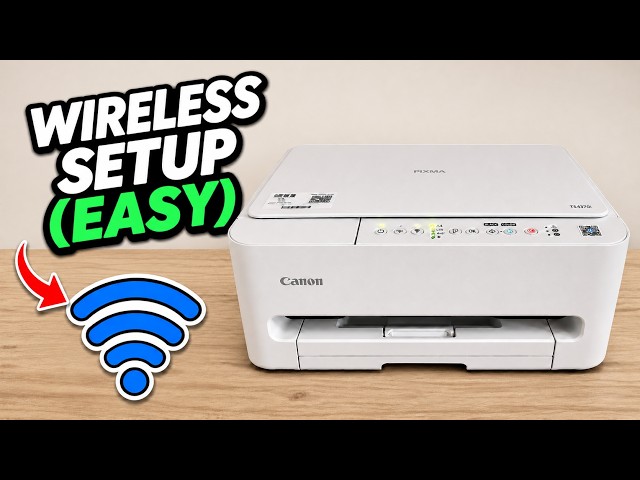
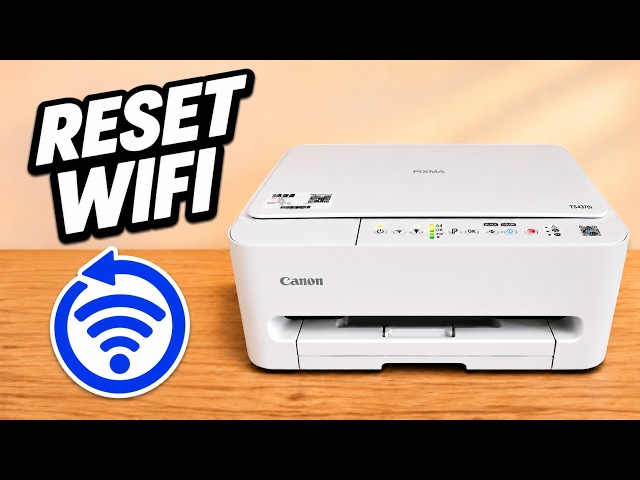
Use Canon PRINT on an iPhone to add the printer to your home Wi-Fi. If the printer still remembers an old router, clear that connection before adding it again.
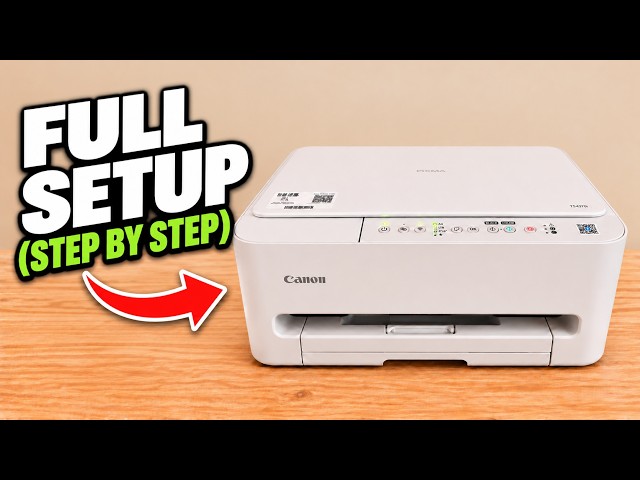
Unpack the TS4150i, fit the starter cartridges and load paper in the front cassette. Then use an iPhone to join home Wi-Fi and send the first print.
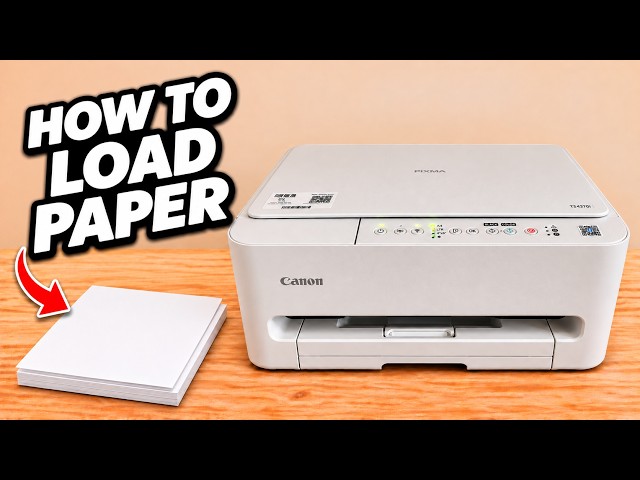
If paper won’t fit in the front cassette, open the blue guides first. Set the length for your paper and bring the side guides in until they just touch the stack.
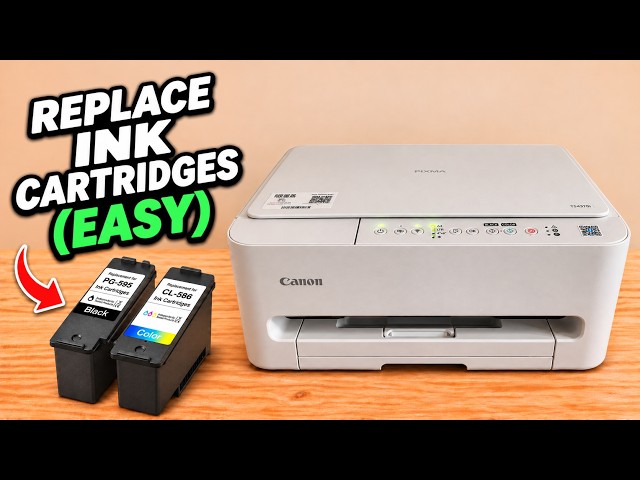
Lift the scanner unit and seat each cartridge at a slight angle. Once the holders are closed, Canon PRINT can show the estimated level of each ink.
Use Canon PRINT on an iPhone to add the printer to your home Wi-Fi. If the printer still remembers an old router, clear that connection before adding it again.
Unpack the TS4150i, fit the starter cartridges and load paper in the front cassette. Then use an iPhone to join home Wi-Fi and send the first print.
To clear an old wireless connection, hold Stop and release it on the fifteenth Alarm flash. This selects the network reset and lets you set up Wi-Fi again.
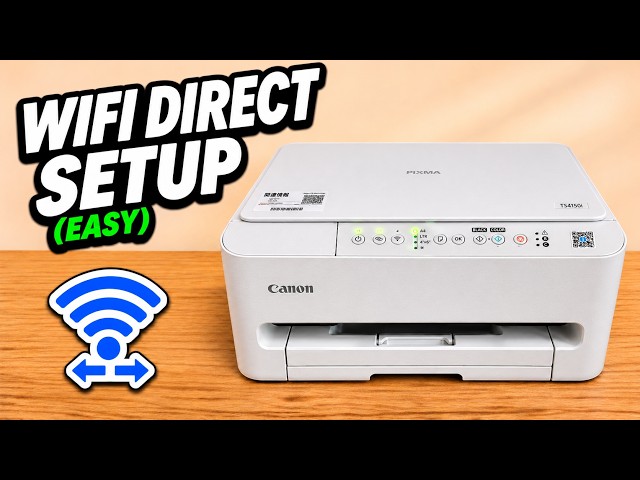
Enable Wireless Direct, print your printer’s own network name and password, then join that network from your phone to print without a router.
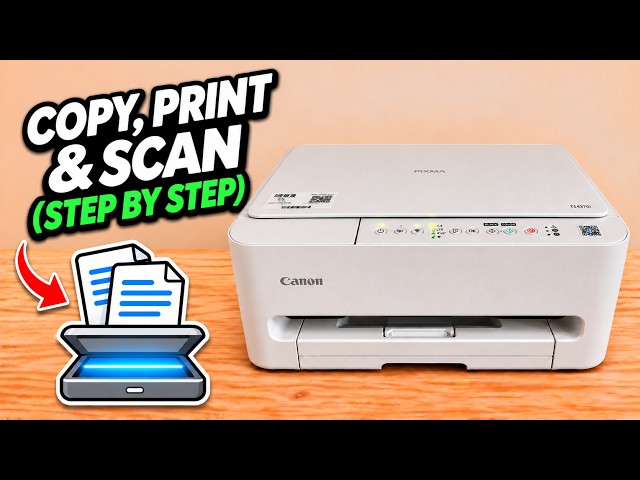
The two copy buttons work directly on the printer. For a document or photo on your iPhone, use Canon PRINT to choose the paper settings. Scans travel back to the phone.
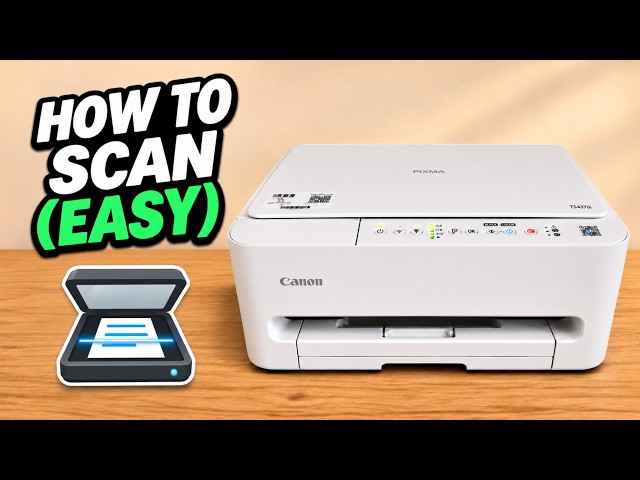
Use Canon PRINT to scan from the flatbed to your iPhone. Add another original to the same scan or finish and choose where to save the result.
Missing colour or gaps in a nozzle check can call for cleaning. Start with the two-flash cleaning cycle and check a fresh pattern before using deep cleaning.
Lift the scanner unit and seat each cartridge at a slight angle. Once the holders are closed, Canon PRINT can show the estimated level of each ink.
The two copy buttons work directly on the printer. For a document or photo on your iPhone, use Canon PRINT to choose the paper settings. Scans travel back to the phone.
If paper won’t fit in the front cassette, open the blue guides first. Set the length for your paper and bring the side guides in until they just touch the stack.
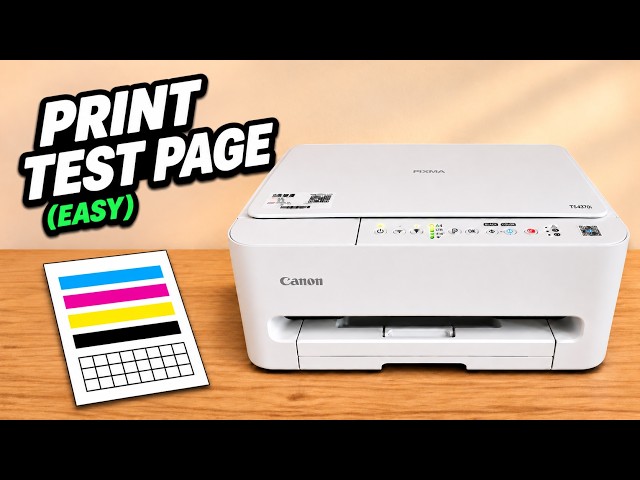
Print a test page from the control panel. Its black grid and colour bands let you see which part of the print is missing before you run a cleaning cycle.
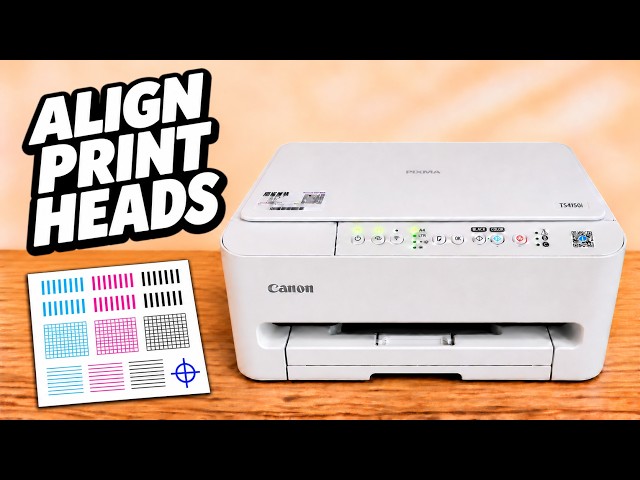
If printed lines are offset, print an alignment sheet, then scan it on the printer glass. The two corner marks show which way the sheet goes.
Find the everyday controls for wireless setup, paper size, copies and stopping a job. The lamp beside each symbol tells you which part of the printer needs attention.
Missing colour or gaps in a nozzle check can call for cleaning. Start with the two-flash cleaning cycle and check a fresh pattern before using deep cleaning.
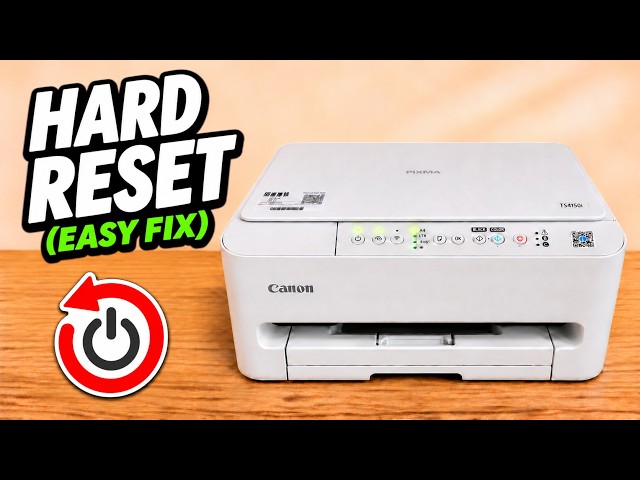
A full reset clears the printer’s saved settings, including its Wi-Fi connection. Use the Stop button and count the Alarm lamp flashes to select the full reset.
Print a test page from the control panel. Its black grid and colour bands let you see which part of the print is missing before you run a cleaning cycle.
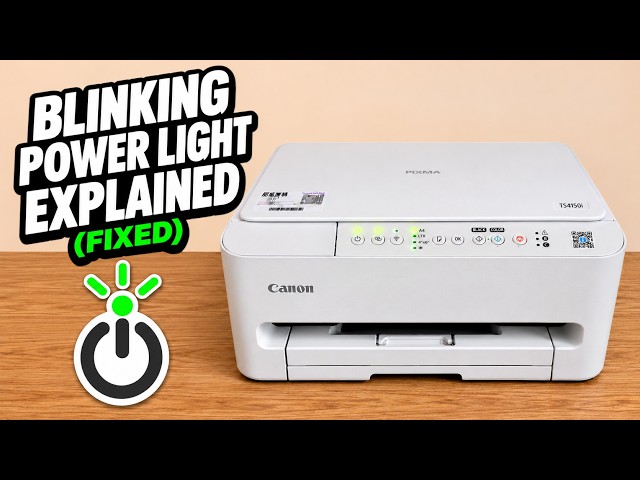
A blinking power lamp can mean the printer is starting, copying or shutting down. Check what the printer was doing and watch how the light settles.
To clear an old wireless connection, hold Stop and release it on the fifteenth Alarm flash. This selects the network reset and lets you set up Wi-Fi again.
Find more tutorials for related printers.