HP DeskJet 2920
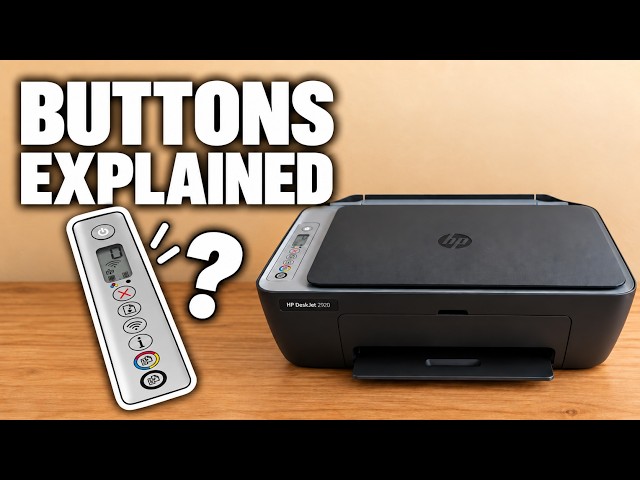
HP DeskJet 2900 buttons and lights explained
Identify Cancel, Resume, Wi-Fi, Information and Copy on the DeskJet 2900 panel, and read warning lights alongside the displayed error.
Getting startedRead & watch
Find your next step, from getting connected to everyday printer tasks.
Guides shown here are assigned to this exact model. Similar model names are kept separate.
Watch this model’s channel playlist17 guides across 5 tasks
Identify Cancel, Resume, Wi-Fi, Information and Copy on the DeskJet 2900 panel, and read warning lights alongside the displayed error.
The presenter’s assessment of everyday printing and app use, with verified 2920/2955 feature limits and questions to check before buying supplies.
Make a copy at the printer, print from an iPhone and save a scanner-glass document as a PDF in Files.
Print an alignment page, position it on the scanner and complete the app’s scan prompt to check blurred or misaligned output.
Read the cartridge icons, HP app estimates and local supply-status page, while distinguishing low ink from a cartridge error.
Check paper and ink status, run the HP app’s cleaning routine and inspect its test page before deciding whether a further cleaning is needed.
Read the cartridge label inside a DeskJet 2920 or 2955 and check HP’s regional supply information before choosing a replacement.
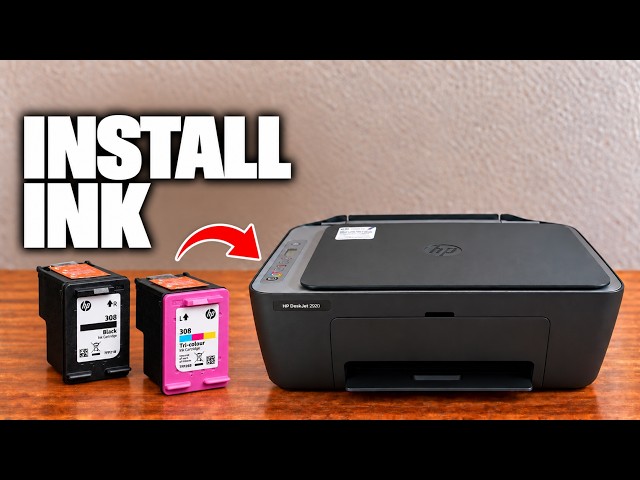
Install the correct regional cartridges in a DeskJet 2920 or 2955, check left and right positions, and complete the new-cartridge alignment.
Press the red Cancel X to stop the current DeskJet 2900 operation. If more pages start, check the sending device’s remaining print queue.
Make a copy at the printer, print from an iPhone and save a scanner-glass document as a PDF in Files.
Print page 1, reload the same sheet in the correct orientation, then print page 2 for a simple two-sided document.
Match paper size and type, adjust the image preview and choose quality and colour settings in the HP app before printing.
Print an alignment page, position it on the scanner and complete the app’s scan prompt to check blurred or misaligned output.
Check paper and ink status, run the HP app’s cleaning routine and inspect its test page before deciding whether a further cleaning is needed.
Use the blinking ink icon to identify an E0 cartridge problem, check seating and protective tape, and confirm the cartridge matches your printer and region.
For an E5 scanner error, cancel and retry the scan, then restart the printer if needed. If E5 persists, use HP support rather than opening the scanner.
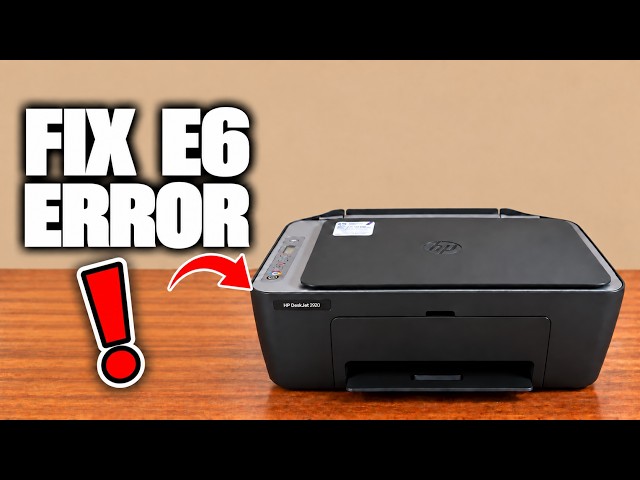
For E6 on a DeskJet 2900, turn the printer off, disconnect power for one minute, reconnect and check whether the error returns.
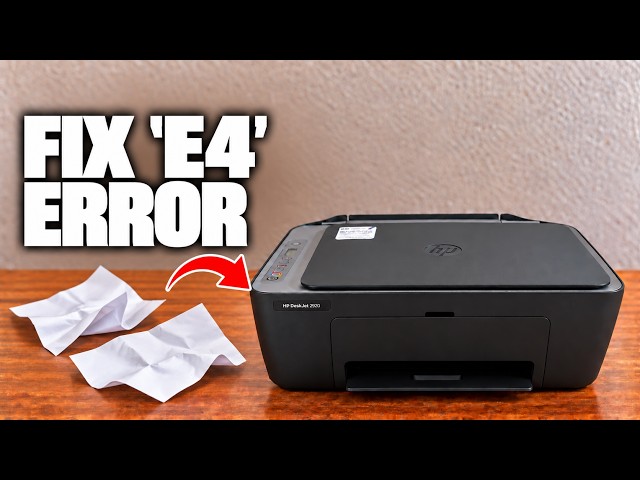
Check the input, output, cartridge area and bottom access door for trapped paper. Disconnect power before reaching inside and remove paper gently with both hands.
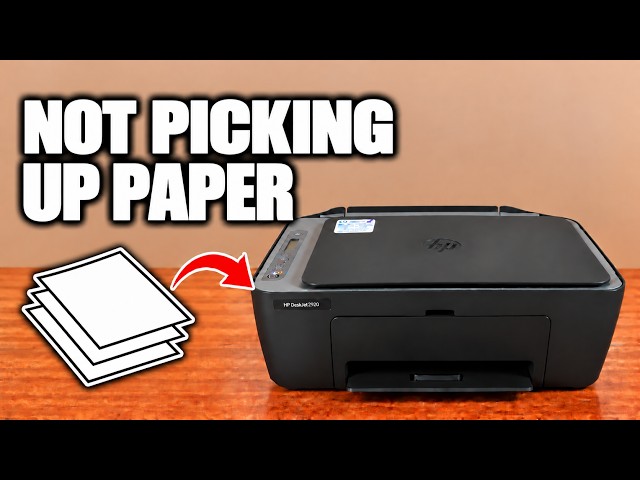
Check the paper stack and guide first. If feed rollers need cleaning, unplug the printer, use a lightly damp swab and let the rollers dry completely before retrying.
Resolve a DeskJet 2900 paper-size mismatch by matching the selected print size to the paper actually loaded, then sending the job again.
Browse documented model families. Check each guide’s demonstrated printer before using its instructions.