HP Smart Tank 5107
HP Smart Tank 5107 setup: ink, printheads, alignment and Wi-Fi
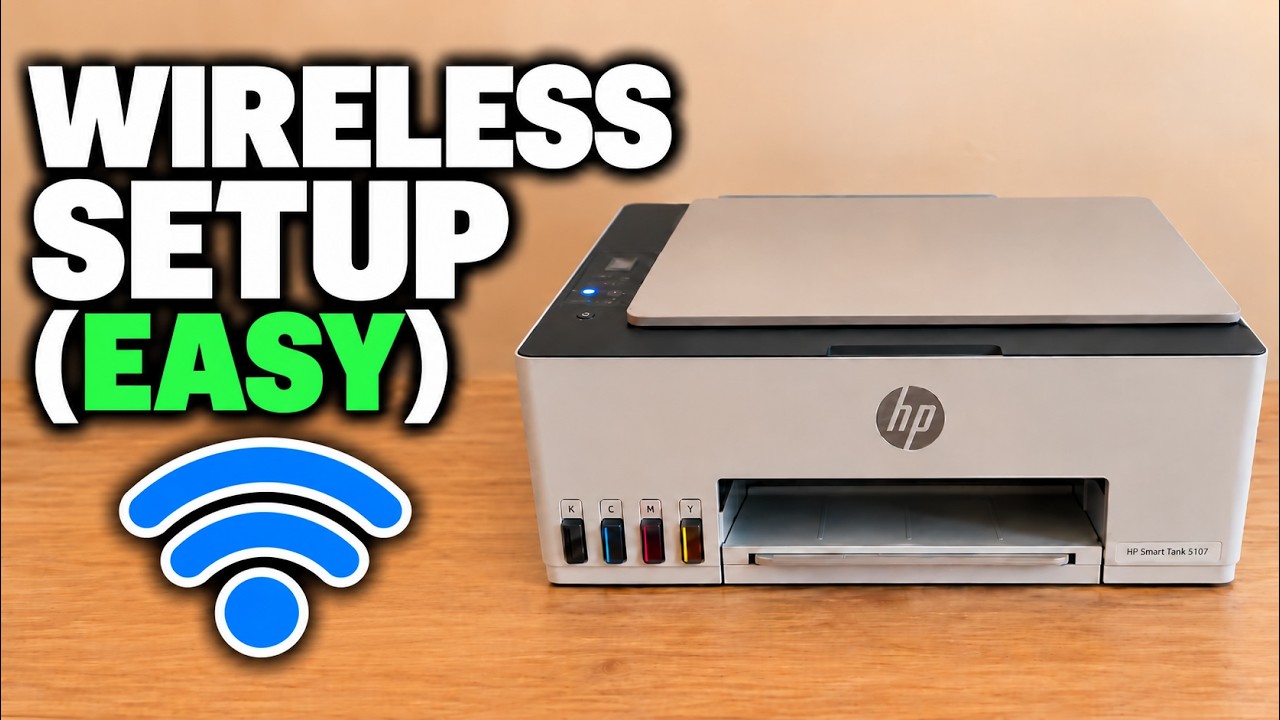
Set up the Smart Tank 5107 hardware, complete its alignment sheet and connect it to home Wi-Fi with the HP iPhone app.
Getting startedRead & watch
Find your next step, from getting connected to everyday printer tasks.
Guides shown here are assigned to this exact model. Similar model names are kept separate.
12 guides across 5 tasks
Set up the Smart Tank 5107 hardware, complete its alignment sheet and connect it to home Wi-Fi with the HP iPhone app.
Set up or reconnect the Smart Tank 5107 on your home Wi-Fi, confirm the printer at its Information button and check the connection before printing.
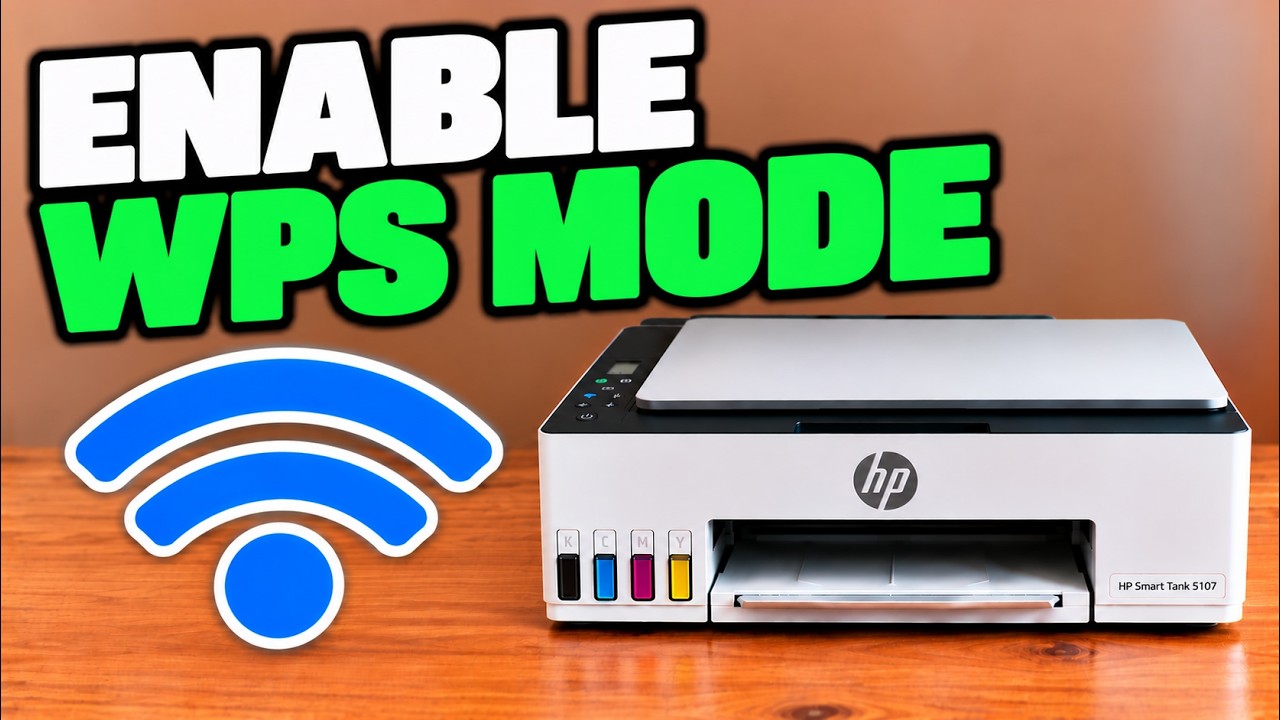
Start the printer’s WPS push-button mode, press the router’s WPS control within two minutes and verify the wireless connection.
Set up the Smart Tank 5107 hardware, complete its alignment sheet and connect it to home Wi-Fi with the HP iPhone app.
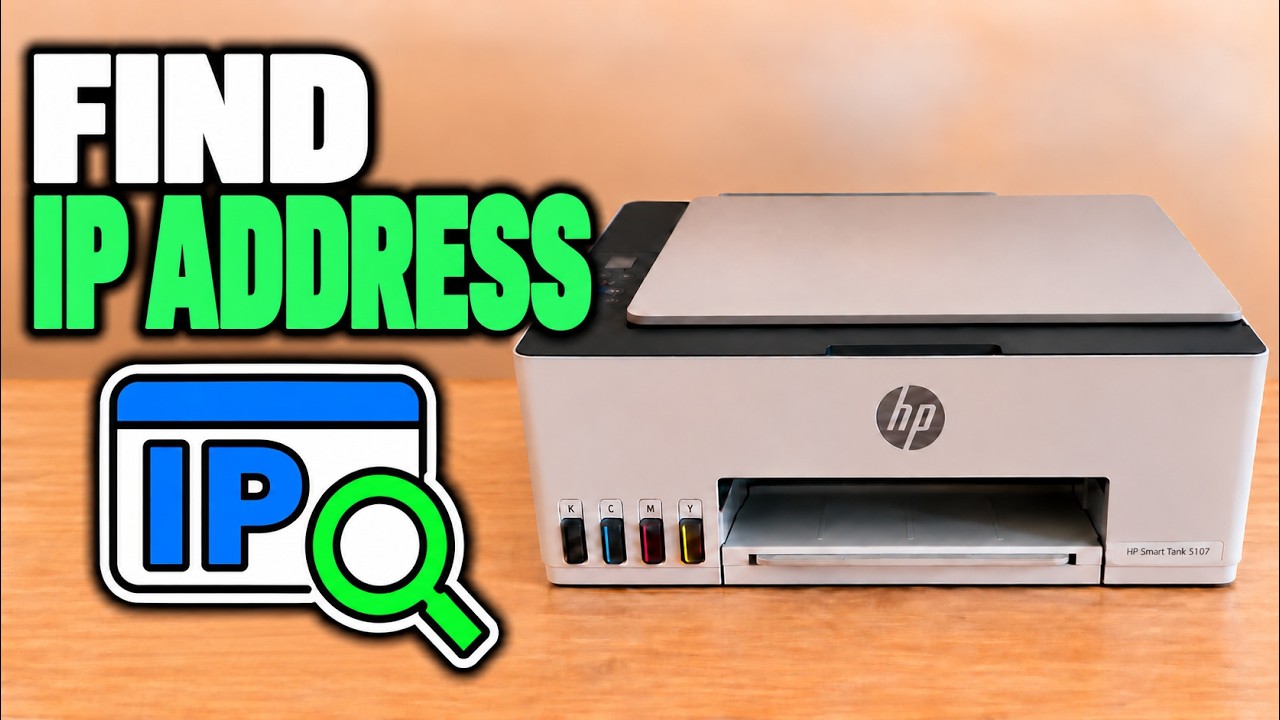
Print the current network information and locate the default printer PIN, while keeping router and Wi-Fi Direct passwords separate.
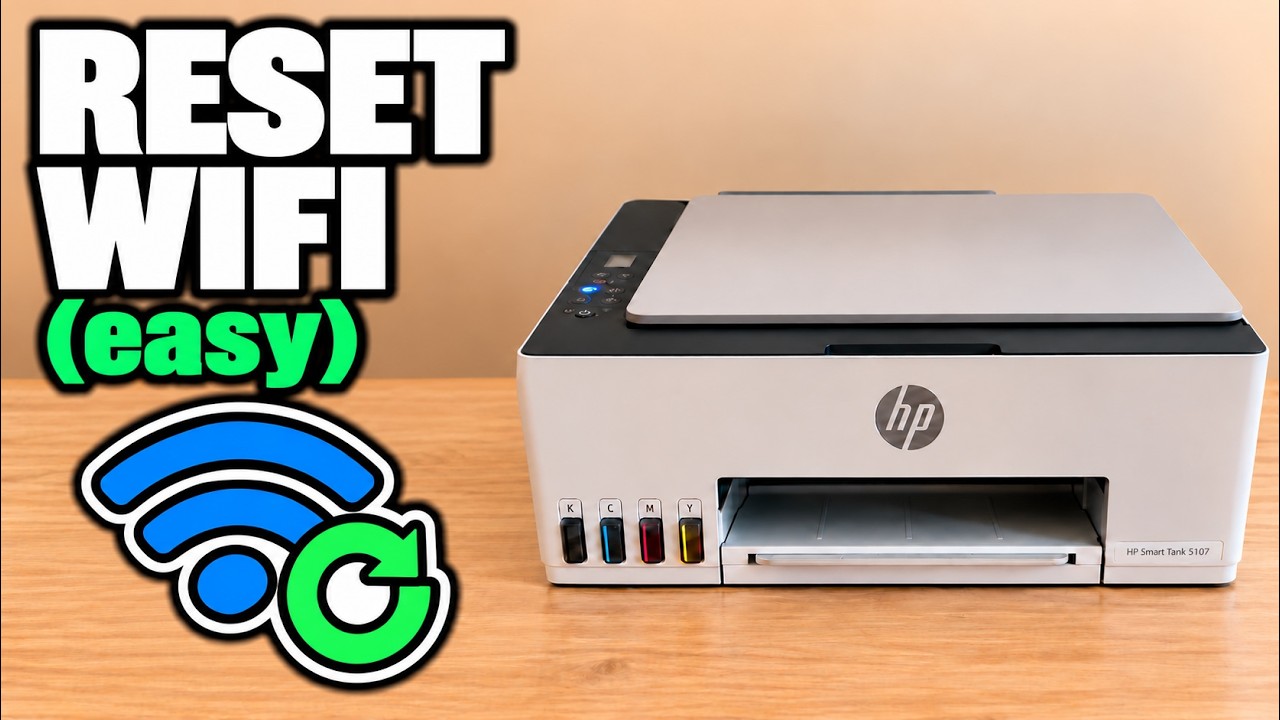
Clear saved network settings with Information, Wi-Fi and Cancel, then reconnect the printer from Wi-Fi setup mode.
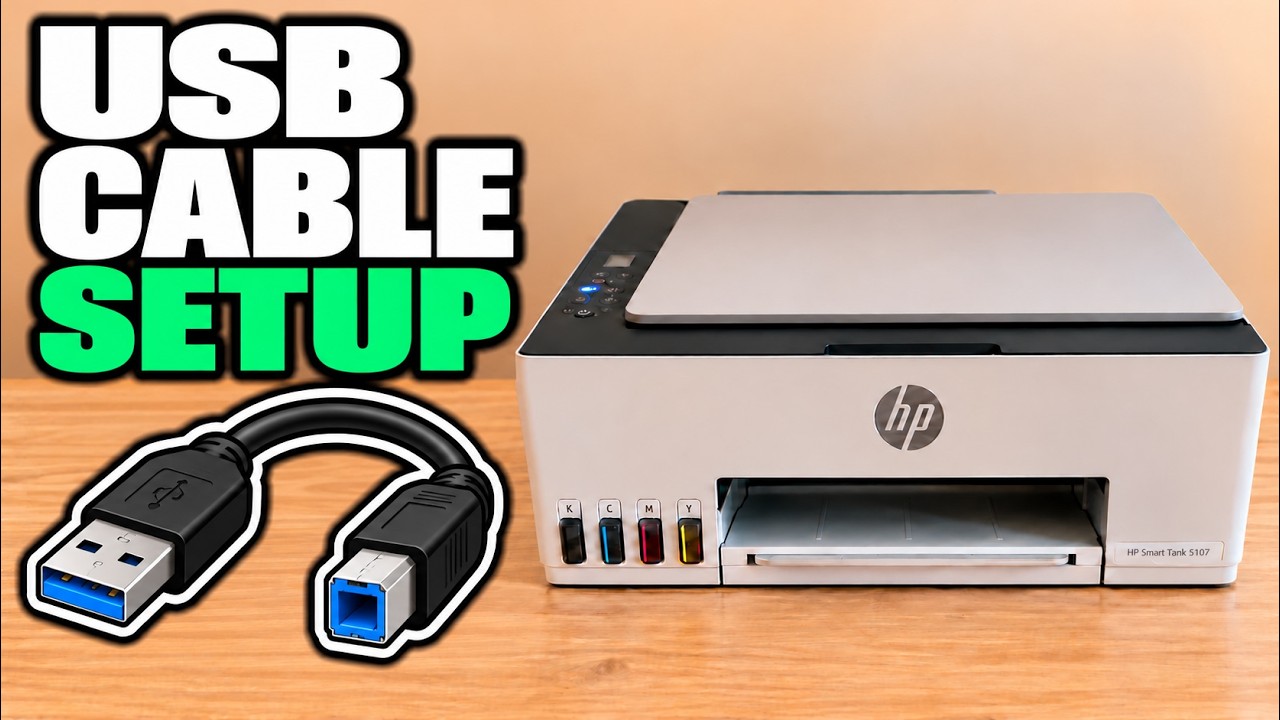
Connect the Smart Tank 5107 by USB, choose it in the Mac print dialog and open its scanner without setting up router Wi-Fi.
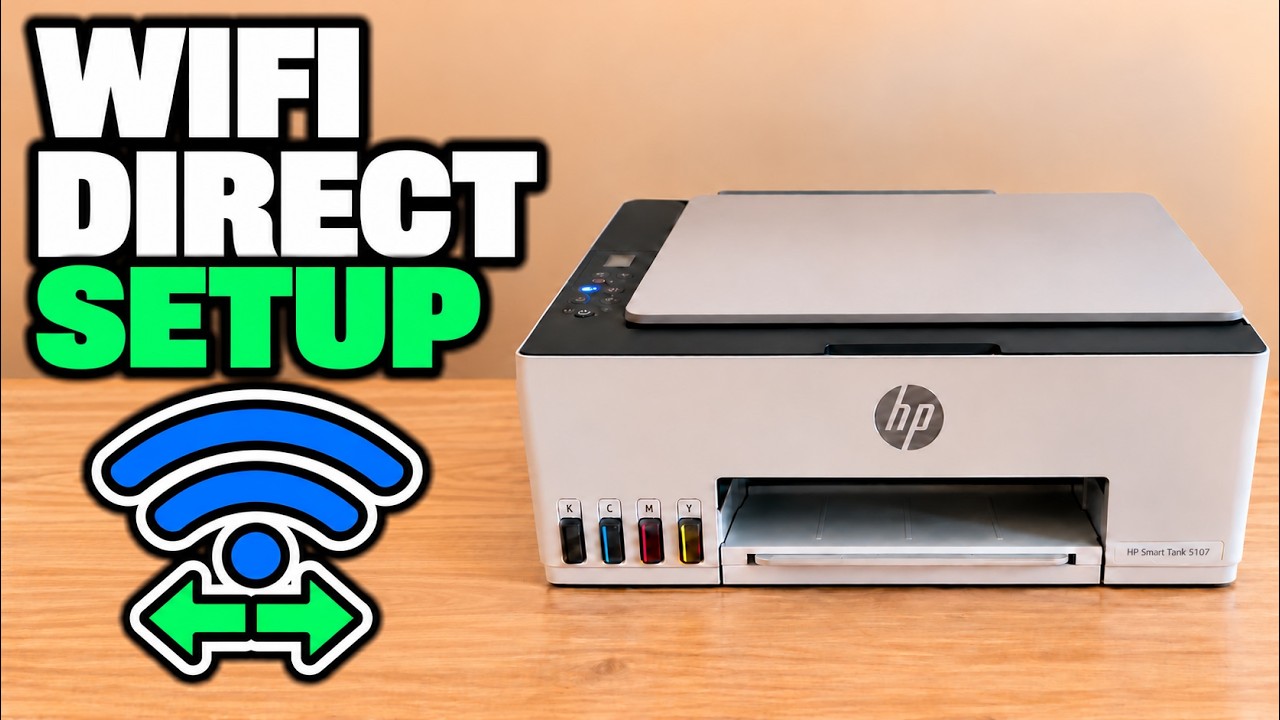
Enable Wi-Fi Direct, print this printer’s network name and password, then join its local connection from an iPhone.
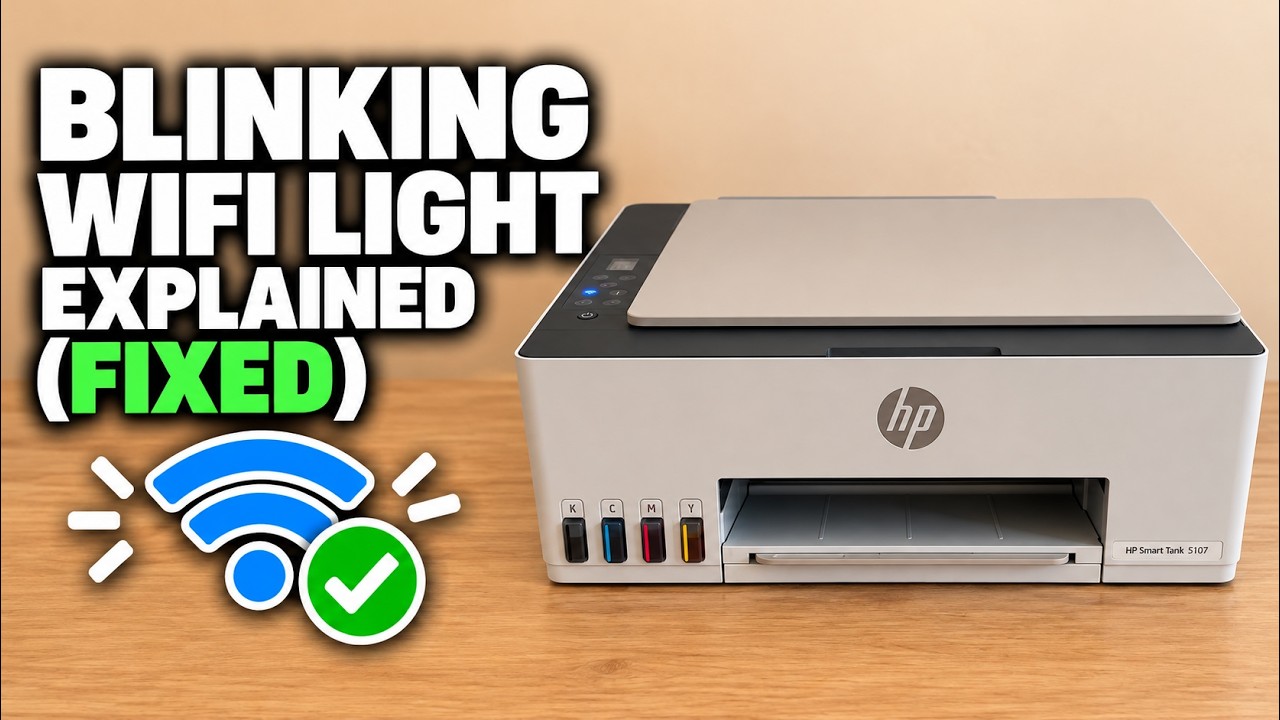
Read the wireless light and screen together, switch Wi-Fi on if needed and choose setup only when the printer is not already connected.
Connect the Smart Tank 5107 by USB, choose it in the Mac print dialog and open its scanner without setting up router Wi-Fi.
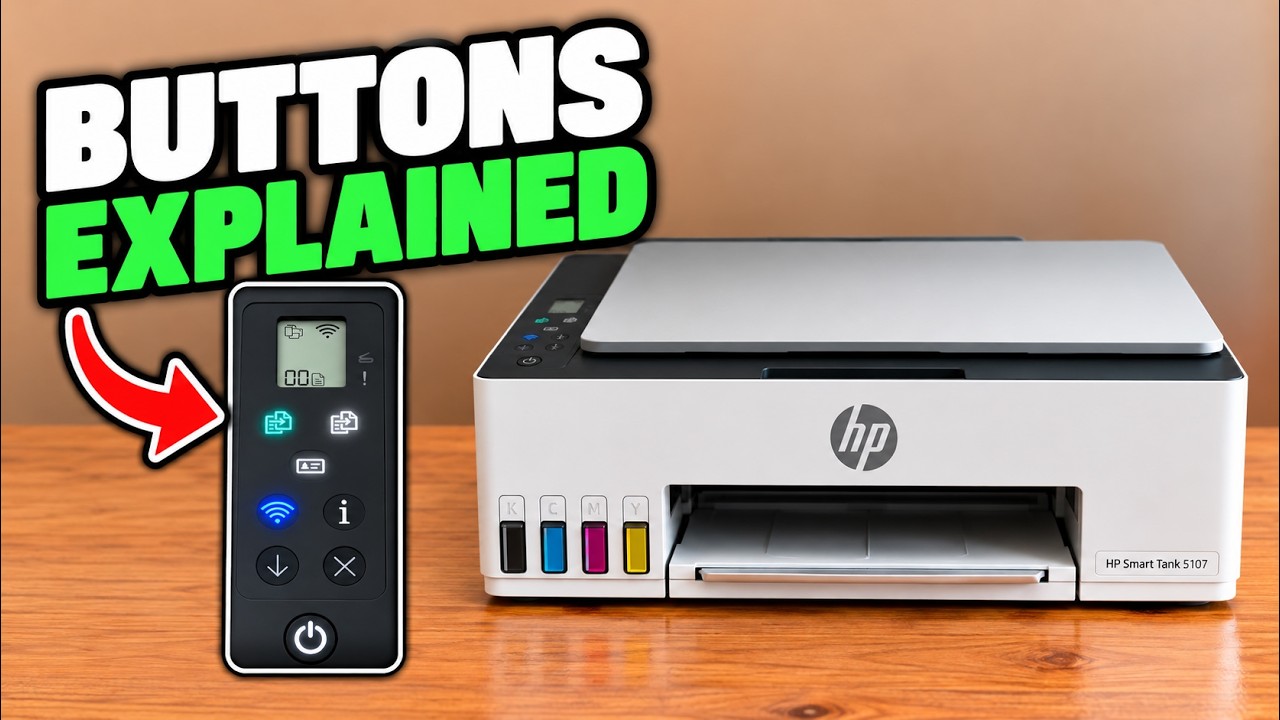
Identify the everyday controls, stop the current job and distinguish normal activity from a fast-blinking power-light error.
Place an original on the glass, choose black or colour copying and switch between document and photo-paper copy modes.
Load the rear tray with the printable side facing up, align the width guide and extend the output support.
Identify the everyday controls, stop the current job and distinguish normal activity from a fast-blinking power-light error.
Identify the displayed error before changing anything: paper-size mismatch, carriage or paper jams, scanner failure, empty ink, and printer or update errors need different responses.
Read the wireless light and screen together, switch Wi-Fi on if needed and choose setup only when the printer is not already connected.
Browse documented model families. Check each guide’s demonstrated printer before using its instructions.