Epson EcoTank ET-2400
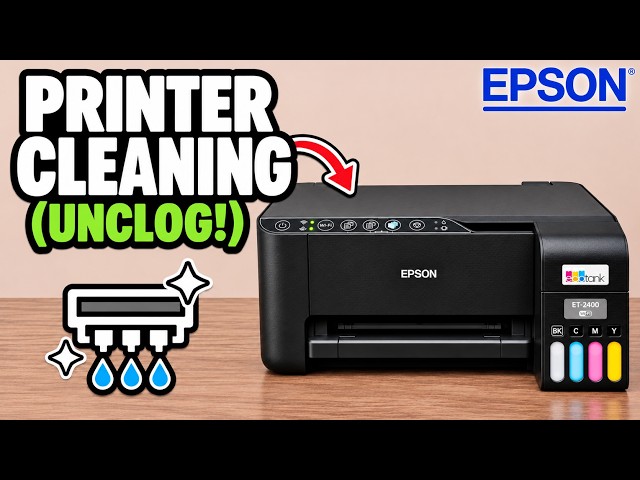
Clean the Epson ET-2400 / ET-2860 printhead without a computer
Start printhead cleaning with the Stop button, wait for the power light to settle, then print a nozzle check to compare the result.
Ink & tonerRead & watch
Browse a printer family
Explore the ET-2400 and ET-2860 collection from Professor Printer’s videos, from setup and Wi-Fi to everyday checks and maintenance. Every guide identifies the printer and method shown.
Watch videos for this printer family9 guides to read and watch. The source printer is shown on every card.
Start printhead cleaning with the Stop button, wait for the power light to settle, then print a nozzle check to compare the result.
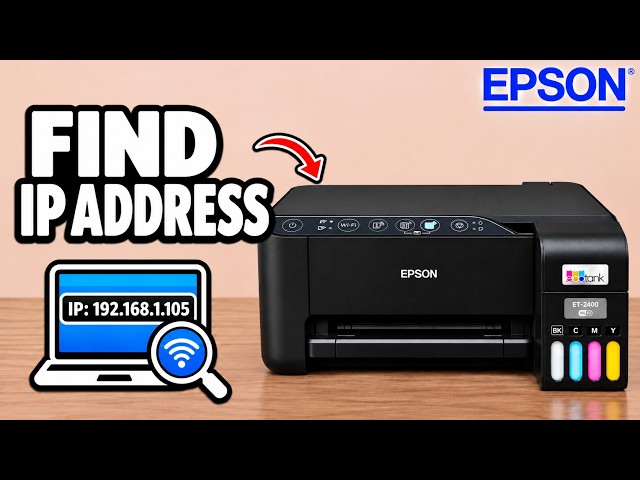
Print the printer’s network information sheet or find its IP address under Device information on a connected Windows computer.
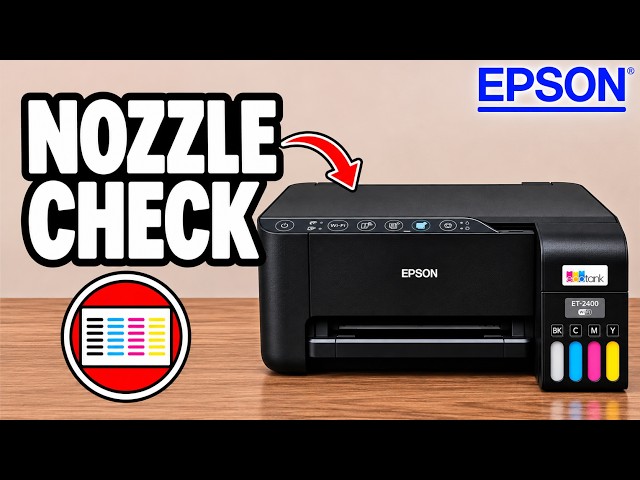
Use Power and Stop to print a nozzle-check pattern directly from the printer, then look for breaks in the printed lines.
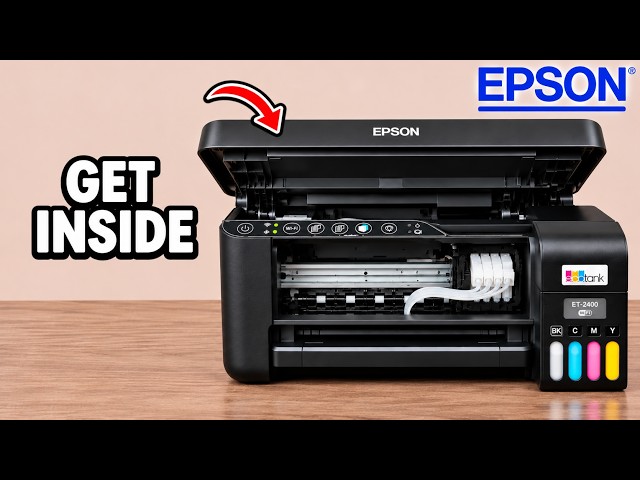
Find the front, rear feed and underside access points shown in Professor Printer’s Epson EcoTank video, without dismantling the rear casing.
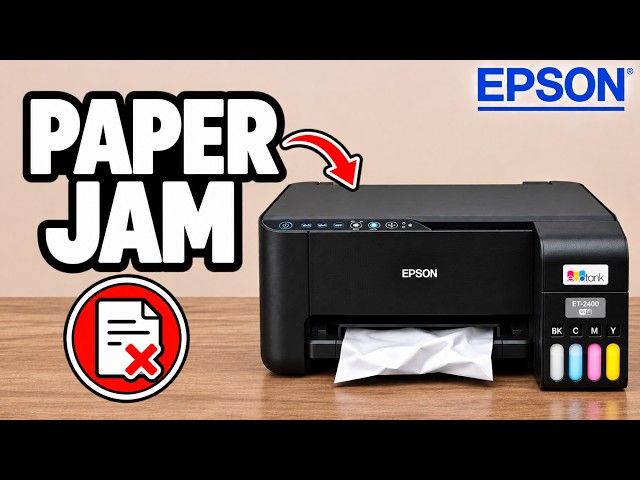
Disconnect power, then inspect the front interior, rear feeder and underside paper path using the access points shown in the video.
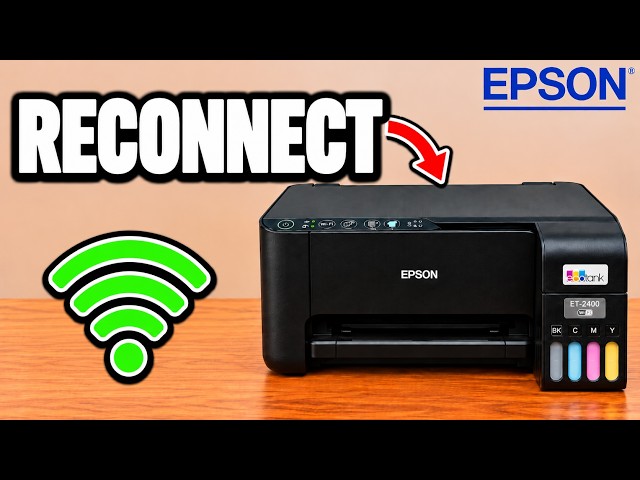
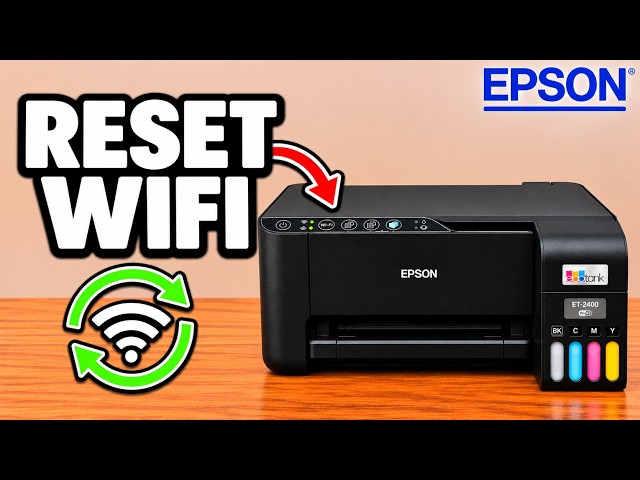
Reset the old connection, restore pairing mode and reconnect through Epson Smart Panel, keeping the printer password separate from the router password.
Turn the printer off, hold Power and Information together, and wait for the alternating network lights to stop before setting up Wi-Fi again.
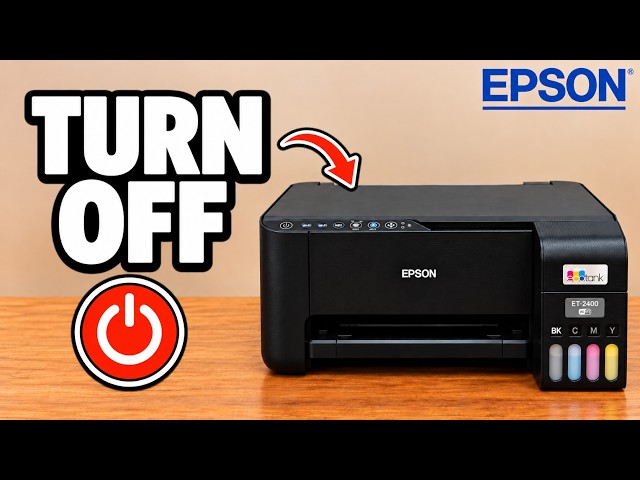
Hold the Power button until its light blinks, wait for shutdown, and locate the rear power connection if the printer does not respond.
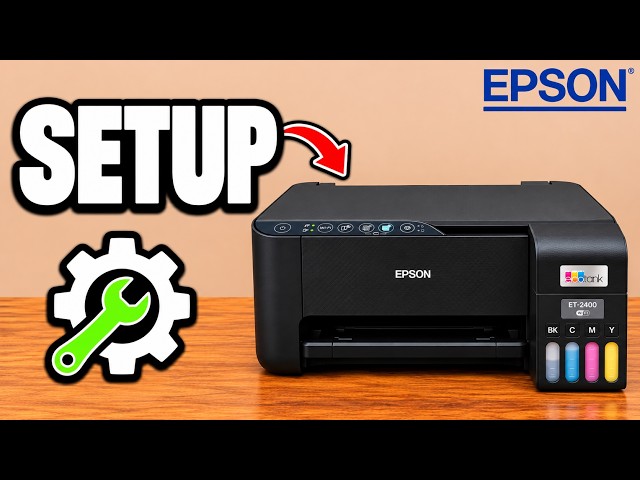
Put the printer into pairing mode, use Epson Smart Panel to find it, and enter the printer password and home Wi-Fi password at their separate prompts.
Open your printer’s hub to see its guides and related tutorials from this collection.
These are related printers covered in the channel’s tutorial collection. Grouping helps you browse; each article retains its own model and task scope.