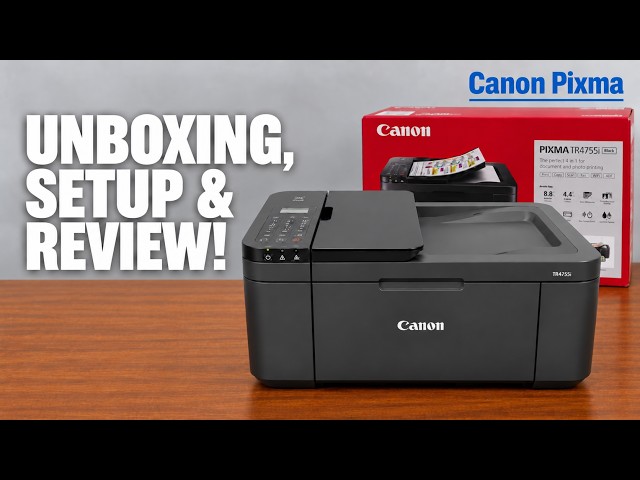
Canon PIXMA TR4755i
Canon PIXMA TR4755i setup: ink, Wi-Fi and Windows
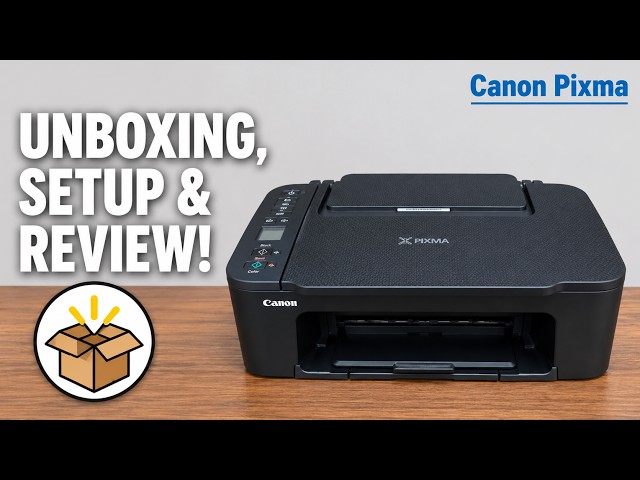
Install the TR4755i cartridges and paper, connect with Canon PRINT on an iPhone, then add Windows using the official installer if app setup fails.
Getting startedRead & watch
Find your way around a printer and prepare for its first use.
Install the TR4755i cartridges and paper, connect with Canon PRINT on an iPhone, then add Windows using the official installer if app setup fails.
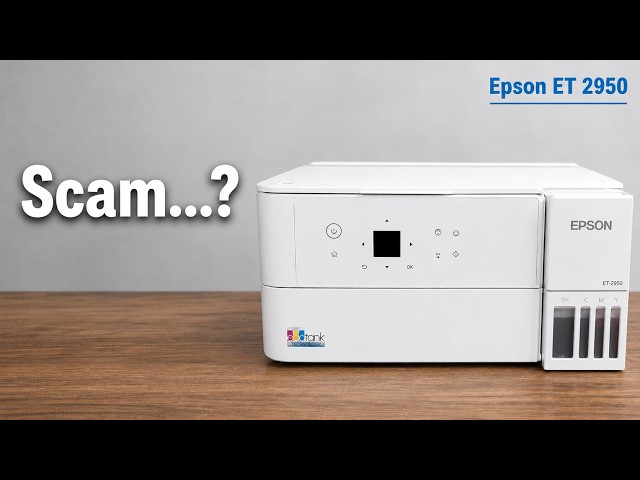
Professor Printer’s ET-2950 review weighs its everyday colour print against the small screen, interior access and purchase cost. See what the demonstration establishes.
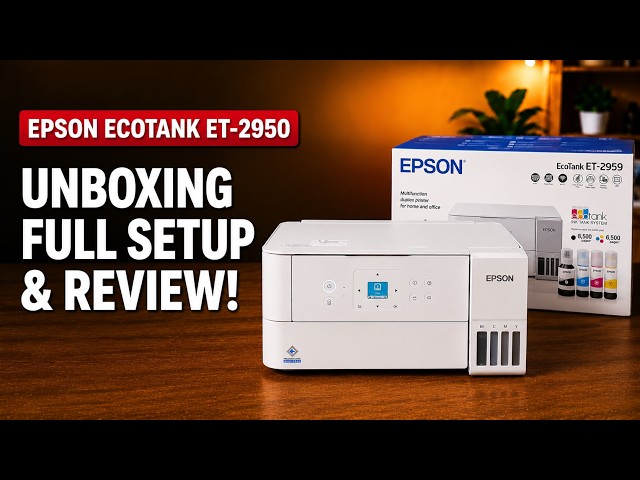
Set up the ET-2959 with Epson Smart Panel: fill and charge the ink, join Wi-Fi, complete alignment, then check Windows printing and Epson Scan 2.
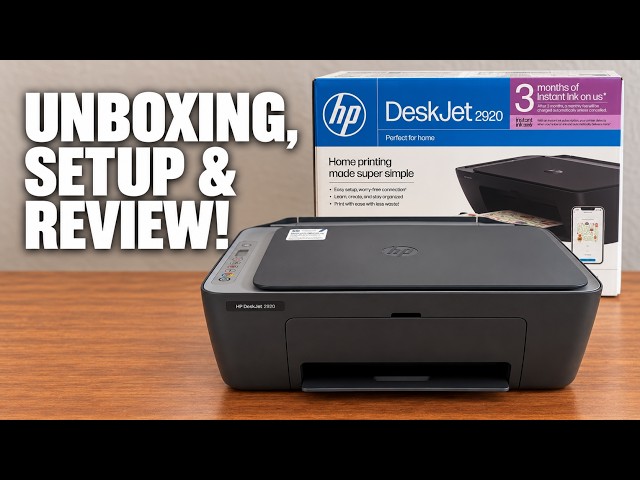
Set up the demonstrated DeskJet 2920 with paper, cartridges, alignment and iPhone Wi-Fi setup, then add it on a Mac and save a scan.
Install the TS3750i cartridges and rear-tray paper, connect with Canon PRINT, correct the first-print paper settings, and add the printer on Windows.
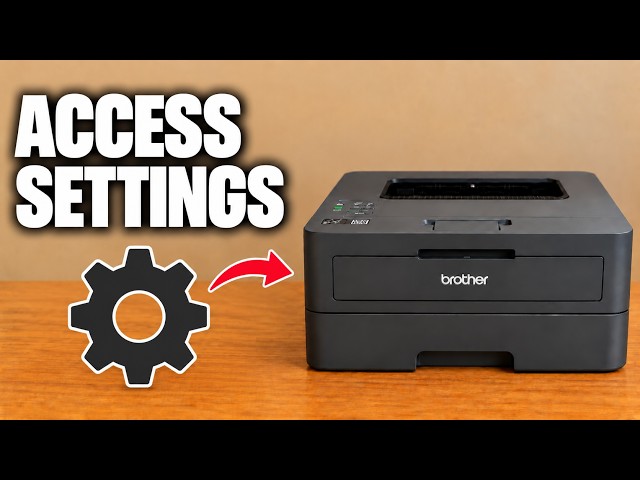
Use Brother Mobile Connect to open All Machine Settings, then sign in to the printer’s own web page with its current administrator password.
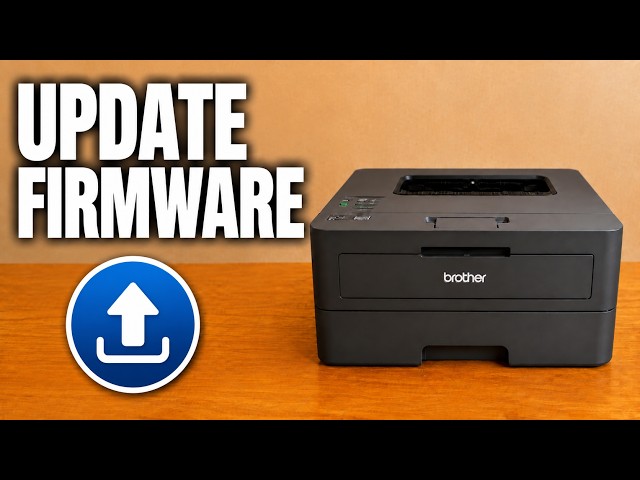
Open the firmware update in Brother Mobile Connect, use the printer’s administrator password and let the update and restart finish.
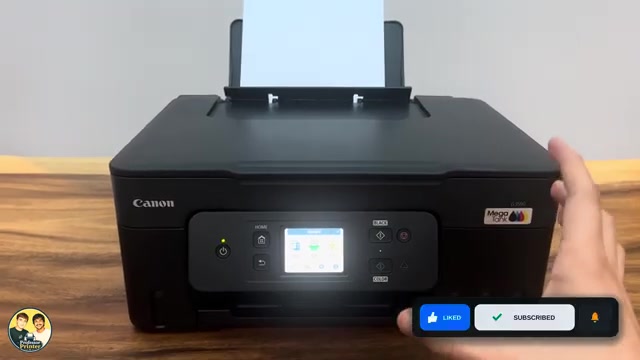
Change Keypad volume to silence Canon PIXMA G3590 button and touchscreen beeps. Alarm volume and printing noise have separate settings.
Load paper and setup cartridges, align the printer, connect it to home Wi-Fi with an iPhone, then add the existing printer on a Mac.
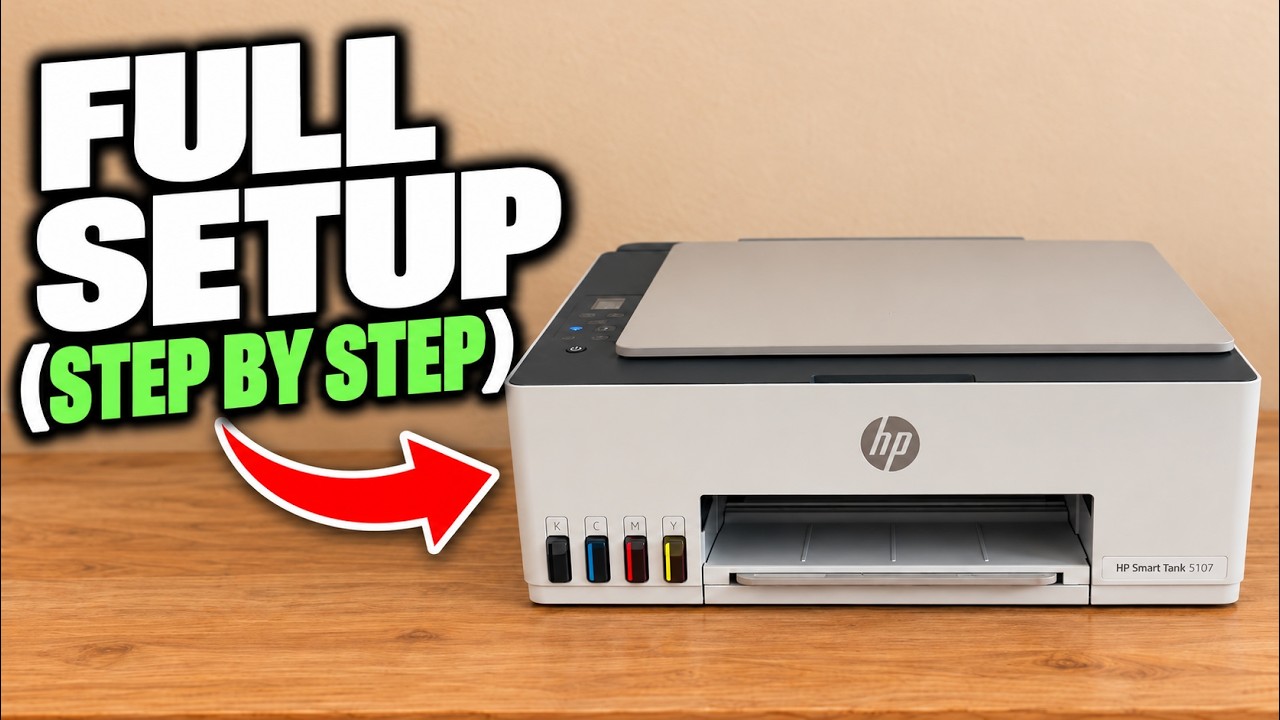
Set up the Smart Tank 5107 hardware, complete its alignment sheet and connect it to home Wi-Fi with the HP iPhone app.