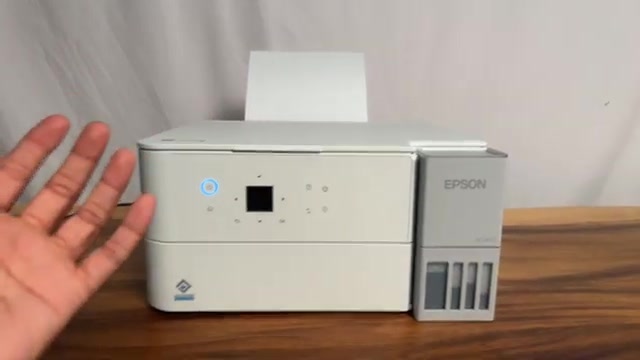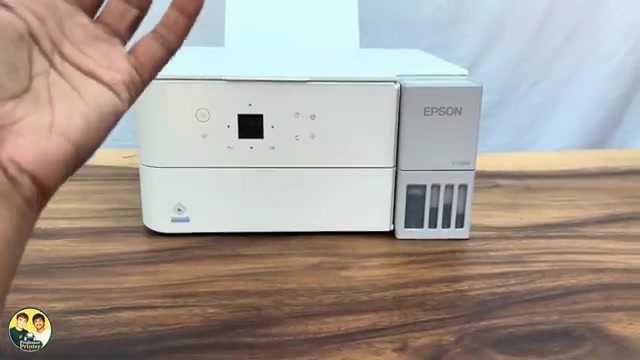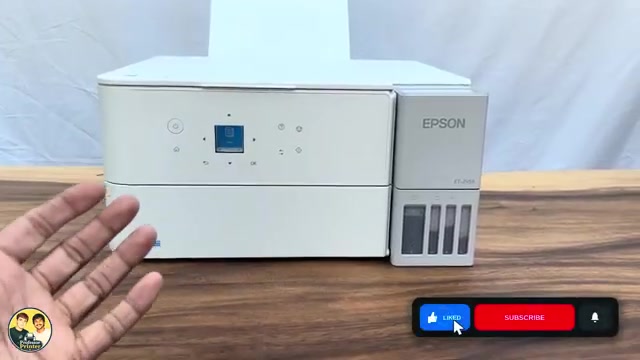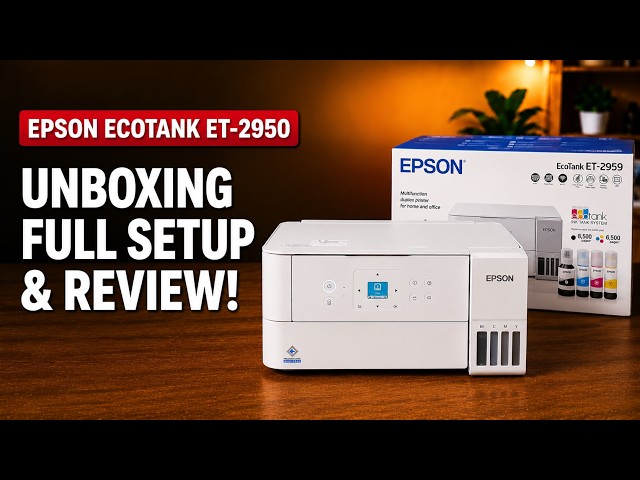
Epson EcoTank ET-2959
Epson EcoTank ET-2959 setup: ink, Wi-Fi and Windows
Set up the ET-2959 with Epson Smart Panel: fill and charge the ink, join Wi-Fi, complete alignment, then check Windows printing and Epson Scan 2.
Getting startedRead & watch
Find your next step, from getting connected to everyday printer tasks.
Guides shown here are assigned to this exact model. Similar model names are kept separate.
5 guides across 6 tasks
Set up the ET-2959 with Epson Smart Panel: fill and charge the ink, join Wi-Fi, complete alignment, then check Windows printing and Epson Scan 2.
Set up the ET-2959 with Epson Smart Panel: fill and charge the ink, join Wi-Fi, complete alignment, then check Windows printing and Epson Scan 2.
Set up the ET-2959 with Epson Smart Panel: fill and charge the ink, join Wi-Fi, complete alignment, then check Windows printing and Epson Scan 2.
Choose ordinary or power cleaning from the nozzle pattern, let the cycle finish and check again. Use Epson’s waiting limits instead of repeating maintenance indefinitely.
Print and inspect the nozzle pattern before choosing maintenance. Complete lines need no cleaning; missing segments call for the appropriate next check.
Match the printer’s ink estimate to the visible tank levels with Set Ink Level. Use the separate full reset only after the corresponding tank has been refilled.
Use 1→2-Sided copying to put two scanned sides on one sheet. Turn the original on the scanner glass when prompted; the printer handles the two-sided output.
Choose ordinary or power cleaning from the nozzle pattern, let the cycle finish and check again. Use Epson’s waiting limits instead of repeating maintenance indefinitely.
Print and inspect the nozzle pattern before choosing maintenance. Complete lines need no cleaning; missing segments call for the appropriate next check.
Browse documented model families. Check each guide’s demonstrated printer before using its instructions.