Before you start
- Install the current Epson Scan 2 software for your exact model and Windows version from Epson’s support page. The printer must already be connected to this computer.
- Have the originals in their intended page order. A saved digital scan and a printed paper copy are different results.
Step 1:Place the original and select the scanner
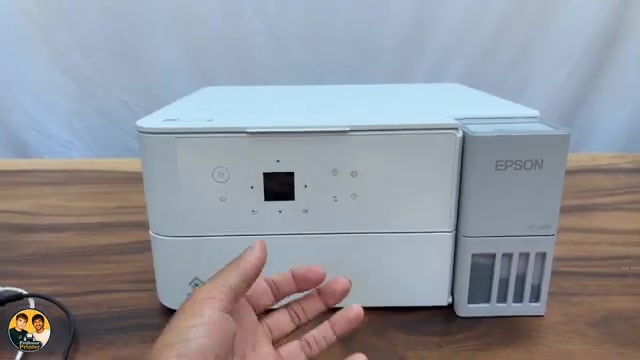
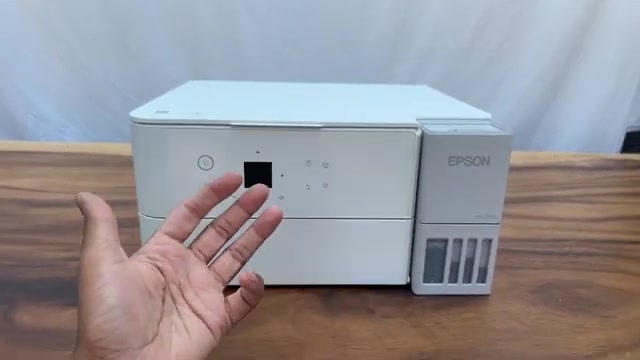
- Lift the document cover and place the side you want to scan face down on the glass, aligned with its corner mark. Close the cover gently.
- On Windows, search for Epson Scan 2 and open it. Confirm that the selected scanner is your ET-2950 or ET-2959 before starting.
- Select Document Mode for a page of text, or Photo Mode for a photo. Use Scanner Glass for the source and check the original’s document size.
Step 2:Choose the image and file settings
Choose colour, greyscale or black-and-white and a resolution appropriate to the result you need. A higher resolution increases detail but also scan time and file size. The source’s low-resolution example is not a requirement for every original.
Choose Image Format, File Name and Folder before scanning. PDF is useful for documents, especially several pages in one file; JPEG is useful for a photo. Remember the chosen folder instead of assuming every scan goes to Documents.
Use Preview if you need to check the selected area. The broader walkthrough’s Photo Mode preview crops to the image; when you need the entire page, review the area in Document Mode and check that nothing important is excluded.
Step 3:Scan and check the saved file
Choose Scan and wait for completion. If you are saving one page without the add-pages option, open the resulting file from the folder you selected. The source opens its destination automatically; if your setup does not, navigate to the chosen folder yourself.
Check orientation, legibility and missing edges. A finished progress bar does not confirm that the correct page or destination was chosen.
Step 4:Combine pages into one PDF
- Before starting, choose Document Mode, PDF and Add or edit pages after scanning. Set the filename and folder for the combined document.
- Scan the first page. When the completion dialog appears, leave it open while you replace the original with the next page, face down at the glass mark. For a two-sided sheet, turn it over manually.
- Choose Add to scan that next page. Repeat for the remaining originals before choosing Save.
- Review page order with the editing options if needed, then Save. Open the final PDF and check the page count and sequence.
The source scans its first page second and points out the resulting order. Arrange the originals first, or correct the order in the page editor before saving. Saving after every single page would not follow this one-file workflow.
Step 5:If the scanner is missing or the result is incomplete
Check that the intended device is selected and that Epson Scan 2 is installed for that exact model. For Wi-Fi, confirm that the computer and printer are on the same network. For USB, check the direct cable connection.
If a network scan fails at a high resolution, Epson suggests trying a lower resolution. If the printer displays a scanner error, follow the separate scanner-error guide. Repeatedly changing photo settings will not clear a hardware error message.
Questions & troubleshooting
Where did my scan go?
Look at the Folder value you selected in Epson Scan 2. The demonstrated software opens that folder, but the article does not assume a universal save location.
Does this scan both sides automatically?
No. The source places each side on the scanner glass manually and uses Add to include the next scan in one PDF.
Why is only the photo saved, not the whole page?
Check the preview and selected scan area. Use Document Mode and the correct document size when you need the full original, then inspect the saved file.