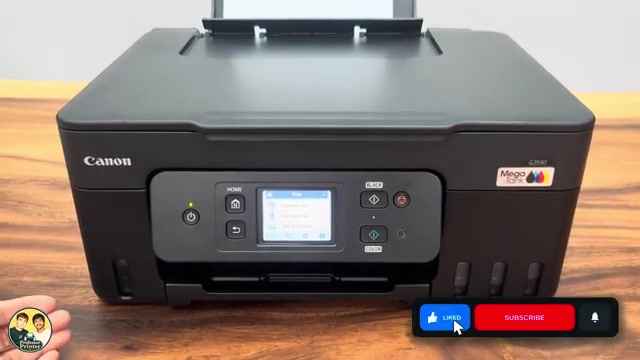
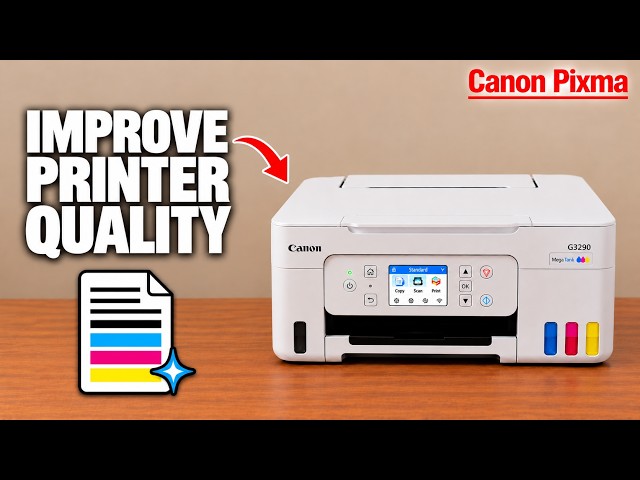
The buttons around the screen
- Home returns to the home page.
- Back returns to the previous menu.
- Black and Color start the corresponding copy.
- Stop cancels an active print operation.
Copy and scan shortcuts
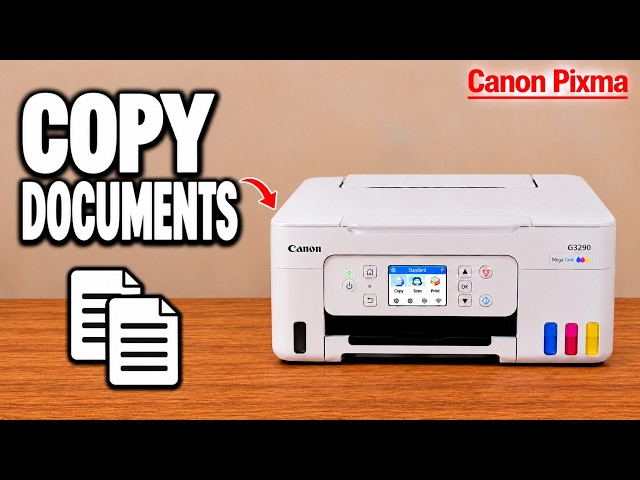
Open Copy → Standard copy for the copy count and settings such as paper size, quality, magnification and two-sided layout. The Copy menu also contains presets including ID card, frame erase, borderless and photo copying.
Scan offers destinations such as a computer or smartphone. Set up that device with the printer first; choosing a destination on this screen does not itself complete the device connection. Most document printing begins in the sending phone or computer.
Match the loaded paper
When you remove and reload paper in the rear feeder, the printer displays a paper-setting prompt. Choose Change and set the actual paper size and type. Feed settings also provide access to the rear-tray settings and paper-mismatch behavior.
Two different wireless shortcuts
The network icon at the lower left opens Wi-Fi and Wireless Direct settings. Wi-Fi setup → Manual connect lets you choose your router and enter its password. Wireless Direct instead makes a direct connection from your device to the printer.
The linked-chain shortcut opens Easy wireless connect for setup through Canon PRINT. Use the detailed connection guides below when changing networks.
Useful settings to know
- Home-screen editing changes which shortcuts appear and their order.
- Power control contains automatic power-on and power-off choices.
- Other printer settings include sound controls and reminders.
- Firmware update lets you check the installed version and available updates.
- Quiet settings provide the quiet-mode controls.
Maintenance and reset settings
Maintenance includes Nozzle check, Cleaning, Deep cleaning, Print head alignment, Roller cleaning and Head replacement. Choose the tool that matches the symptom and read its prompts. Cleaning and replacement procedures have their own guides.