Match the paper to the photo job
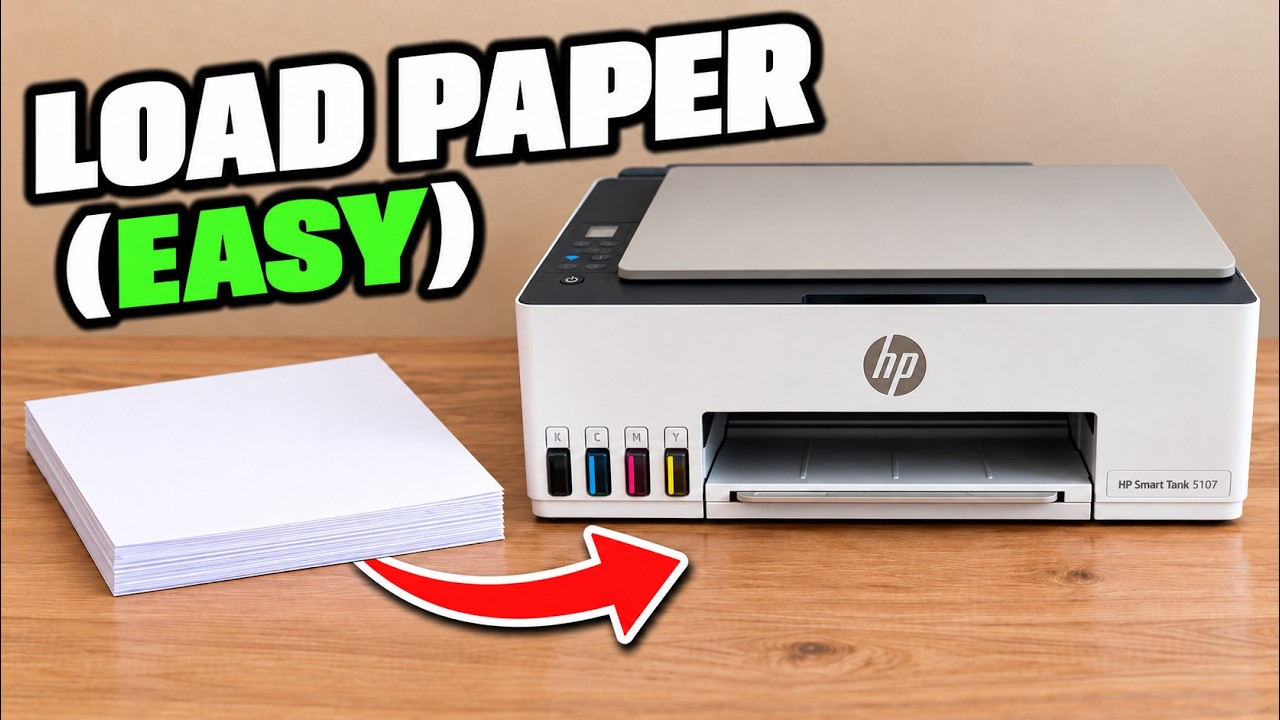
Connect the HP app to the printer and choose a photo saved on your phone. Load supported plain or photo paper with its printable side facing up in the rear tray, then fit the width guide and extend the output tray.
Photo paper is available in different finishes and weights. Use supported media and the setting that matches it; glossy is not the definition of all photo paper. This source uses plain paper while explaining the options.
Step 1:Select the picture and inspect the layout
Open Print photos, select the image and set the actual paper size and type. Review crop, rotation, position and any offered border setting. Make sure important edges are not removed from the preview.
Use image adjustments only when they suit the original. Increasing brightness is a choice, not a universal quality fix. Borderless availability depends on supported media and settings; a control in the app is not proof that every paper combination supports it.
Step 2:Check final quality and colour
Choose Next to reach the final print preview. Recheck paper size/type, select colour if wanted, and choose Best when output quality matters more than speed. Normal or Draft may suit less demanding work.
Higher-quality printing can take longer. Do not diagnose a fault from the presenter’s expected speed alone or interrupt a job that is still progressing.
Step 3:Print one photo and check it
Send the job and let the sheet finish. Inspect the result for crop, orientation, colour and paper suitability before making more copies. Use the diagnostic guide for actual streaking or missing colours rather than repeatedly changing photo settings.
The recording demonstrates the settings; it does not show a completed photo-paper comparison. It therefore does not establish a measured quality improvement or a “best” paper product.