Prepare a two-page trial
The 5107 supports manual duplex, not an automatic paper-turning unit. This guide covers a two-page PDF on one plain sheet using the phone app’s page range. It is not a stack-order procedure for a long document.
Use plain paper weighing 60–105 g/m² and a portrait document intended to turn like a book. Do not use this two-pass method with envelopes, glossy/photo paper or transparencies. Finish the printer’s setup and connect the HP app before starting.
Step 1:Print page one only
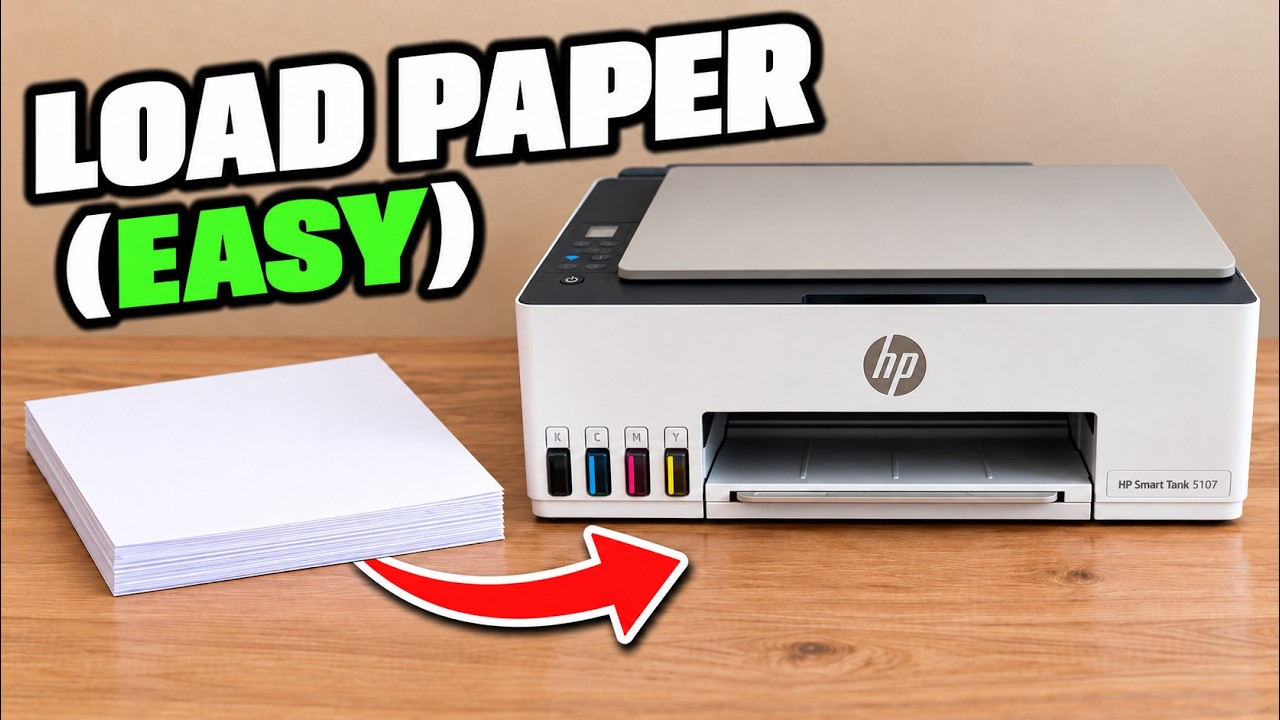
Load plain paper with its printable side facing up in the rear tray, fit the width guide and extend the output tray. In the HP app, select this printer, open Print documents and choose the PDF. Open Print preview and Page range, then select only page one. Check the paper size, orientation and other settings before printing.
Keep the document’s print screen available while the sheet finishes. Printing every page now would produce separate sheets rather than the intended two-sided result.
Step 2:Reload the printed sheet for its reverse
Allow the ink to dry and remove unused sheets from the input tray so the intended sheet feeds next. For this portrait, book-style result, HP’s top-loading instructions place the already printed side down, blank side facing up, with the page’s top edge entering the feeder first.
Bring the width guide to the sheet without bending it. The video describes this as turned around and upside down; the explicit side and edge directions here avoid relying on the camera viewpoint. For another orientation or binding edge, establish the correct feed with a trial sheet first.
Step 3:Select page two and print the reverse
Return to Page range, deselect page one and select only page two. Choose Print or Reprint as displayed. Wait for the same sheet to pass through again and finish emerging.
Check that the two sides contain the intended pages and remain upright when turned along the long edge. The source reports its completed two-sided sheet. If one side is upside down, correct the reload orientation before printing an important document.