Before you start
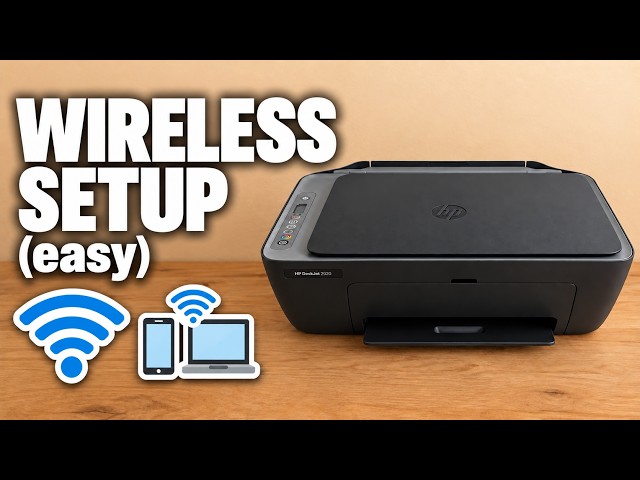
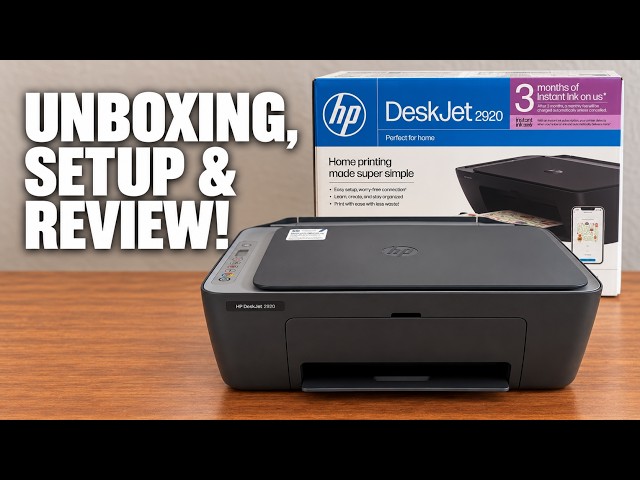
- Printer already configured on Wi-Fi and added to the Mac; both devices on the same reachable local network.
- The original document on the flatbed. This is not an automatic two-sided scan.
Step 1:Place the page on the scanner glass
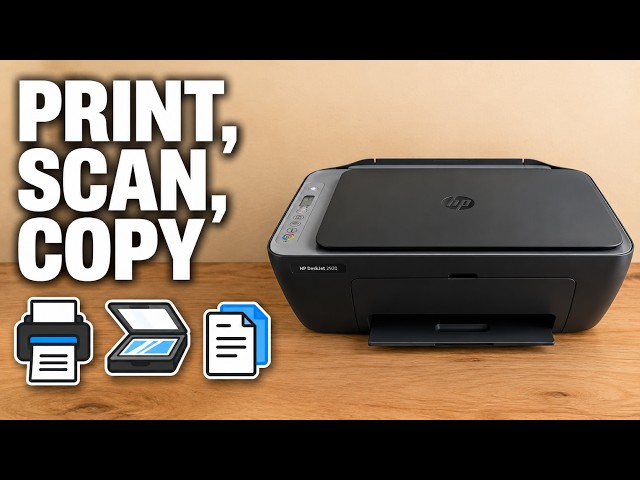
Lift the scanner lid, place the original face down against the marked corner and close the lid gently. HP’s manual identifies the corner and alignment marks; use those rather than the camera’s left/right perspective.
Step 2:Open the connected scanner
The source selects its printer in the Mac’s Print Center app and clicks the scanner icon. Apple also documents System Settings → Printers & Scanners → your printer → Open Scanner. Choose your DeskJet, not another printer on the network.
Step 3:Choose what to scan and where to save it
Use Overview to inspect the page, then Show Details if needed. Select the document area or size, colour setting, file name and format. Choose a destination with Scan To; Pictures is the source’s selected folder, not a universal default.
Check that the preview includes the whole page. An overview prepares the scan; it does not by itself confirm that a file has been written.
Step 4:Click Scan and check the saved file
Click Scan and wait for capture to finish. Open the chosen destination and the new file. Confirm its orientation, readable text and complete edges before removing the original. For another side, turn the original over and repeat the flatbed scan.
Questions & troubleshooting
The printer or Open Scanner control is missing.
Confirm the printer is on the same reachable network and has been added to the Mac. Apple notes that missing Open Scanner can mean scanner setup is incomplete. Use the exact model’s support rather than choosing an unrelated driver.
I can see an image but cannot find the file.
Check Scan To and complete Scan. The preliminary Overview image is not proof of a saved document.