Before you start
- Use flat paper supported by this printer. Check the size on its packaging.
Step 1:Extend the support and open the guides
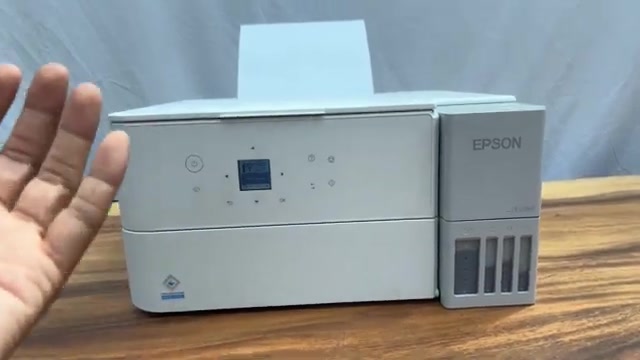
At the rear, pull the paper support up and tilt it back. Open the feeder guard enough to reach the edge guides. Move the guides apart so the paper fits between them. The recording shows that the guides may initially be closed together.
Step 2:Place the paper without forcing it
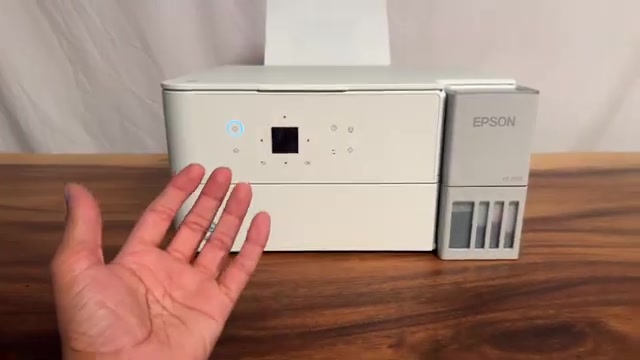
Set the paper in the centre of the rear feeder, printable side up and short edge first. Keep it below the guide’s fill mark. Slide both guides in until they touch the paper edges without squeezing the stack.
The paper should rest naturally in the feeder. The fraction of a sheet visible in the video is not a measurement to reproduce or a reason to push paper farther in.
Step 3:Match the paper settings
Confirm the loaded paper’s size and type on the printer. When you print or copy, check that the job uses that same size. The source uses A4; choose Letter only if you actually loaded Letter.
This tutorial is about paper for printed output. Scanning an original does not itself require loading output paper.
Step 4:Check the loaded stack
Look for a straight stack with the rear support raised and the edge guides aligned to it. Correct a tilted or squeezed stack before printing. The video shows the loaded feeder; it does not demonstrate a completed print or prove that a feeding fault has been repaired.
Questions & troubleshooting
Can I leave the guides wide open?
Move them to the paper edges. The recording demonstrates how the guides keep the stack aligned, especially when changing sheet size.
Does this prove the same method works on every EcoTank?
No. This page is limited to the listed ET-2950 and ET-2959 models supported by the applicable Epson documentation.