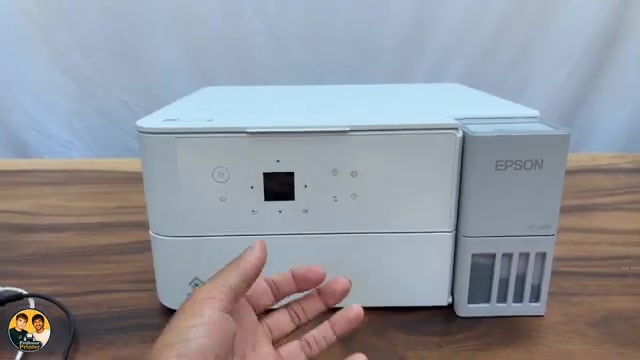
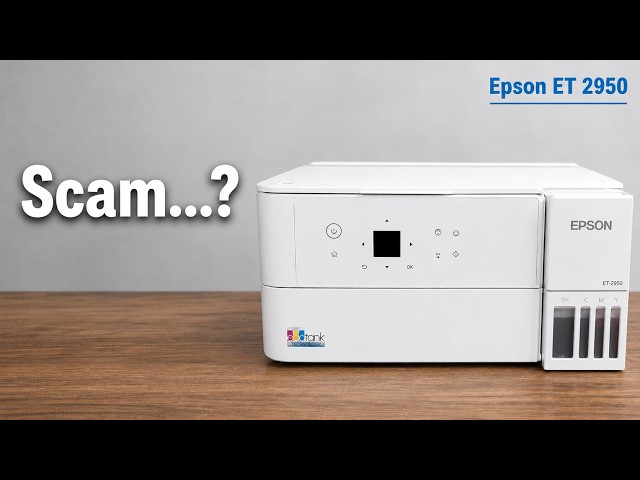
Before you start
- The printer needs a working network connection with internet access. Complete current jobs and leave its power connection stable.
- For the optional phone route, Epson Smart Panel must already have this exact printer selected on the shared network.
Step 1:Check from the printer’s screen
- From Home, open Settings → Firmware Update.
- Choose Update to check for an available newer version. Read the resulting message.
- If an update is offered, review the information and confirm only when you want to install it. If no update is available, the check is complete; there is nothing to force.
Step 2:Let the chosen update complete
Return to Settings → Firmware Update → Current Version to read the installed version. This guide does not specify a latest version number or claim that every check installs new firmware.
Step 3:Optional: check through Smart Panel
In Epson Smart Panel, confirm the selected printer at the top of the app. Open its printer/status area, scroll to Firmware Update and select it. Read the available-update result and follow the prompts if you choose to proceed.
If prompted, enter the current printer administrator password. This protects printer settings and is different from the router’s Wi-Fi password. Use the administrator-password guide if you need to identify the correct credential.
This is an alternative way to check the same printer, not another update you must run after using the control panel. The source shows the check route; no specific completed version change is verified here.
Step 4:If the check or update fails
For a failed network check, confirm the printer is online and try again after resolving the connection. If the LCD says Recovery Mode, follow Epson’s separate firmware-recovery instructions and exact-model download page; the manual says recovery uses USB rather than a network update.
Do not interrupt an update merely because it is taking longer than the narration suggests, install firmware for a similar-looking model or treat an update as a guaranteed fix for every print fault.
Questions & troubleshooting
Should I press OK through every message?
Read the check result and the update offer. An available update is a choice; a no-update result is not an error that needs to be bypassed.
Do I need to update from both the app and printer?
No. The video presents alternative entry points. Check the installed version and completion state before considering another action.
Is the source’s estimated duration a deadline?
No. Follow the actual printer progress. Do not cut power when an estimate expires.