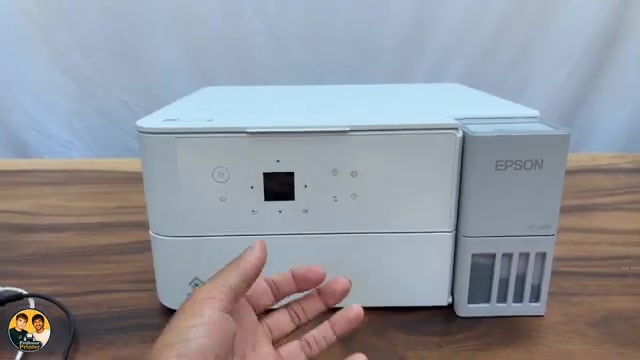
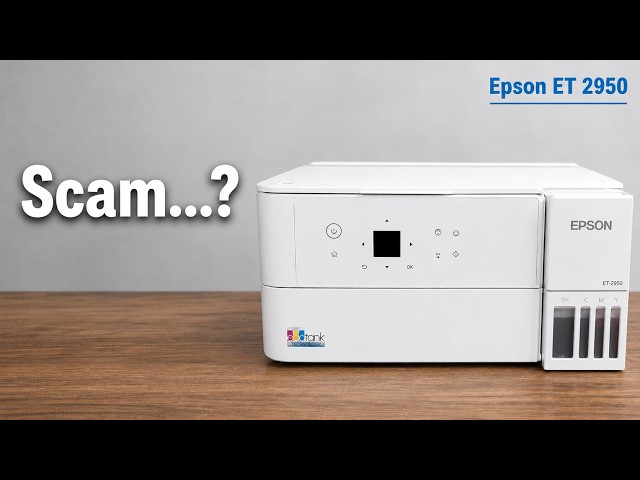
Before you start
- The printer must be ready, with paper loaded and no unresolved error. Join it to your own Wi-Fi using the printer’s setup guide if needed.
- Connect the Chromebook to the same network. On a managed school or work Chromebook, adding a printer may require the administrator.
Step 1:Use the same Wi-Fi network
Check the printer and Chromebook are using the same network. In the source, Wi-Fi Setup → Wi-Fi → Wi-Fi Setup Wizard is used before the Chromebook setup. Choose your own known network by name; the strongest signal is not necessarily yours.
If the printer is already connected correctly, leave that connection in place. Do not reset its network just to add another computer.
Step 2:Find and save the printer
Open Chromebook Settings and look for Printers and scanners, then Print. In the current layout this is under Device; searching Settings for “printer” can locate it when your layout differs.
Find the intended Epson under Other available printers and choose Save. Confirm it appears among your saved printers. Do not choose a nearby device merely because it appears first.
Step 3:Choose the printer and print one page
Open the file or page you want and use its Print command, or Ctrl+P. Check Destination; use See more if needed and select your Epson. Review size, orientation, page range and available paper options before printing.
Send one page and inspect the actual output. The source demonstrates a print job starting from a Chromebook. A saved entry alone is not proof that the desired file has printed correctly.
Step 4:If the printer does not appear
Check it is awake, ready and still on the same network. Allow discovery time and reopen the printer list. If the device is managed, ask its administrator about printer restrictions.
Use Google’s linked setup guidance for an unavailable or unsaved printer and Epson’s current ChromeOS help for model-specific questions. This guide does not invent an IP address, queue or Windows-driver workaround.
Step 5:Chromebook scanning uses a different built-in tool
The video says Chromebook scanning is unavailable because Epson Scan 2 cannot be installed. That conclusion is too broad: Google and Epson document ChromeOS’s built-in Scan app. Desktop Epson Scan 2 is not the ChromeOS route.
For a scan, consult the linked Google scanner instructions and check whether the exact device is available in Scan on the shared network. The video demonstrates printing, not a completed Chromebook scan, so this article does not claim a scanned result from the recording.
Questions & troubleshooting
Do I need Epson Scan 2 to print from ChromeOS?
No. This route uses the built-in ChromeOS printing system. Epson’s desktop software is a different workflow.
Does the video prove Chromebook scanning is impossible?
No. ChromeOS has a built-in Scan app documented by Google and Epson. The recording did not demonstrate that workflow.
Should I choose the strongest Wi-Fi network?
Choose your own known network by its name and connect both devices to it. Signal strength alone does not identify the correct network.