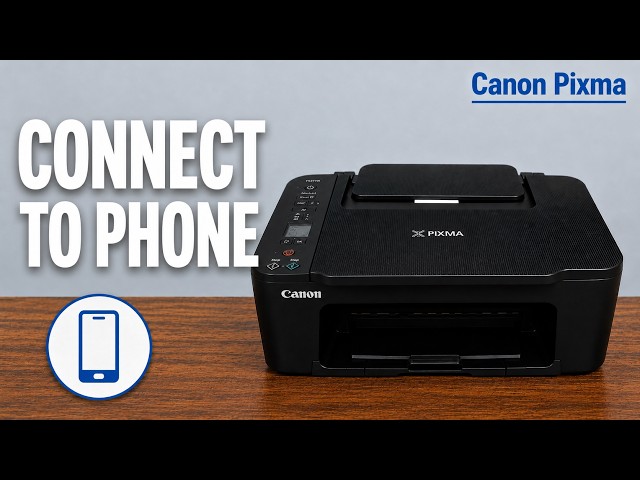
Before you start
- An iPhone and printer on the same network, an AirPrint-capable app and matching supported paper.
Check the connection and paper first
Turn on the printer and allow it to reconnect to your home network. Connect the iPhone to that same Wi-Fi. If the printer has not been configured, complete its connection setup first; AirPrint does not perform that initial setup for you.
Load appropriate paper vertically in the rear tray with its printable side facing you, fit the guide and extend the output tray. Confirm the loaded size using Paper Select and OK. Have the document or photo ready in an application that supports printing.
Step 1:Open Print from the document’s menu
In the iPhone app, open Share or Actions, scroll to Print, then tap the printer selector. Choose your matching Canon printer from the available list. The exact icon location varies by app; not every app exposes an AirPrint option.
Step 2:Match the paper and send the job
Review the displayed page range, number of copies, paper size and any available colour or media settings. Choose values that match the paper actually loaded and check the preview before tapping Print.
AirPrint options depend on the app and printer. The source’s “any Apple device” phrasing is not a promise of identical screens or every setting on every device. This page follows the demonstrated iPhone workflow.
Step 3:Check the page or cancel the queued job
Wait for the page to finish before checking its content, borders and orientation. The presenter reports successful output in the source; this guide does not claim a separate physical print test.
For an active job, open Print Center from the iPhone’s app switcher and cancel the selected job if needed, or use the printer’s Stop button. If the printer is missing, verify the same network and allow reconnection time. Canon also requires Bonjour to be enabled for AirPrint.