Before you start
- Your original document, with both sides to be copied.
- Plain copy paper in the rear feeder and room to collect and reload the first output.
Step 1:Place the first side face down
Open the scanner lid and place the side you want to copy first face down on the scanner glass. Align it with the corner marks shown near the top-left area in the recording, then close the lid.
Step 2:Make the first-side copy
Press Black for a black-and-white copy or Color for a colour copy. Professor Printer makes one copy in the demonstration. To request more, he presses the same button again until the required copy count appears.
Wait for the first-side output to finish before taking the sheet for the second pass.
Step 3:Turn and reload the printed sheet
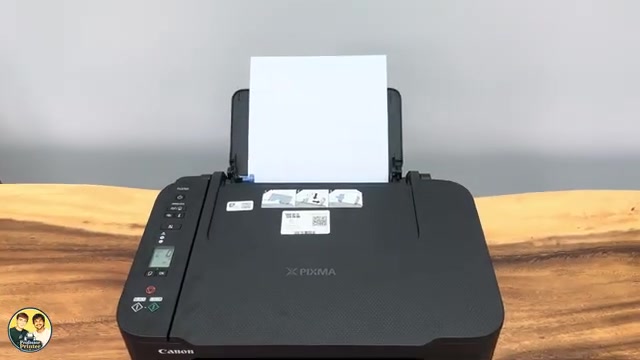
Take the first printed copy, turn it over and put it back into the rear paper feeder so the blank side faces you, as shown below. The second pass needs that unprinted face available for the other side of the document.
Step 4:Turn the original over on the scanner
Open the scanner lid. Turn the original document over so its other side is face down on the glass. Align it at the same corner and close the lid.
Step 5:Copy the second side and inspect the sheet
Press the same Black or Color button used for the first pass. Use the same number of copies if you requested more than one on the first pass.
Collect the output and inspect both faces. Professor Printer turns the finished sheet over to show the double-sided result. Each face should contain the corresponding side of the original; also check which way the page turns for reading.
If you want several copies
Professor Printer explains that the method can be repeated for multiple copies: put the first-side copies at the front of the rear paper feeder and request the same count for the second side. Keep track of the sheets already printed so blank paper is not used for the second pass.
The source demonstrates one finished sheet. It does not show a separate multi-sheet stack-order test, so confirm the first two-sided result before repeating the sequence.
Questions & troubleshooting
Is this automatic duplex copying?
No. You reload the paper yourself and turn the original over on the scanner. The video teaches two ordinary copying passes.
Should I press Black or Color again for the second side?
Use the same copy button and the same count that you selected for the first side, as the source explains.
Does the recording specify book-style or flip-up page orientation?
No. It shows the manual reload and a completed sheet but does not name the binding edge. Inspect the direction of both faces before making further copies.