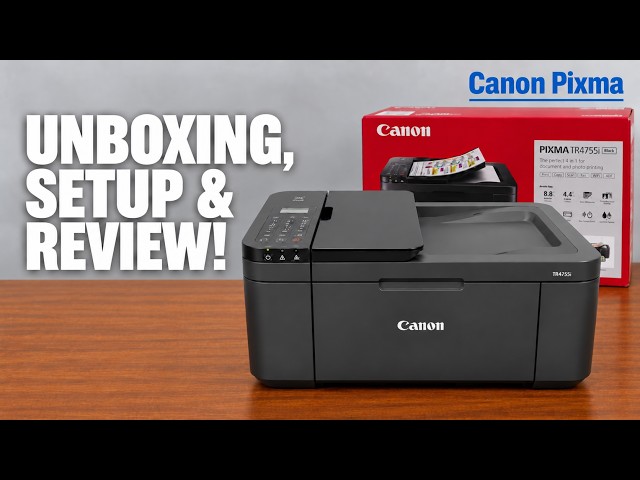
Before you start
- Use flat, supported plain paper of one size. This guide does not give a capacity for photo stock or envelopes.
Step 1:Prepare the front tray and stack
- Align the sheet edges and flatten curled corners.
- Open the front cover gently. Move the right paper guide outward to open both guides.
- Keep the printer stationary with enough clear space for the front output tray.
Step 2:Insert paper print-side down
- Place the stack centrally in portrait orientation, with the side to be printed facing down.
- Insert its leading edge until the printer sounds and the paper-registration screen appears. Do not push it forcefully beyond the normal loading position.
- Move the right guide until both guides meet the stack edges without bending them. Keep the stack below the tabs on the guides.
The source does not clearly name the printable-side orientation; Canon’s exact loading instructions supply it. Landscape loading or overtight guides can cause feeding problems.
Step 3:Open the output tray and support
- Open the paper output tray.
- Pull out the paper output support and open its tray extension.
- Leave that output path open while printing, including during an automatic two-sided job.
Step 4:Register size and plain-paper type
- Press OK on the paper-registration screen.
- Use left/right to choose the size actually loaded, then press OK.
- Select Plain paper and press OK. Read any further registration message rather than repeatedly pressing OK without checking it.
- In the computer or phone print settings, choose the same actual size and appropriate plain-paper media type.
The printer compares registered paper information with the job settings when mismatch detection is enabled. Correct a mismatch instead of disabling the check merely to continue.
Check the first sheet
Send one intended page and confirm straight feeding and normal output. Loading paper alone does not start a print.
Questions & troubleshooting
Which way should the printable side face?
Down in this front tray, with the stack in portrait orientation.
Should I keep pushing if paper will not go farther?
No. Follow the loading sound/registration state and normal stop. If a sheet is caught, identify the LCD condition rather than forcing it.
Why does paper registration matter?
The printer and sending application need to agree with the loaded size and media type. Incorrect settings can cause a mismatch error or poor output.