Before you start
- Have a working telephone/fax service and the appropriate telephone cord. Wi-Fi printing and an Ethernet cable do not supply a fax line. For DSL, VoIP or a business PBX, use the provider’s applicable connection arrangement.
- Confirm your actual sending fax number, sender name and recipient’s fax number. Have suitable sheet originals and plain paper available for reports.
Step 1:Connect the telephone line to the correct socket
- With the printer off, connect the telephone cord to the rear LINE socket and the telephone wall socket or the applicable provider connection. Use Canon’s connection diagram to identify LINE.
- If a telephone will share the connection, attach it to the printer’s EXT socket as shown in Canon’s diagram. Do not insert an Ethernet cable into these sockets.
- Turn the printer on. Keep it upright for this ordinary cable connection; the source’s suggestion to lay it on its side is unnecessary.
A router may provide a designated telephone service port, but its Ethernet network socket is not interchangeable with a telephone line. Canon gives separate connection diagrams for DSL, VoIP and other arrangements.
Step 2:Choose the line use and check the setup result
- Press Setup, select Fax settings and press OK. Select Easy setup, then Start setup, following the displayed connection prompts.
- Run the telephone-line check when requested. Choose shared fax/telephone use if you also take voice calls, or fax-only use for a dedicated fax line.
- Review the resulting receive mode and telephone-line type before confirming. The source selects fax-only and tone for its example; do not copy those choices if they do not match your service.
Fax-only mode answers as a fax rather than a normal voice telephone. If your provider requires a different dialing type, Canon’s Fax user settings → Telephone line type setting is the relevant adjustment; ask the provider when the service type is uncertain.
Step 3:Register sender details and the clock
- Open Setup → Fax settings → Fax user settings. Choose Add unit tel. number, enter the actual fax/telephone number for this line, and press OK.
- Choose Add unit name, enter your real sender name and press OK. Use the numeric keys for characters and the Tone (*) key to switch letter/number input as needed. Do not copy the example’s random name or number.
- Check the clock under Setup → Device settings → Other dev. settings → Date/time setting. Use the arrows to move between positions and the numeric keys to enter the date and 24-hour time, then press OK.
- Press FAX to return to standby. These details form the sender information on a received fax; registration does not by itself prove delivery.
Step 4:Load the original and send to the checked recipient
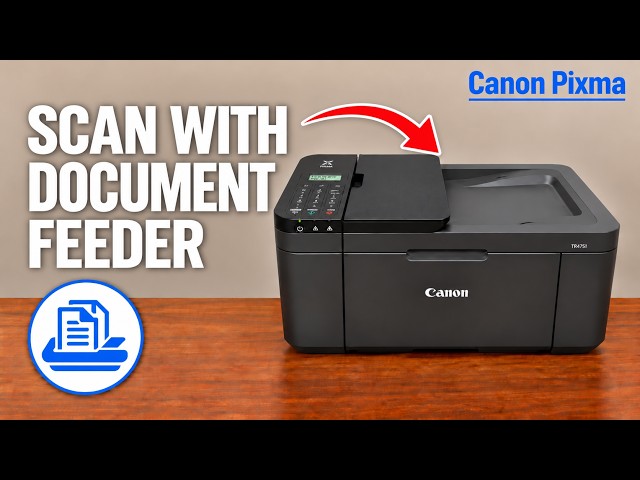
- Open the document tray. Fan suitable plain-paper originals and load them face up in the ADF, leading edge first, until the feed position is reached. Adjust the document guide without squeezing. Keep photos, fragile pages and attached items out of the ADF.
- In FAX mode, enter the recipient’s complete fax number and check it before sending. Adjust the scan contrast/resolution if needed for the document.
- Press Black to send a black-and-white fax. Wait while the printer scans and transmits; do not remove the original, open the feeder or disconnect power during the operation.
This procedure uses the ADF. Glass faxing has an additional next-page/finish confirmation and is not the same automatic feed sequence. The source describes dialing and scanning but does not establish that a recipient actually received the fax.
Verify the transmission rather than just the scan
Check the displayed transmission outcome. Canon’s default TX report prints on error, so an absent printed report is not proof that the fax was never sent. You can review recent results by pressing FAX, then Menu → Print reports/lists → Activity report, confirming the print prompts with OK.
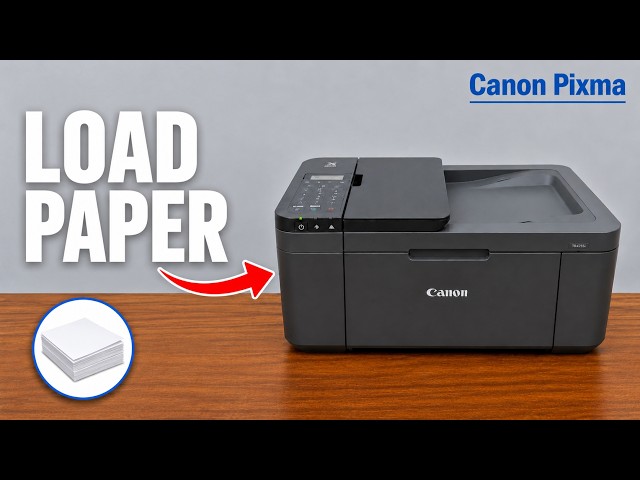
For the report, load plain paper centrally in the front tray, portrait orientation and print-side down, register its size/type, and open the output tray, support and extension. Read the result for the intended recipient. If it reports an error, correct that actual line/recipient condition before retrying, and check with the recipient if delivery remains uncertain.
Questions & troubleshooting
Can I fax over my printer’s Wi-Fi connection alone?
No. This guide uses the printer’s telephone-line fax hardware. A provider-specific telephone connection may be needed for a digital line.
Should I always select fax-only mode?
Only for a line intended to receive faxes without ordinary voice calls. Choose the actual shared-line arrangement when a telephone also uses it.
Does scanning the page prove it was delivered?
No. Check the transmission result or Activity report for the recipient. The source does not show a confirmed recipient receipt.
Will unplugging retain pending faxes?
No. Canon warns that disconnecting power deletes faxes in memory. Finish or otherwise handle them before unplugging.
References
- Professor Printer: source demonstration
- Canon: correct LINE/EXT telephone connections and power state
- Canon: fax preparation and stored-fax power consequences
- Canon: telephone-line type
- Canon: choosing a receive mode
- Canon: sender number, name, date and time
- Canon: Easy setup and fax settings
- Canon: sending a fax from the operation panel
- Canon: Activity and TX reports
- Canon: ADF face-up loading
- Canon: suitable originals
- Canon: plain-paper report preparation
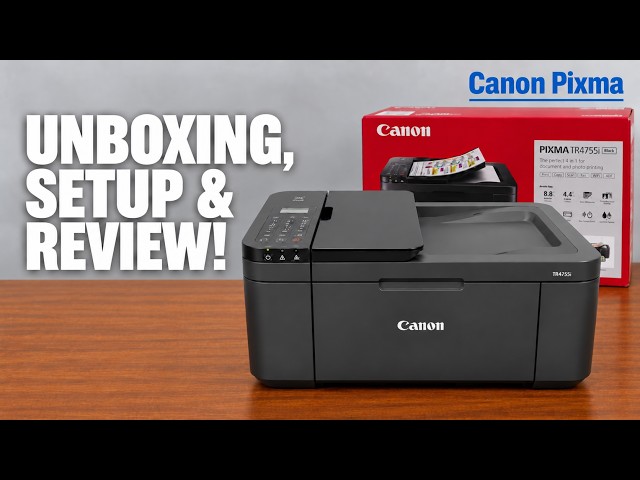
- Canon: applicable manual explicitly lists TR4720 and TR4755i