Before you start
- Have Canon PRINT for Windows installed with the intended printer already available. The recorded Windows workflow is distinct from the mobile app.
- Use flat plain-paper documents of the same size, thickness and weight. Remove staples and clips; keep photos, glued or sticky-note sheets, curled, torn and other unsuitable originals out of the feeder.
Step 1:Load originals face up in the feeder
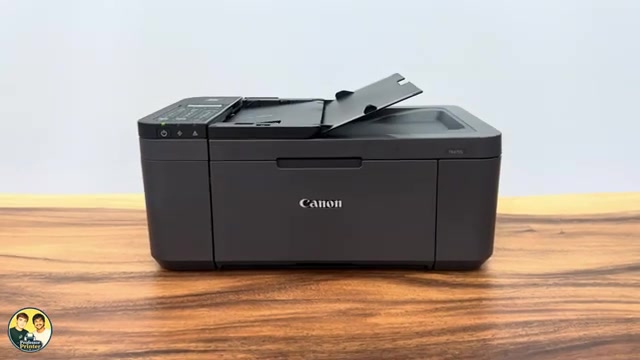
- Remove any original from the scanner glass. Open the document tray and move the document guide outward.
- Align the document edges and put the sides to scan face up, with the top leading into the feeder as shown by its orientation guide. Insert until the loading sound is heard.
- Adjust the guide to the document edges without creasing or forcing the sheets. Do not exceed the feeder’s capacity.
Canon specifies up to 20 A4/Letter sheets of 75 g/m² paper, no more than 2 mm high; Legal is limited to five such sheets and 0.5 mm. The permitted paper weight is 60–95 g/m². Use the glass for originals unsuitable for this feeder.
Step 2:Choose Document and ADF in Canon PRINT
- On Windows, open Canon PRINT and select the correct printer, then Scan.
- Choose Document as the original type and ADF as the source. Match the paper size and orientation. For this first workflow choose one-sided scanning.
- Select Scan and wait for every sheet to pass through and the result previews to appear. Do not pull the originals while they feed.
- Review the pages. Rotate or crop a preview if needed, and confirm the page count and reading order before saving.
A completed scan preview is not yet a saved PDF. The next step creates the file you can reopen and share.
Step 3:Save all pages into one file and reopen it
- Choose PDF as the output format. Select Save all pages and enable Save multiple pages to a single file.
- Select Save, choose the destination folder, enter a meaningful filename and confirm the save.
- Open that saved PDF from its folder. Check every page, its orientation and order, and that all intended pages are inside this single file.
For separate files, the recorded app allows Save all pages with the single-file option unchecked. Do not use the recording’s ambiguous Control-click plus Save current page suggestion as a reliable way to combine an arbitrary selected subset.
Step 4:For two-sided originals, follow the second-pass prompt
- Start a new scan with Document, ADF and two-sided scanning selected. Match orientation and the intended long- or short-edge binding.
- Load the first sides face up and scan the whole batch. Keep the ejected originals together and in order.
- When prompted, reload the opposite faces upward according to the app’s binding-specific diagram. Follow that diagram rather than applying one universal flip to both binding choices.
- Continue the scan, then inspect the resulting paired page order and orientation. Save all pages into a single PDF using the previous step, and reopen it to confirm.
For portrait originals, Canon’s IJ Scan Utility instructions distinguish a 180-degree rotation of the output stack for long-edge binding from unchanged output orientation for short-edge binding. Use the diagram actually displayed by your app and verify the final pages; the source’s short “flip them around” wording is not sufficient for every layout.
Questions & troubleshooting
Why do I get separate PDF files?
For one combined file, choose PDF, Save all pages and Save multiple pages to a single file before saving. Then open the saved file and check its page count.
Will the feeder scan both sides automatically?
No. Two-sided originals need a manual reload for the second face. Automatic duplex printing does not imply automatic duplex scanning.
Can I put photographs in the feeder?
No. Canon excludes photos and other unsuitable originals from this ADF. Use the glass for them.
Does the source’s phone suggestion use the same menus?
Not necessarily. These instructions describe the demonstrated Windows Canon PRINT workflow. Mobile controls and save/share destinations are separate.
References
- Professor Printer: source demonstration
- Canon: ADF loading, face-up orientation and no automatic two-sided scan
- Canon: original types, capacity and weight
- Canon: current Windows Canon PRINT scan and edit workflow
- Canon: exact-model manual duplex scanning and binding-specific reload
- Canon: applicable manual explicitly lists TR4720 and TR4755i
- Professor Printer: supporting source