Before you start
- Let an active operation finish. These instructions change the printer’s LCD menus and messages, not your computer or phone language.
Step 1:If you can read the current menus
- With the printer on, press Setup and wait for its menu.
- Use left/right to choose Device settings and press OK.
- Choose Language selection and press OK.
- Use left/right to select the language you want, then press OK.
The LCD should now show menus and messages in that language. This selection does not require a network reset.
Step 2:If the current language is unreadable
Use the exact TR4700 recovery sequence published by Canon. Start by pressing Setup, rather than continuing from an unknown submenu.
- Press Setup and wait a little for the menu to appear.
- Press the right arrow twice, then press OK.
- Press the right arrow four times, then press OK.
- Use left/right to select the desired language and press OK.
The new language should appear immediately. If the menu does not match this sequence, stop and confirm that the printer is one of the supported models; do not continue pressing OK through unidentified choices.
Confirm without resetting other settings
Open a familiar menu and check that you can read it. Changing the language is the intended remedy; Canon explicitly lists the LCD language among the settings that All data reset does not restore.
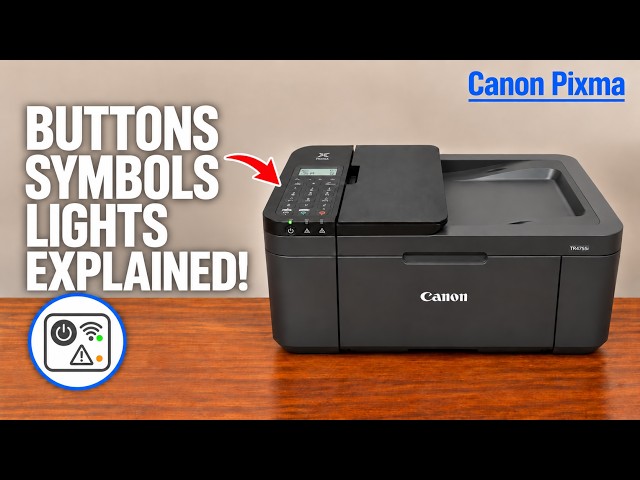
The video demonstrates the same two-then-four right-arrow route. No universal button count for other Canon printer families is implied.
Questions & troubleshooting
Will a factory reset put the display back into English?
Canon says the LCD language is preserved by reset. Use Language selection instead.
Does this change the language in Canon PRINT or Windows?
No. It changes the printer’s LCD messages and menus.
Where must I start the arrow-count sequence?
Press Setup and wait for its menu first. The counts are not intended for an arbitrary submenu.